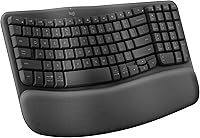
How to Connect a Logitech Wave Keys Keyboard
To connect a Logitech Wave Keys keyboard, pair it through Bluetooth or connect its Logi Bolt receiver, then select the matching connection on the keyboard. Use Easy-Switch to pair and move between up to 3 devices.
On this page (5 sections)
To connect a Logitech Wave Keys keyboard, pair it through Bluetooth or connect its Logi Bolt receiver, then select the matching connection on the keyboard. Easy-Switch lets you pair and move between up to 3 devices.
The keyboard can connect to a compatible computer, tablet, or phone. Choose Bluetooth for a wireless connection without a receiver, or use Logi Bolt when you prefer the receiver.
How do you connect Wave Keys with Bluetooth?
Open Bluetooth settings on your device, put Wave Keys in pairing mode, and select the keyboard when it appears. The exact menu names vary by computer, tablet, or phone.
- Turn on Wave Keys and keep it near the device.
- Press an Easy-Switch key to choose the channel you want to pair.
- Hold that key until its light blinks, which indicates pairing mode.
- Open your device's Bluetooth settings and choose the option to add or pair a device.
- Select Logitech Wave Keys from the available devices.
- Follow any on-screen prompt, then type a short test to confirm the connection.
If the keyboard does not appear, wait a few seconds and refresh the device list. Check that Bluetooth is on and the chosen Easy-Switch channel is blinking.
For a MacBook setup, see our guide to choosing an ergonomic keyboard for MacBook. It can help you compare compatibility and connection needs before you set up your desk.
How do you connect Wave Keys with Logi Bolt?
Connect the Logi Bolt receiver to a compatible USB port, then select the receiver connection on the keyboard. If your computer only has USB-C ports, use a compatible adapter or dock.
Wave Keys supports Bluetooth or Logi Bolt. Choose the option that fits your available ports and whether you want to keep a receiver connected.
For the MK670 combo, the receiver may be inside the mouse under its battery cover or attached within the packaging. Check both places before assuming it is missing.
Once connected, type a few words in a text field. If nothing appears, confirm that the receiver is fully connected and that the keyboard is set to the matching channel.
How do you switch Wave Keys between devices?
Pair each device on a different Easy-Switch channel, then press that channel's key to change devices. Wave Keys supports up to 3 connected devices.
For example, you might pair a laptop on one channel, a tablet on another, and a phone on the third. Pair each device separately before trying to switch between them.
The MK670 combo's keyboard can switch devices, but its Signature M550 L mouse does not use Easy-Switch. The keyboard can move to another device while the mouse remains connected to its own host.
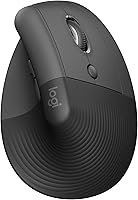
The Wave Keys and Lift combo includes Wave Keys and the Lift vertical mouse. Logitech describes the two as a matched set, with multi-device connection and Easy-Switch on the keyboard.
If you're deciding whether the wavy layout suits your typing, read what a wave keyboard is and who it suits. For a broader look at desk setup, see our guide to typing on an ergonomic keyboard.
What should you check if Wave Keys will not connect?
Confirm the keyboard is on, the right Easy-Switch channel is selected, and the connection method matches your device. Then try pairing again from the device's Bluetooth settings or reconnect the receiver.
If you paired the keyboard before, remove its saved Bluetooth entry from the device and repeat the pairing steps. Keep the keyboard close during setup and make sure it is not already connected to another device on that channel.
For Logi Bolt, check the receiver's location and USB connection. If your computer uses an adapter or dock, try another port or connect the receiver directly when possible.
If the keyboard connects but does not type, check that the device is focused on a text field. You can also restart the device and reconnect the keyboard.
Which connection should you choose?
Choose Bluetooth if you want to pair without using a USB port, or choose Logi Bolt if you want to use the receiver. Either way, pair Wave Keys on an Easy-Switch channel and select that channel when you want to type.
For a single computer, one connection is enough. If you plan to move between devices, pair each one separately and remember the channel for each.
When another wireless device stops responding, our guide to wireless ergonomic mouse connection problems covers basic checks for power, receiver placement, and pairing. For keyboard setup and typing posture, the ergonomic keyboard guide is the next useful read.
Frequently asked questions
Can I connect Wave Keys without a USB receiver?
Yes. Wave Keys supports Bluetooth, so you can pair it with a compatible computer, tablet, or phone without the Logi Bolt receiver.
Choose Bluetooth in your device settings, then put the keyboard into pairing mode using the Easy-Switch control and select it when it appears.
Can I connect Logitech Wave Keys to more than one device?
Yes. Wave Keys can connect to up to 3 devices, and Easy-Switch lets you move between them.
Pair each computer, tablet, or phone separately, then select the matching Easy-Switch channel when you want to type on that device.
Does the Wave Keys combo mouse switch between devices too?
The keyboard in the MK670 combo connects by Bluetooth or Logi Bolt and has Easy-Switch. The Signature M550 L mouse in that combo does not use Easy-Switch, so switching the keyboard between devices does not automatically switch the mouse.
What should I do if Wave Keys does not appear in Bluetooth settings?
Check that the keyboard is on, close to the device, and in pairing mode on the Easy-Switch channel you want to use. If it was paired before, remove its old entry from Bluetooth settings and try pairing again.
You can also use the Logi Bolt receiver if your setup supports it.