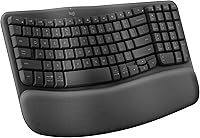
How to Type on an Ergonomic Keyboard
To use an ergonomic keyboard, place it so your shoulders relax, your wrists stay straight, and your hands can reach the keys without stretching. Start with short typing sessions, then adjust the split, angle, and height to suit you.
On this page (9 sections)
- How should you set up an ergonomic keyboard?
- Where should your hands and wrists rest while typing?
- How do you learn to type on a split or curved keyboard?
- What should you adjust first?
- What if your typing feels slower or less accurate?
- How do you choose among common ergonomic keyboard styles?
- How can you avoid common setup mistakes?
- When should you adjust or stop using the keyboard?
- How do you use an ergonomic keyboard comfortably?
To use an ergonomic keyboard, place it so your shoulders relax, your wrists stay straight, and your hands reach the keys without stretching. Start with short sessions and adjust the split, angle, and height until the layout feels comfortable.
A new shape can change where your hands rest and how far your fingers travel. Give yourself time to learn it instead of judging it after one session.
How should you set up an ergonomic keyboard?
Center the keyboard in front of you, keep your elbows near your sides, and let your hands approach the keys in a relaxed position. If the keyboard has two halves, place each half in front of its corresponding shoulder.
Sit close enough that you can reach the home row without leaning forward. Keep your shoulders low and relaxed, and let your forearms slope gently toward the keys.
Aim for wrists that look like a natural continuation of your forearms. Adjust your chair or keyboard height if your hands bend sharply up, down, or toward your little fingers.
A split keyboard guide explains common layouts and which adjustment styles you can find. Some keyboards have a fixed curved shape, while others let you move the halves farther apart or angle them independently.
Where should your hands and wrists rest while typing?
Keep your wrists straight while your fingers move across the keys. A wrist rest is for resting between typing bursts, not for pressing your wrists down while you type.
Let your forearms and hands carry their own weight as you reach. If the keyboard has a palm rest, use it when pausing and return your hands to the keys without leaning on the heel of your palm.
Some ergonomic keyboards also offer tenting, which raises an edge of the keyboard. Begin with a low setting, if adjustable, and change it only when it helps your hands stay relaxed.
For a broader desk review, see our keyboard and mouse fit guide. A keyboard adjustment may feel less useful if your chair height or mouse position still makes you reach or hunch.
How do you learn to type on a split or curved keyboard?
Use short, low-pressure practice sessions and focus on accuracy before speed. A changed key shape or wider hand position can make familiar typing feel awkward for a while.
Start with a few minutes of routine work, such as a short email or note. Take a break, then return later; increase the time gradually as you become more comfortable.
Keep a familiar keyboard available if you need to finish urgent work. That gives you a simple fallback while your fingers learn the new layout.
Don't force a split keyboard into a wide position on day one. Move the halves in small steps, and keep them close enough that your arms and shoulders stay relaxed.
What should you adjust first?
Change one setup detail at a time so you can tell what feels better. Start with the distance between halves, then consider angle, tenting, and chair or desk height.
How far apart should the keyboard halves be?
Place each half near the line of its shoulder, then bring them closer if you feel a stretch in your arms. Your elbows should stay near your sides rather than reaching outward.
The Kinesis Freestyle2 allows its key modules to rotate and separate up to 9 in. Its included VIP3 lifters provide 5, 10, or 15 degrees of tenting with cushioned palm supports.
This model has a standard Windows layout and connects by USB. Consider its split and tenting options if you want to adjust each half, and check that its wired connection and layout suit your computer and desk.
Should you use tenting?
Tenting raises one edge of the keyboard, changing the angle of your hands. Try a small angle first and stop if it makes your fingers reach awkwardly or your forearms feel tense.
Not every ergonomic keyboard tents, and a higher angle isn't automatically better. Your comfortable position depends on your reach, desk height, and how the keyboard sits in front of you.
How high should the keyboard be?
Set the keyboard low enough that your shoulders can relax and your forearms reach the keys without a sharp wrist bend. If you raise the keyboard with a tray or stand, reassess your chair height too.
The Logitech Ergo K860 Keyboard has adjustable palm lift settings of 0, -4, and -7 degrees. Its curved, split keyframe and pillowed wrist rest may suit someone who wants a fixed split shape with adjustable tilt.
It connects by Bluetooth or USB receiver and has a full-size layout. If you want to change the spacing between the two halves, consider a keyboard with adjustable separation.
What if your typing feels slower or less accurate?
Slow down and return to easy text until your accuracy improves. Don't judge a new keyboard by your old typing speed during the first few sessions.
Look for a specific cause: a key your fingers miss, a half that's too far away, or a wrist angle that changes as you reach. Make one small change, then try another short session before changing something else.
If a key feels unfamiliar because the layout differs from your old keyboard, practice that pattern slowly. Don't stretch or twist your fingers to match a position that feels uncomfortable.
A wave keyboard guide describes the curved layout style and what it changes about hand placement. A wave shape and a split design are different, so match the style to the adjustment you want.
How do you choose among common ergonomic keyboard styles?
Choose based on the change you want to make to your hand position. A curved keyboard offers a set shape, while an adjustable split model gives you more control over spacing and angle.
Who might prefer a fixed curved keyboard?
A fixed curved keyboard can suit you if you want a familiar full-size layout with a shaped keyframe and one central unit. The Logitech Ergo K860 Keyboard combines a curved split design, a pillowed wrist rest, and adjustable palm lift.
Its layout includes a numpad, and it supports Bluetooth or USB receiver connections. Those details may help if you prefer a full-size keyboard and want to switch between connection options.
Who might prefer a keyboard with adjustable halves?
An adjustable split keyboard can suit you if you want to position each half separately. The Kinesis Freestyle2 USB Keyboard lets you rotate and separate its modules, and its VIP3 version adds multiple tenting angles and cushioned palm supports.
This kind of setup needs enough desk space for the two sections. Keep the halves close enough that you can type without reaching outward.
Who might prefer a wireless split keyboard?
A wireless split keyboard can suit you if you want a split layout and prefer a USB receiver connection. The Arteck Wireless Split Keyboard has a cushioned wrist and palm rest, foldable legs, and a nano USB receiver stored at the back.
It uses a Windows layout, and some keys and functions differ on Mac. Check that its layout and USB receiver connection suit your computer before choosing it.
How can you avoid common setup mistakes?
Keep the keyboard close and make gradual adjustments. Reaching for keys, raising the keyboard too high, or separating the halves too quickly can make a relaxed position harder to maintain.
Avoid resting your wrists against the edge of a desk while you type. If your desk edge presses into your forearms, move the keyboard back slightly or adjust your seating.
Don't assume that a wrist rest alone makes a setup comfortable. The wrist angle, shoulder position, and distance to the keys matter too.
If you use a mouse, place it close to the keyboard so you don't need to reach far to switch between them. Our ergonomic mouse and keyboard buying guide covers how the two devices work together.
When should you adjust or stop using the keyboard?
Adjust the setup if your shoulders tense, your hands stretch, or your wrists bend while typing. A keyboard should fit the way you work, and there is no single position that suits everyone.
Try a smaller split, a lower tilt, or a different chair height. If a position feels uncomfortable, return to a neutral setup and make changes slowly.
If discomfort continues or gets worse, stop and consider advice from a qualified health professional. A keyboard is a desk tool, not a treatment for pain.
How do you use an ergonomic keyboard comfortably?
To use an ergonomic keyboard, start with a relaxed shoulder position, straight wrists, and a keyboard close enough to reach without stretching. Practice in short sessions, then adjust the split or angle one step at a time.
Choose the Logitech Ergo K860 Keyboard for a fixed curved shape with adjustable palm lift, the Kinesis Freestyle2 USB Keyboard for independently positioned halves with tenting, or the Arteck Wireless Split Keyboard for a wireless split layout with a cushioned rest. For MacBook compatibility questions, see which ergonomic keyboard works with a MacBook.
Frequently asked questions
How long does it take to get used to an ergonomic keyboard?
It can take several days or longer to feel natural, especially if the keyboard changes the key layout or separates the two halves. Begin with short sessions, keep a familiar keyboard nearby for time-sensitive work, and increase your ergonomic keyboard use as your accuracy and comfort improve.
Should your wrists rest on an ergonomic keyboard?
Your wrists should stay straight while you type, rather than bending up, down, or sideways. A palm or wrist rest can support your hands during pauses, but avoid pressing your wrists into it while reaching for keys; adjust the keyboard and chair so your forearms approach the keys comfortably.
How should you position a split keyboard?
Place each half in front of its matching shoulder, with enough space between them for your hands to reach the keys without pulling inward. Keep both halves at a comfortable angle and height, then make small changes until your elbows stay near your sides and your wrists remain straight.
Can you type normally on an ergonomic keyboard?
Yes, though a curved, split, or tented layout may feel unfamiliar at first. Your usual finger patterns still apply, but you may need time to adjust to the key spacing and hand position.
Practice with low-pressure tasks before using the keyboard for long or deadline-heavy sessions.