Which Ergonomic Keyboard Works With a MacBook?
The Logitech Ergo K860 is a strong ergonomic keyboard for MacBook use if you want a familiar full-size layout, a curved split design, and Bluetooth or USB receiver connection. Choose the Kinesis Freestyle2 if you want to position the two key modules separately.
On this page (8 sections)
- Which ergonomic keyboard for MacBook use fits your desk?
- Does a MacBook need a Mac-specific keyboard?
- Which wireless connection should you choose?
- Should you pick a split, wave, or sloped keyboard?
- How much desk space should you measure?
- How do you set up and care for an ergonomic keyboard?
- What common buying mistakes should you avoid?
- Which ergonomic keyboard should you choose for a MacBook?
The Logitech Ergo K860 is a strong ergonomic keyboard for MacBook use if you want a full-size layout, a curved split shape, and a built-in wrist rest. If you want a smaller wave shape, consider Wave Keys; if you want to move the key modules apart, consider the Kinesis Freestyle2.
Match the keyboard to your connection needs, Mac shortcuts, desk space, and preferred hand position. A keyboard can connect to a MacBook and still feel awkward if its layout or shape does not suit the way you work.
Which ergonomic keyboard for MacBook use fits your desk?
The K860 suits people who want a full-size, curved split keyboard with a wrist rest. Wave Keys is a compact wave option, Kinesis offers adjustable separation, and Kensington pairs a full-size split and slope with two wireless connection choices.
The K860 is the most straightforward pick if you want a shaped keyboard without arranging separate halves. Its adjustable tilt legs provide three positions, and its wrist rest has a memory foam layer.
Skip it if your desk cannot fit a wide keyboard and wrist rest.
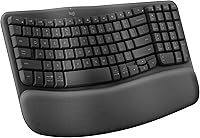
Wave Keys fits buyers who want a smaller, fixed shape with a cushioned palm rest. Its Bluetooth and Logi Bolt options and Easy-Switch feature suit people who move among a laptop, tablet, and phone.
Skip it if you want a true split layout or the freedom to angle each half separately.
The Kinesis Freestyle2 is for people who want to change the angle and distance between the modules. Its Mac layout and Mac-specific hotkeys are useful if you want familiar key labels.
Skip it if you want a one-piece keyboard that needs little arrangement.
Kensington's Pro Fit makes sense if you want a full-size split and sloped layout with a choice of Bluetooth or 2.4 GHz wireless. It also has quiet keys and spill-proof keys.
Skip it if you need a compact board or want confirmed multi-device switching.
Does a MacBook need a Mac-specific keyboard?
No, a MacBook does not require a keyboard made only for Mac. Choose a model that supports macOS, then check its key labels and shortcuts against the tasks you do most.
The K860 supports macOS along with Windows, Linux, and Chrome OS. Wave Keys also supports macOS and iPadOS, while the Kinesis Freestyle2 for Mac includes a Mac layout and Mac-specific hotkeys and shortcuts.
Kensington's Pro Fit supports macOS, Windows, and Chrome OS. Its multi-OS support makes it flexible, but check the key labels if you rely on Mac-specific markings.
A keyboard with different labels can still connect and type on a MacBook, but unfamiliar modifier keys can slow you down until you adjust. If you frequently switch between a Mac and another computer, compare the key labels and how you will handle shortcuts on each one.
Which wireless connection should you choose?
Bluetooth is the simplest fit if you want to avoid a receiver. Choose a keyboard with a receiver if that is your preferred connection, and check your MacBook's ports before buying.
The K860 offers Bluetooth and a USB receiver. Wave Keys supports Bluetooth and Logi Bolt, and Kinesis connects through Bluetooth.
Kensington's Pro Fit supports Bluetooth and 2.4 GHz wireless.
If you choose a receiver, check its connector against your MacBook. An adapter or hub may be needed, depending on the computer and receiver.
Keep track of the receiver after setup, since wireless keyboards that depend on one cannot use it if it is misplaced.
Wave Keys and Kinesis support switching among up to 3 paired devices. Wave Keys uses Easy-Switch, while the Kinesis Freestyle2 can pair with Bluetooth-enabled devices such as a MacBook, iMac, iPhone, and iPad.
The K860 has multi-device capabilities, but its switching details are not specified, so confirm them if device switching is a priority.
For more on different keyboard shapes, see our split keyboard guide. If you are new to ergonomic layouts, read how to type on an ergonomic keyboard.
Should you pick a split, wave, or sloped keyboard?
Pick a split keyboard if you want to adjust the spacing or angle between your hands. Choose a wave or sloped keyboard if you want the keys to stay together in a fixed shape.
The Kinesis Freestyle2 lets you rotate and separate its modules up to 9 in. The wider range of positioning is useful if you want to find a hand position that suits your desk, but it takes more room when the halves are spread apart.
The K860 keeps its curved split keyframe together, so there is no need to arrange two separate sections. Wave Keys uses a wave shape and cushioned palm rest, while Kensington's Pro Fit combines a split layout with a slope and adjustable reverse tilt.
Before choosing, think about how much adjustment you will actually use. If you want to change the gap or angle regularly, Kinesis offers more control.
If you prefer a fixed layout that is quicker to place and use, choose a one-piece option.
How much desk space should you measure?
Measure the keyboard area and the space you need for your mouse before you choose. Include any attached wrist rest and the extra width needed if you plan to spread a split keyboard apart.
The K860 measures 17.95 x 9.17 in, and Kensington's Pro Fit measures 18.98 x 9.92 in. Wave Keys is shorter from side to side at 14.8 x 8.62 in, so it may suit a desk with less room across its width.
The Kinesis Freestyle2 is 15.4 in long with its two modules connected by a 9 in cable. The layout can take more width as you separate the modules.
One easy check is to mark out the keyboard's footprint on your desk with paper, then place your mouse beside it. Measure again with the wrist rest included, and leave enough room to reach your laptop without crowding your work area.
If you work on a small desk, the compact Wave Keys is the clearest fit among these options. Pick the Kinesis when flexible placement matters more than keeping the keyboard footprint narrow.
How do you set up and care for an ergonomic keyboard?
Start with the keyboard centered in front of you and your MacBook in a comfortable viewing position. Place your hands on the keys and adjust the keyboard or chair so you can type without reaching forward or lifting your shoulders.
Connect through Bluetooth or pair the receiver, following the keyboard's setup instructions. If you use Bluetooth for multiple devices, pair each one before relying on switching.
For receiver models, test the connection at your usual desk position and store the receiver somewhere easy to find.
Give a new split or wave layout time to feel familiar. Begin with ordinary work, use the shortcuts you already know, and let your hands settle into the new key positions instead of forcing a specific wrist angle.
If you move the Kinesis modules, make smaller adjustments until the spacing feels natural.
For care, keep food and liquids away from the keys and follow the keyboard maker's cleaning instructions. Kensington's Pro Fit has spill-proof keys, but that feature does not make it a good idea to pour liquid over the keyboard.
Disconnect a wireless keyboard before cleaning it, and avoid spraying cleaner directly between the keys.
What common buying mistakes should you avoid?
The most common mistake is choosing by shape alone. A split layout, wave design, or wrist rest only helps if the keyboard also fits your desk, connection needs, and Mac workflow.
Do not assume every receiver fits directly into your MacBook. Confirm the port connection before ordering, especially if you use several accessories through the same port.
Do not overlook the layout. A Mac-specific layout may feel more familiar, while a multi-OS keyboard may work better if you also use Windows or Chrome OS.
Check the labels and shortcuts that matter to you.
Do not buy a split keyboard just because it offers more adjustment. The Kinesis has the most flexible arrangement here, but it needs more space and a little time to position.
If you want a ready-to-place board, the K860 or Wave Keys is a simpler choice.
Do not forget mouse space. A full-size keyboard with a wrist rest can push a mouse farther away, while a spread split keyboard can widen your setup.
Measure the whole work area rather than the key area alone.
Which ergonomic keyboard should you choose for a MacBook?
Choose the K860 for a full-size curved split shape, Wave Keys for a compact wave layout, Kinesis for adjustable separation, or Kensington for split keys with two wireless modes. The right ergonomic keyboard for MacBook work is the one that fits your desk and your habits.
Pick Wave Keys if you move among a MacBook, tablet, and phone and prefer a fixed, compact board. Pick Kinesis if you want to change the distance and angle between modules and value Mac-specific keys.
Choose the K860 if you want a full-size keyboard with a curved shape and wrist rest, or Kensington if you want reverse tilt and a choice of Bluetooth or 2.4 GHz wireless.
Measure your desk, confirm the connection, and check the layout before you buy. For a broader look at matching desk input devices, read our plain guide to ergonomic mice and keyboards or compare ergonomic mice that work with a Mac.
Frequently asked questions
Will an ergonomic keyboard work with a MacBook?
Yes. Choose a keyboard that supports macOS and connects in a way your MacBook can use.
Then check its layout and shortcut keys so they fit your work.
If it uses a USB receiver, check your MacBook's ports and whether you need an adapter or hub.
Is a split keyboard better for MacBook use?
A split keyboard gives you more control over the angle or distance between your hands, which can help if a fixed keyboard position feels awkward. The Kinesis Freestyle2 lets you rotate and separate its modules.
A fixed curved split design, such as the K860, takes less setup.
Can I use a wireless ergonomic keyboard with a MacBook?
Yes. The options here connect wirelessly, through Bluetooth, a USB receiver, or both, depending on the model.
Bluetooth avoids occupying a USB port.
If you prefer a receiver, check its connector and your MacBook's ports before you buy.
What should I check before buying an ergonomic keyboard for a MacBook?
Check macOS support, connection type, key layout, desk space, and the keyboard's shape. Decide whether you want a fixed wave or split design, and whether a wrist rest is useful for your setup.
Leave enough room for your mouse and other regular desk items.