Wireless Ergonomic Mouse Not Working? Easy Fixes
If your wireless ergonomic mouse isn't working, check power, connection mode, receiver or Bluetooth pairing, and the tracking surface in that order. Restart the mouse and computer before changing settings.
On this page (10 sections)
- What should you check first when a wireless ergonomic mouse stops working?
- Why is my wireless ergonomic mouse not working with its USB receiver?
- How do you fix a Bluetooth ergonomic mouse that won't pair?
- Why does the mouse connect but the pointer won't move?
- What if only some buttons or features aren't working?
- When should you replace the battery or contact support?
- Which wireless ergonomic mouse should you choose if yours keeps failing?
- How can you set up a replacement without repeating the same problem?
- What mistakes make wireless mouse problems harder to solve?
- How do you decide whether to troubleshoot or replace it?
If your wireless ergonomic mouse isn't working, check power, the active connection, and the tracking surface first. A fresh battery or a receiver set to the right mode often solves the problem before you need to change computer settings.
A mouse may connect while its pointer stays still, or it may fail to appear on the computer at all. The fix depends on which part stopped working, so start with the basic checks and move on to pairing or settings only when needed.
What should you check first when a wireless ergonomic mouse stops working?
Check the power, battery and connection mode first. These quick steps can restore a mouse that has switched off, run low on power, or selected another computer.
- Switch the mouse off, wait a few seconds, then switch it on.
- Replace or recharge the battery as directed for that model.
- Check whether it is set to Bluetooth or USB receiver mode.
- Move it closer to the computer and test it on a plain, non-reflective surface.
- Restart the computer if it still doesn't respond.
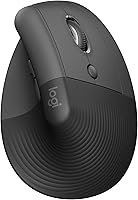
Battery requirements vary. The TECKNET uses 2 AAA batteries, the UGREEN uses 1 AA battery, and the Logitech Lift includes 1 AA battery.
Don't press pairing or device-switch buttons at random. Check the mouse's instructions if you don't know what its light or switch indicates.
Why is my wireless ergonomic mouse not working with its USB receiver?
A receiver mouse needs its receiver plugged in and the mouse set to the matching mode. A loose plug, wrong mode or missing receiver can stop the connection even when the mouse has power.
Unplug the receiver and insert it again. If your computer has another compatible USB port, try that one.
Avoid placing the receiver behind a hub or another device while you troubleshoot.
Some mice store the receiver on the mouse itself. The TECKNET's 2.4 GHz receiver is built into its bottom, so check there if you can't find it.
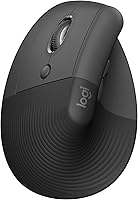
The Lift connects through Bluetooth Low Energy or a Logi Bolt USB receiver. The MX Vertical supports Bluetooth Low Energy and an included USB receiver, so select the method you actually plugged in or paired.
For a Logitech M575 trackball, use our guide to connect the Logitech M575 trackball, since its controls differ from these vertical mice.
How do you fix a Bluetooth ergonomic mouse that won't pair?
Put the mouse into Bluetooth pairing mode, then select it in your computer's Bluetooth settings. Remove an old saved pairing only if the computer can't reconnect to it.
Make sure Bluetooth is on and the mouse is near the computer. If the mouse has more than one connection method, switch it to Bluetooth before trying to pair.
Some models need a specific button press to enter pairing mode. On the TECKNET, hold the bottom button for 3 seconds to enter the connection and pairing state.
Follow your own mouse's instructions for its pairing control.
If the mouse appears in saved devices but won't connect, remove that pairing and pair it again. Restart Bluetooth or the computer if it still doesn't appear.
The Lift and UGREEN support Bluetooth. For help choosing a shape and connection type, see our plain guide to ergonomic mice and keyboards.
What if the mouse connects to a different device?
Switch to the connection assigned to the computer you're using. A multi-device mouse can stay connected to another computer or tablet, making it seem unresponsive on the current one.
The Lift and UGREEN can switch between up to 3 devices. The TECKNET supports 2 Bluetooth connections and a separate 2.4 GHz receiver connection.
Use the mouse's device-switch control or choose the right connection mode. If you're unsure which device is active, briefly turn off Bluetooth on the other device and try again.
Why does the mouse connect but the pointer won't move?
Test the sensor on a plain mouse pad or matte desk. A reflective, glass or uneven surface can interfere with tracking even when the wireless connection works.
Turn the mouse over and look for dust near the sensor. Wipe the outside gently with a dry, soft cloth, then try a different surface.
If the pointer jumps, reconnect the mouse or try another USB port if you're using a receiver. Restart the computer if the problem continues.
A pointer that moves but feels too slow or fast may need a setting change instead. Adjust pointer speed in your computer's mouse settings, then test with small movements.
What if only some buttons or features aren't working?
Check whether the feature needs software, a compatible operating system or a particular connection. A working pointer with inactive side buttons can point to a compatibility limit rather than a failed mouse.
The TECKNET's side buttons aren't compatible with macOS. The Lift has customizable buttons, but setting shortcuts depends on its software and computer setup.
If scrolling or shortcuts stopped working after a change, restart the computer and check the mouse settings. Download software only from a source you trust.
If the mouse connects but the shape doesn't suit your hand, our vertical mouse guide explains the upright grip. You can also compare shapes in our guide to the best wireless ergonomic mice.
When should you replace the battery or contact support?
Replace or recharge the battery when the mouse stops responding, drops connection or shows a low-battery warning. Use the specified battery type and check the mouse instructions before opening its compartment.
The TECKNET's light blinks when its battery is low, and it needs 2 AAA batteries. The Lift uses 1 AA battery.
The MX Vertical includes a USB-C cable and has a stated battery life of up to 4 months.
If new power doesn't help, reconnect the mouse and, if possible, try it with another compatible computer. If it still fails, contact the manufacturer's support team for model-specific steps.
Which wireless ergonomic mouse should you choose if yours keeps failing?
Choose by hand fit, connection needs and the controls you use most. A feature that solves one person's setup problem may be unnecessary or incompatible in another.
- Choose the Logitech Lift if you have a small to medium right hand and want a compact vertical shape, quiet clicks, customizable buttons and Bluetooth or Logi Bolt receiver support. Skip it if you need a left-handed model.
- Choose the TECKNET if you want to switch between multiple devices and use Bluetooth or a 2.4 GHz receiver. Its maker describes it as best for medium to large hands. Skip it if you need side buttons on macOS or don't want to buy 2 AAA batteries separately.
- Choose the Logitech MX Vertical if you want a vertical grip with Bluetooth Low Energy or an included USB receiver, and adjustable cursor speed. Skip it if a simpler, smaller shape is your priority.
- Choose the UGREEN if you want Bluetooth and 2.4 GHz connections, quiet clicks, and 4 DPI levels. Its design is aimed at larger hands. Skip it if you need a left-handed mouse or more than 5 buttons.
Before buying, check which connection your computer supports and whether your hand fits the mouse's intended orientation and size. If upright designs feel unfamiliar, our guide to using a vertical mouse for the first time explains how to ease into the grip.
How can you set up a replacement without repeating the same problem?
Choose one connection method and get it working before changing other settings. This makes it easier to identify whether a problem comes from pairing, the receiver or the computer.
Start with the computer nearby and a fresh battery or a full charge. For a receiver, plug it into the computer and select the receiver mode.
For Bluetooth, turn on pairing mode and complete the computer's pairing steps.
If your mouse supports several devices, pair only the computer you want to use first. After the pointer works, add other devices one at a time and note which mode selects each one.
Use a flat, matte surface while you check tracking. Keep the sensor area clear and avoid changing pointer speed until you've confirmed the mouse moves consistently.
What mistakes make wireless mouse problems harder to solve?
Changing several things at once can hide the cause. Work through power, connection, tracking and settings in that order, testing the pointer after each change.
Don't assume Bluetooth and receiver mode are interchangeable. A mouse may support both but connect through only the mode currently selected.
Don't remove a saved Bluetooth pairing as the first step. Try reconnecting first, then delete the old pairing if the computer still won't connect.
Don't mistake a new vertical grip for a connection fault. The TECKNET describes about a week to adapt to its shape, but the mouse should still pair and move the pointer during that adjustment.
How do you decide whether to troubleshoot or replace it?
Keep troubleshooting if the mouse responds after a power, mode or surface change. Consider a replacement when it fails with fresh power and the correct connection on another compatible computer.
Pick Bluetooth when you want to leave a USB port free. Choose a receiver when you prefer a dedicated plug-in connection, and check whether the receiver is included or stored under the mouse.
For a wireless ergonomic mouse that keeps failing, match the replacement to your hand size, handedness and computer. The Lift suits small to medium right hands, while the TECKNET and UGREEN are aimed at larger hands; compare more options in our wireless ergonomic mouse guide.
Frequently asked questions
Why is my wireless ergonomic mouse not working?
A drained battery, switched-off mouse, wrong connection mode, loose receiver, lost Bluetooth pairing, or computer setting can stop a wireless ergonomic mouse from working. Check power first, then reconnect it using the same method you originally chose.
If it connects but the pointer won't move, test another surface and restart the computer.
How do I reconnect a wireless ergonomic mouse?
Use the connection method supported by your mouse: Bluetooth pairing or its USB receiver. Turn the mouse on, select the matching mode if it has one, then follow the computer's Bluetooth pairing steps or reconnect the receiver.
Remove an old pairing only if the computer cannot reconnect to the saved device.
Why does my wireless mouse connect but not move?
A mouse can connect while its sensor struggles on a reflective, glass, or uneven surface. Try a plain mouse pad or matte desk, clear dust from the sensor area, and move the mouse gently.
If the pointer still does not move, reconnect the mouse and check the computer's pointer settings.
Does a vertical mouse need time to get used to?
A vertical mouse can feel different because your hand rests at a more upright angle than on a standard mouse. TECKNET describes an adaptation period of about a week for its ergonomic shape, but that isn't a troubleshooting requirement.
First make sure the mouse connects and tracks correctly.