What to Look for in an Ergonomic Mouse
When you ask what to look for in an ergonomic mouse, four things decide the fit: the shape and grip angle, your hand size, where your thumb and little finger rest, and the controls you use daily. Get those right and the spec sheet details become easy.
On this page (10 sections)
- Why does shape and grip angle matter most in an ergonomic mouse?
- How do you match an ergonomic mouse to your hand size?
- Where should your thumb and little finger rest?
- Which controls and buttons do you actually need?
- How do pointer speed, DPI and scroll type change the feel?
- Wired or wireless: what changes in daily use?
- Should you look for one, two or three devices on one mouse?
- Do you need left-hand or right-hand versions?
- What should you weigh against the cost and the learning curve?
- What to look for in ergonomic mouse options: the short list
The things to look for in an ergonomic mouse come down to how it fits your hand and the work you do. Shape, size and controls matter more than a long feature list.
Start with the body angle and your hand length, then check thumb support and buttons. The best wireless ergonomic mouse picks cover that ground if you'd rather compare models first.
Why does shape and grip angle matter most in an ergonomic mouse?
Shape comes first because it decides where your wrist sits all day. A standard flat mouse turns your forearm inward, so your palm faces down and your wrist bends.
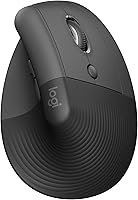
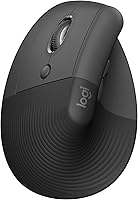
An upright body turns the hand toward a handshake position instead. Logitech puts the Lift at a 57-degree angle, and ProtoArc runs the EM11 at 58 degrees.
The angle is not a comfort score by itself. What matters is whether the height lets your wrist stay straight while your elbow rests near your side.
The angle also changes which part of the hand takes the load. On a flat mouse the palm presses down and the wrist does the steering.
On a steep vertical body the side of the hand rests against the shell, so the wrist turns less. That is why a vertical shape can feel strange on day one even when the fit is right.
Evoluent calls its shape an upright neutral posture that generally avoids forearm twisting, which is the same idea stated plainly.
Judge the angle against your own forearm, not a diagram. Hold your arm out as if shaking hands, then check whether the mouse body would keep your hand in roughly that position.
Vertical, angled or standard: which body style fits you?
A vertical body of 55 to 60 degrees suits most people who want their palm turned toward upright. A milder tilt of 20 to 30 degrees is easier to learn but changes the wrist position less.
Pick the steeper shape for long desk sessions and the slight tilt for a gentler transition.
Some people keep a flat mouse nearby for design or gaming work that needs quick cursor travel. That split setup is fine as long as the flat mouse is the short-session tool.
Height matters too. A tall, steep body asks more of a small hand than a short one at the same angle.
Set the angle first, then judge the mouse.
How do you match an ergonomic mouse to your hand size?
Hand length decides whether your fingers reach the buttons comfortably. Measure from the base of your palm to the tip of your middle finger with a ruler or a piece of paper.
Under 7.5 inches is the small to medium band. Many upright mice are shaped for that range, including the Logitech Lift and the ProtoArc EM11.
If you land above 7.5 inches, look at the width and the thumb rest rather than the angle alone. A body that's too narrow forces your fingers to curl inward.
ProtoArc is unusually direct about this. It states that the EM11 is "designed specifically for hand lengths under 7.5 inches (19.05 cm)" and recommends measuring before ordering.
It also names the hand size band as under 17.5 cm or 17.5 cm to 19.05 cm.
Logitech takes a similar approach in its own wording. It describes the Lift as "a great fit for small to medium right hands."
If you are near the top of that band, the fit may feel snug rather than roomy.
Our guide to the best ergonomic mouse for small hands lists more models sized for shorter hands.
Width, height and the reach to the buttons
Width matters as much as length. A mouse too wide pushes your shoulder out, and one too narrow bunches your fingers together.
Height should let the top of the hand rest without lifting the wrist off the desk. Check that your index finger lands on the left button without stretching.
Look for buttons you can find without looking down.
The published dimensions help here. The Logitech Lift measures 4.3 inches long by 2.7 inches wide and weighs 125 g.
The ProtoArc EM11 measures 5.43 inches long by 2.72 inches wide and weighs 250 g. The Evoluent VM4RW weighs 7.2 ounces, about 204 g.
Those numbers tell you how much desk space each takes and how much weight your hand carries when you lift it. The Lift is the lightest of the three and is the one to consider first if you pick the mouse up often.
Width is the number to compare against your own palm span. If your hand is wide, a narrower shell will push the outer edge of your palm off the side.
Where should your thumb and little finger rest?
Your thumb and little finger carry the weight of your hand, so they need a place to sit. A defined thumb rest stops the thumb from hovering or gripping the side.
The Logitech Lift has a snug thumb rest, which is one reason it works for smaller hands. The Evoluent VM4RW uses a broad lip along the bottom edge so the last finger doesn't rub the desk.
A flat side can work if your hand is large enough to drape over it. For most people, a contoured side with a small shelf under the thumb is the easier fit.
The Evoluent goes further than a plain shelf. Its thumb rest was reshaped over earlier versions and now carries two thumb buttons, plus a bottom thumb button that adds function when the included driver is installed.
The trade-off is that a busy thumb area can crowd the rest. If you just want your thumb to sit still, a plain shelf like the Lift's is simpler.
If you want the thumb doing more than resting, the Evoluent layout is the more useful one. Rest is not decoration.
A thumb shelf takes load off the joint and keeps the grip loose.
Which controls and buttons do you actually need?
Buy the buttons you'll use, not the most buttons. Most people need left, right and scroll, plus back and forward if they browse or edit all day.
Programmable buttons are the next step up. Logitech lets you assign its 4 customizable buttons through Logi Options+ and mentions Logitech Flow to move files across screens.
The Lift has a SmartWheel for smooth scrolling. Evoluent includes its Mouse Manager software to change button functions per program.
The ProtoArc EM11 has 7 buttons, with back and forward for web navigation, but its buttons aren't programmable. ProtoArc confirms this and notes the forward and back buttons are not compatible with Mac OS systems.
Fixed versus programmable buttons
Fixed buttons are set at the factory and do the same job in every app. They are fine for browsing, email and everyday office work, and there is nothing to configure.
Programmable buttons let you assign shortcuts per program. Logitech's software lets you set each of the 4 customizable buttons to handy shortcuts as you switch between apps.
Evoluent's Mouse Manager does the same job on Windows. The catch is the setup time.
If you repeat the same few shortcuts all day, that effort pays back quickly. If you mostly click and scroll, it is effort you may not need.
The button count also matters for reach. A six-button body keeps most controls under the thumb and index finger.
A seven-button model like the EM11 adds the forward and back keys to the same area. Match the button count to your workload.
Fixed buttons suit simple browsing; programmable ones suit repeated shortcuts.
How do pointer speed, DPI and scroll type change the feel?
DPI sets how far the cursor moves for each inch of hand travel. A higher DPI means less arm movement to cross a wide screen.
The Logitech Lift tracks at 4000 DPI with fully adjustable settings. The Evoluent VM4RW reaches 2600 DPI and adds four side-mounted speeds, from extra low to high.
ProtoArc offers 1000, 1600 and 2400 DPI steps. Scroll type matters too.
A free-spinning smart wheel flies through long pages, while a stepped wheel gives precise control in spreadsheets.
The Evoluent speed controls are the unusual feature here. Top-mounted LEDs show through the chrome thumb rest to mark the selected speed.
The controls sit on the side, so you adjust them without releasing your grip. That helps when you move between a large monitor and a laptop screen in one session.
ProtoArc is honest about its silent design. The left and right buttons are quiet, but the middle scroll wheel and the back and forward buttons are not silent.
Pick the scroll feel you use most. Precision work favors a stepped wheel; long documents favor a fast one.
Wired or wireless: what changes in daily use?
Wireless removes cable drag and lets you move the mouse anywhere on the desk. That freedom helps if you shift position during the day or share the desk.
The Logitech Lift connects by Bluetooth Low Energy or a Logi Bolt USB receiver, and Logitech says one AA battery lasts up to 24 months. The Evoluent VM4RW is USB Wireless, so it needs its receiver.
The ProtoArc EM11 has a 500 mAh rechargeable battery and charges by Type-C cable. A wired mouse never needs charging and gives a steady connection.
Choose it if the setup is fixed and you dislike batteries.
Battery life is the biggest practical gap between these three. Two years on a single AA in the Lift means you can forget about power for a long stretch.
The Evoluent lists a battery average life of 3 months. The ProtoArc lists 1 month and is rechargeable, so the routine is a short cable session rather than a trip to the drawer for batteries.
The included parts differ too. The Lift ships with an AA battery, a Logi Bolt USB receiver and a quick start guide.
The ProtoArc ships with a 2.4G USB-A receiver and a Type-C charging cable. The Evoluent uses its USB wireless receiver.
Note that the ProtoArc Type-C cable is for charging only and cannot carry the signal. Decide on power before size.
Battery style affects where the mouse lives and how you use it.
Should you look for one, two or three devices on one mouse?
Multi-device support saves desk clutter when you work across a laptop, desktop and tablet. Look for a switch button that moves between paired devices quickly.
The ProtoArc EM11 connects up to 3 devices through dual Bluetooth and a 2.4G USB-A receiver. The Logitech Lift connects up to 3 devices with Easy-Switch.
The Evoluent VM4RW works with Windows, Mac OS and Linux through its USB connection.
The operating system list is where the three part ways. The Lift covers Windows 10 or later, macOS 10.15 or later, iPadOS 14 or later, Chrome OS and Linux.
The ProtoArc covers Windows 8 or higher, Mac OS X 10.12 or higher and Android 4.3 or higher. The Evoluent covers Windows, Mac OS and Linux, with basic functionality in OS X or newer and in Linux without a driver.
If your desk is all Apple, the Lift's iPadOS support matters for pairing to a tablet. If you keep an Android tablet or phone nearby, the ProtoArc covers that device.
If your setup is Windows or Linux, all three work. Count your devices first.
A three-device mouse is wasted on a single computer.
Do you need left-hand or right-hand versions?
Hand orientation changes the shape, not just the button layout. A right-hand vertical body curves outward on the right and leaves a thumb shelf on the left.
Left-hand versions mirror that shape.
The Logitech Lift comes in right and left configurations. The Evoluent VM4RW and the ProtoArc EM11 are both right-hand only.
If you're left-handed, check the orientation before anything else.
The Lift's left version is not a mirror-image afterthought. The product is sold in right and left configurations as part of the same line, so the angle and the grip logic carry over.
The Evoluent VM4RW and the ProtoArc EM11 are both built for the right hand only. No amount of button remapping changes which way the shell curves.
A left-handed buyer using a right-hand body ends up reaching across the mouse or gripping it with the palm turned the wrong way. Orientation is a hard filter.
No button remap fixes a body built for the other hand.
Our roundup of the best left handed ergonomic mouse covers the models that mirror the shape properly.
What should you weigh against the cost and the learning curve?
Ergonomics is not a quick fix. Budget a couple of weeks for your hand to adjust to a new grip angle.
ProtoArc suggests 1 to 2 weeks to get used to its vertical shape. That lines up with what most vertical mice ask of a new user.
ProtoArc also advises relaxing the palm and holding the mouse naturally rather than gripping hard, which is good advice for any upright body.
The learning curve shows up in small ways. Your grip changes, so the muscles that steady the mouse are used differently.
Your scroll finger may sit at a new angle. Your pointer aim can feel slightly off at first.
None of that means the mouse is wrong. Give the new angle a couple of weeks of daily use before you decide, and keep your old mouse within reach for tasks that need fast, familiar control.
Spend more when you need programmable buttons, multi-device switching or a left-hand version. Spend less when a fixed-button vertical mouse covers your work.
Set a two-week trial in your head. If the angle still feels wrong after that, the size or shape is the problem, not your technique.
Anyone who wants the reasoning behind the shape change can read do ergonomic mouse work.
What to look for in ergonomic mouse options: the short list
The short answer to what to look for in ergonomic mouse shopping is a body angle that keeps your wrist straight in your own hand. Confirm hand length under or over 7.5 inches, then check the thumb rest, the buttons and the connection.
Pick the Logitech Lift if you have small to medium hands and want a 57-degree body with customizable buttons and Bluetooth or Logi Bolt. Choose the Evoluent VM4RW if you want side speed controls and programmable buttons in an upright shape.
Go with the ProtoArc EM11 if you need a rechargeable mouse that switches across 3 devices.
Weigh the trade-offs as a set rather than one at a time. The Lift gives you the lightest body of the three at 125 g, the longest battery life at up to 24 months, and the option of a left-hand version.
The Evoluent gives you four pointer speeds you can change without letting go and a broad lip that keeps the little finger off the desk. The ProtoArc gives you a rechargeable battery and three-device switching at a heavier 250 g.
Whatever you choose, set the mouse beside the keyboard and keep your elbow close to your side. For broader picks by category, the best wireless ergonomic mouse roundup is the next stop.
Frequently asked questions
What is the most important thing to look for in an ergonomic mouse?
The shape has to match your hand and your grip. A vertical or angled body keeps your wrist in a straighter position, but only if the width and thumb rest suit your hand size.
How do I measure my hand for an ergonomic mouse?
Measure from the base of your palm to the tip of your middle finger. Under 7.5 inches is usually a small to medium hand, which is the range upright mice are most often built for.
Are ergonomic mice hard to get used to?
They take a short adjustment period. ProtoArc suggests giving its vertical mouse 1 to 2 weeks of daily use before deciding, which is typical for a changed grip.
Do I need programmable buttons on an ergonomic mouse?
Not always. Logitech and Evoluent both offer customizable buttons, which help if you repeat shortcuts all day.
ProtoArc's EM11 buttons are fixed, so choose it for comfort, not macros.
Should I pick a wired or wireless ergonomic mouse?
Wireless removes cable drag, which matters if your arm moves across the desk. Wired suits a fixed setup or anyone who does not want to think about batteries.