9 Best Left-Handed Ergonomic Mouse (November 2026)
The best left-handed ergonomic mice include the Logitech Lift Left-Handed Mouse for smaller left hands, the Kensington SlimBlade Pro Trackball for finger control, and the Kensington Expert Wireless Trackball for wrist support.
On this page (7 sections)
- How we chose left handed ergonomic mice
- The best left handed ergonomic mouse picks
- How to choose a left handed ergonomic mouse
- How should you set up and use a new ergonomic mouse?
- What mistakes make left-handed mice harder to use?
- How do you care for a mouse or trackball?
- Which left handed ergonomic mouse should you choose?
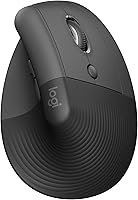
The Logitech Lift is the best left handed ergonomic mouse for most people who want an upright grip shaped for the left hand. If you'd rather keep the device still and move the cursor with a ball, choose a trackball such as the Kensington SlimBlade Pro.
A left-handed ergonomic mouse can have a body shaped for your left hand, or it can be an ambidextrous trackball that works from either side. Decide how you want to move the cursor first, then compare hand fit, controls, connection and computer support.
For help matching a mouse to your desk, see our ergonomic mouse and keyboard guide. Our vertical mouse guide explains upright grips, and the best vertical mouse picks focus on that shape.
Our picks at a glance
-
1
-
2
-
3
- 4
 Check it
Kensington Expert Wired Trackball
Best for wired desks - 5
 Check it
ELECOM EX-G Left-Handed Trackball
Best for thumb-operated trackballs - 6
 Check it
MEETION Left-Handed Vertical Mouse
Best for rechargeable use - 7
 Check it
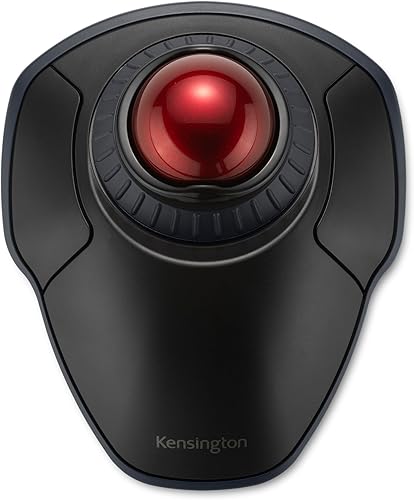
Kensington Orbit Wireless Trackball
Best for compact scrolling - 8
 Check it
Perixx PERIMICE-713L Left-Handed Mouse
Best for quiet clicking - 9
 Best for Windows basicsCheck it
How we chose left handed ergonomic mice
The best left handed ergonomic mouse depends on whether you want a moving vertical mouse or a stationary trackball. We compared the stated hand orientation, grip style, connection options, controls and fit guidance for each pick.
A left-specific mouse gives you a shape made for left-handed use. An ambidextrous trackball gives you another path: keep the device on the desk and move a ball with your fingers or thumb.
The scores reflect how closely each option's features match left-handed ergonomic needs, including fit guidance and control style. A high score here means a strong match for the readers this guide serves.
| Product | Best for | Shape | Connection | Hand fit | Our score |
|---|---|---|---|---|---|
| Logitech Lift Left-Handed Mouse | smaller left hands | 57-degree left-handed vertical mouse | Bluetooth Low Energy or Logi Bolt USB | Small to medium left hands | 8.4 |
| Kensington SlimBlade Pro Trackball | finger control | Ambidextrous finger-operated trackball | Bluetooth, 2.4 GHz wireless or wired | 8.1 | |
| Kensington Expert Wireless Trackball | wrist support | Ambidextrous trackball with detachable wrist rest | Bluetooth LE or 2.4 GHz wireless | 8.0 | |
| Kensington Expert Wired Trackball | wired desks | Ambidextrous trackball with detachable wrist rest | Wired USB-A | 7.5 | |
| ELECOM EX-G Left-Handed Trackball | thumb-operated trackballs | Left-handed thumb-operated trackball | 2.4 GHz wireless | 7.4 | |
| MEETION Left-Handed Vertical Mouse | rechargeable use | Left-handed vertical mouse | Bluetooth or 2.4 GHz wireless | 7.3 | |
| Kensington Orbit Wireless Trackball | compact scrolling | Ambidextrous trackball | Bluetooth LE or 2.4 GHz wireless | 7.2 | |
| Perixx PERIMICE-713L Left-Handed Mouse | quiet clicking | Left-handed vertical mouse | 2.4 GHz wireless | 7.0 | |
| Lekvey Left-Handed Mouse | Windows basics | Left-handed vertical mouse | 2.4 GHz USB receiver | 6.9 |
The best left handed ergonomic mouse picks
The Logitech Lift leads this roundup, followed by the SlimBlade Pro and Expert Wireless. The picks appear in descending score order, with each one suited to a different grip, control preference or desk setup.
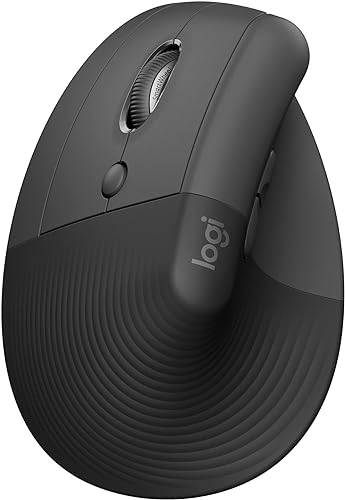
Logitech Lift Left-Handed Mouse: Best for smaller left hands
- 57-degree vertical shape
- Made for small to medium left hands
- Bluetooth or Logi Bolt connection
- Customizable buttons and SmartWheel
A left-specific thumb rest and softly textured grip make this the clearest choice if you want a vertical mouse. Logitech says its shape promotes a more natural forearm posture.
Pros
- Left-handed sculpted thumb rest
- Two connection options
- Quiet clicks
Cons
- Designed for small to medium hands
- Vertical shape can take time to get used to
The Logitech Lift is the top pick if you want an upright mouse made for the left hand. Its softly textured grip and sculpted thumb rest are designed for small to medium left hands.
The 57-degree angle encourages a more upright forearm position, according to Logitech. A SmartWheel handles scrolling, and the easy-to-reach buttons can be customized.
Choose Bluetooth Low Energy or the included Logi Bolt USB receiver to connect. The mouse supports Windows, macOS, iPadOS, Chrome OS and Linux.
Pick the Lift if a left-specific vertical grip and broad connection choice are priorities. Skip it if your hand is larger than the stated fit suggests or you already know you prefer a stationary trackball.
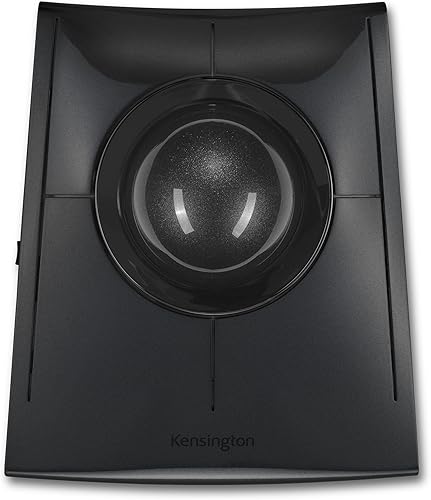
Kensington SlimBlade Pro Trackball: Best for finger control
- Ambidextrous low-profile design
- 55 mm ball with dual sensors
- Bluetooth, 2.4 GHz wireless or wired
- Rechargeable battery
The low-profile trackball works with either hand and needs less desk space than a moving mouse. It offers three connection choices and a rechargeable battery.
Pros
- Can be used with either hand
- Three connection modes
- Large ball for finger control
Cons
- Trackball operation feels different from a standard mouse
- Its low-profile shape may not suit every hand
The SlimBlade Pro suits left-handed users who want finger-operated trackball control. Its low-profile, ambidextrous shape works with either hand and takes less desk space than a mouse that needs room to slide.
The 55 mm ball is tracked by dual sensors. Kensington describes twisting the ball as a way to scroll, and you can connect by Bluetooth, 2.4 GHz wireless or USB cable.
Its rechargeable battery charges through USB-C. Your fingers move the ball while the trackball stays in place, so cursor control feels different from moving a conventional mouse.
Choose it if you want multiple connection choices and a large ball controlled by your fingers. Skip it if you want a body shaped specifically for the left hand or expect a familiar mouse movement from the first minute.
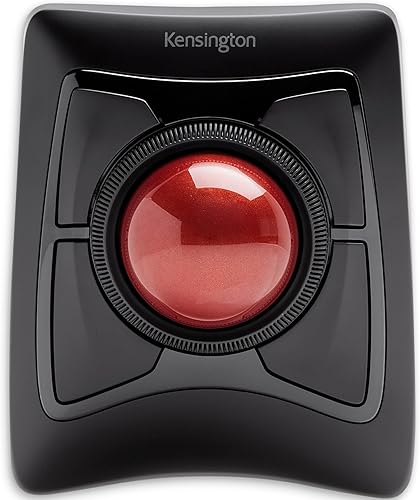
Kensington Expert Wireless Trackball: Best for wrist support
- Ambidextrous design
- 55 mm ball and scroll ring
- Detachable wrist rest
- Bluetooth LE or 2.4 GHz wireless
A scroll ring and detachable wrist rest distinguish this wireless trackball. Its large ball is controlled with your fingers, so cursor movement does not require sliding the device.
Pros
- Scroll ring for pages and documents
- Detachable wrist rest
- Wireless connection choices
Cons
- Large footprint compared with compact mice
- Linux is not supported
The Expert Wireless is for left-handed users who want a large ball, a scroll ring and a detachable wrist rest. Its ambidextrous shape allows either-hand use, and the rest supports your hand and wrist.
The 55 mm ball uses optical tracking. The scroll ring moves through pages and long documents, while Bluetooth LE and a 2.4 GHz USB receiver offer two connection routes.
Kensington software can customize the four buttons and adjust cursor and scroll speed. Linux is not supported, so this model is a poor fit if Linux is your main system.
Choose it if the wrist rest and ring fit how you work through long pages. Skip it if your desk is tight: the trackball measures 8 in by 6.1 in.
Kensington Expert Wired Trackball: Best for wired desks
- Ambidextrous design
- 55 mm ball and scroll ring
- Detachable wrist rest
- Wired USB-A connection
This wired version pairs a large ball and scroll ring with a detachable wrist rest. It suits a fixed desk where a USB-A cable is welcome.
Pros
- No wireless pairing
- Scroll ring for long pages
- Wrist rest can be detached
Cons
- Cable limits placement
- ChromeOS users cannot customize it with KensingtonKonnect
The wired Expert fits a fixed desk where you prefer USB-A and don't need wireless pairing. It shares the 55 mm ball, scroll ring and detachable wrist rest of the wireless Expert.
The ambidextrous shape works for either hand. Kensington software can customize its four buttons, but ChromeOS users get basic trackball functions without software customization.
Choose it if you want the Expert layout and a cable suits your setup. Skip it if the cord would limit where you can place the trackball or your computer lacks a usable USB-A connection.
ELECOM EX-G Left-Handed Trackball: Best for thumb-operated trackballs
- Left-handed thumb-operated trackball
- Six physical buttons
- 2.4 GHz wireless
- Switchable 750 or 1,500 DPI
A left-handed shape gives your thumb control of the ball while the rest of your hand stays on the device. The six-button layout includes tilt scrolling.
Pros
- Made for left-handed use
- Six physical buttons
- Ball can be removed for cleaning
Cons
- Thumb control takes practice
- Compatibility details focus on Windows and macOS
The ELECOM EX-G is the left-handed pick for thumb-operated trackball control. Its body is shaped for left-handed use, with the ball under the thumb and the remaining fingers resting on the mouse.
The six physical buttons include wheel tilt for horizontal scrolling. A switch changes cursor sensitivity between 750 and 1,500 DPI, and the ball can be removed for cleaning.
It connects with a 2.4 GHz USB receiver. ELECOM notes that thumb-ball control feels different and takes some getting used to.
Choose it if you want a left-specific trackball and like the idea of moving the cursor with your thumb. Skip it if you prefer finger control or the familiar sweep of a regular mouse across the desk.
MEETION Left-Handed Vertical Mouse: Best for rechargeable use
- Left-handed vertical shape
- Bluetooth 5.0, Bluetooth 3.0 or 2.4 GHz
- Rechargeable
- Recommended for 6.7 to 7.1 in hand length
This left-handed vertical mouse offers Bluetooth and 2.4 GHz connections, plus a rechargeable battery. Check the recommended hand length before choosing it.
Pros
- Rechargeable battery
- Three connection options
- Four DPI settings
Cons
- Recommended hand range is specific
- Not compatible with Android TV or older Linux systems
The MEETION BTM010 is a rechargeable left-handed vertical mouse with Bluetooth and 2.4 GHz connection options. Its recommended hand length is 6.7 to 7.1 in, so measure before you choose it.
Four DPI settings range from 1,200 to 3,200, and forward and backward buttons sit within reach. The mouse also has RGB lighting and a smooth scroll wheel.
MEETION lists support for Windows 10 and 11 and macOS 10.15 or later. It isn't compatible with Android TV or older Linux systems.
Choose it if your hand fits the recommended range and you want rechargeable power. Skip it if you need support for Android TV or an older Linux setup.
For a broader hand-fit comparison, see our guide to ergonomic mice for small hands.
Kensington Orbit Wireless Trackball: Best for compact scrolling
- Ambidextrous design
- 40 mm ball and scroll ring
- Bluetooth LE or 2.4 GHz wireless
- Four DPI settings
The scroll ring makes page movement a defining feature of this wireless trackball. Its ambidextrous shape works for left-handed users.
Pros
- Scroll ring for documents
- Two wireless connection options
- Four cursor-speed settings
Cons
- Smaller ball than the Expert models
- Two buttons
The Kensington Orbit Wireless suits left-handed users who want an ambidextrous trackball with a scroll ring. Its 40 mm ball is smaller than the 55 mm balls on the Expert models.
Connect through Bluetooth LE or 2.4 GHz wireless. Four DPI settings let you choose cursor speed, and Kensington software can assign functions to the buttons.
There are two buttons, fewer direct controls than on the six-button options here. The Orbit runs on two AA batteries.
Choose it if a ring for scrolling through documents matters more than having a large ball or many buttons. Skip it if you want a wrist rest or larger ball, in which case the Expert Wireless is a closer match.
Perixx PERIMICE-713L Left-Handed Mouse: Best for quiet clicking
- Left-handed vertical design
- Quiet left and right buttons
- Six buttons
- 2.4 GHz wireless
The left-handed vertical shape has quiet left and right buttons, while the scroll wheel and side buttons are not silent. Its 2.4 GHz receiver connects the mouse wirelessly.
Pros
- Quiet main buttons
- Left-handed shape
- Back and forward buttons
Cons
- Side buttons and scroll wheel are not silent
- Back and forward buttons are not supported on macOS
The Perixx PERIMICE-713L is a left-handed vertical mouse for people who want quiet main clicks. Its six-button layout includes back and forward controls, and a 2.4 GHz receiver provides the wireless connection.
The two DPI settings are 1,000 and 1,600. The left and right buttons are quiet, but the scroll wheel and side buttons are not silent.
Back and forward buttons don't work on macOS. The mouse needs two AAA batteries, which are not included.
Choose it if you want quiet primary clicks and a left-handed upright body. Skip it if silent scrolling matters or you rely on the side buttons on a Mac.
Lekvey Left-Handed Mouse: Best for Windows basics
- Left-handed vertical shape
- 2.4 GHz USB receiver
- Six buttons
- Three DPI settings
This left-handed vertical mouse uses a USB receiver and has six buttons, including page back and forward controls. It is not compatible with macOS.
Pros
- Plug-and-play USB receiver
- Six buttons
- Three DPI settings
Cons
- Not compatible with macOS
- Requires two AAA batteries
The Lekvey is a left-handed vertical mouse for a simple Windows or Linux setup. It has six buttons, a 2.4 GHz USB receiver and three cursor speed settings: 800, 1,200 and 1,600 DPI.
The side buttons handle page back and forward. An on/off switch sits underneath, and the mouse enters sleep mode after 8 minutes without activity.
It's not compatible with macOS and needs two AAA batteries, which aren't included. Choose it if your computer and connection match; skip it if you use a Mac or want Bluetooth.
How to choose a left handed ergonomic mouse
Choose a left-specific vertical mouse for an upright grip, or an ambidextrous trackball if you want to keep the device in place. Then check hand fit, the way you prefer to control the cursor and compatibility with your computer.
Does a left handed ergonomic mouse fit your hand?
A left handed ergonomic mouse should let your palm rest on the body without stretching for the buttons. Check any hand-size guidance: the Logitech Lift is for small to medium left hands, while MEETION recommends a hand length of 6.7 to 7.1 in.
Also compare the shape with how your fingers naturally reach the main buttons and scroll wheel. A vertical mouse changes your grip, so a size that looks right on paper still needs to feel stable in your hand.
If you're new to the upright shape, give yourself time to adjust. Our vertical mouse guide covers grip and setup, and how to use a vertical mouse walks through the first days.
Should you choose a vertical mouse or a trackball?
A vertical mouse is the better starting point if you want to keep moving the device across the desk but change your grip. A trackball suits you if you want to leave the device still and move the cursor with a ball.
Trackballs vary in how they put your hand to work. Finger-operated models such as the SlimBlade Pro and Expert have a large central ball, while the left-handed ELECOM EX-G places the ball under your thumb.
Trackball control feels different, so allow a short adjustment period before deciding it isn't for you. Our best trackball mouse guide compares styles, and the trackball versus regular mouse guide explains how their movement differs.
Which connection and controls fit your computer?
Check operating system support and available ports before buying. Bluetooth can leave a USB port free, while a USB receiver or wired USB connection may better suit a desktop that stays in one place.
Button support can depend on the computer system. The Lekvey isn't compatible with macOS, the Perixx back and forward buttons aren't supported on macOS, and Linux isn't supported on the Expert Wireless.
Count the controls you will actually use. Extra buttons help when you assign them to regular tasks, but they can be a distraction if you want a basic pointer and scroll wheel.
How should you set up and use a new ergonomic mouse?
Set up the mouse so your forearm stays relaxed and the device sits close enough that you don't reach for it. Start with the connection method you intend to use daily, then adjust cursor speed and button functions as needed.
Place the mouse beside your keyboard with your elbow near your body and your wrist in line with your forearm. Keep your shoulder loose, and move the whole hand gently when the cursor needs to travel farther.
A vertical mouse can feel unfamiliar because your palm no longer faces down. Start with ordinary tasks such as browsing and short documents, then add faster or more precise work once the grip feels natural.
With a trackball, keep your hand resting lightly on the device and use small ball movements. Begin at a cursor speed that lets you reach common screen targets without repeated corrections, then adjust the DPI or software speed if the pointer feels too slow or too jumpy.
Avoid changing too many settings at once. If a button assignment or cursor speed makes work harder, return to the previous setting and change one thing at a time.
What mistakes make left-handed mice harder to use?
The most common buying mistake is choosing by handedness alone. A mouse can be left-handed and still be the wrong size, grip or control style for you.
Don't assume every vertical mouse has the same hand fit. Check stated measurements or guidance, especially for the Lift and MEETION, and be cautious about choosing a body that makes your fingers stretch.
A second mistake is treating an ambidextrous trackball as if it will feel like a standard mouse. It stays in place and moves the cursor through the ball, so control takes practice even though it works for left-handed users.
Finally, don't ignore the operating system details. The Lekvey doesn't support macOS, Perixx side buttons aren't supported there, and Linux users should rule out the Expert Wireless.
Check ports too, since the wired Expert uses USB-A.
How do you care for a mouse or trackball?
Keep the mouse on a clear, dry surface and wipe its outer shell with a soft cloth when needed. Avoid getting liquid into buttons, the scroll wheel, charging port or ball opening.
Trackballs need occasional attention where dust can gather around the ball and its support points. The ELECOM EX-G ball can be pushed out for cleaning; remove it gently, clear visible debris and replace it securely before using the mouse.
Charge the SlimBlade Pro through USB-C when needed, and replace batteries in models that use AA or AAA cells. Turning a battery-powered mouse off when you aren't using it can help avoid unnecessary battery use.
Keep the USB receiver in a safe place when it's not plugged in. If a wireless mouse stops responding, check its power and connection first; our wireless ergonomic mouse troubleshooting guide covers common connection problems.
Which left handed ergonomic mouse should you choose?
Choose the Logitech Lift if you want a left-specific vertical mouse for small to medium hands. Pick the SlimBlade Pro for a rechargeable finger-operated trackball, the ELECOM EX-G for a left-handed thumb trackball, or the Expert Wireless for a wrist rest and scroll ring.
If you prefer a fixed cable, choose the wired Expert. For a rechargeable vertical alternative, compare your hand length with the MEETION's recommended range; choose Perixx for quiet main clicks or Lekvey for a simple setup that isn't on macOS.
Match the mouse to the grip and controls you'll use every day, then confirm that its connection works with your computer. For the wider desk setup, continue with our ergonomic mouse and keyboard guide.
Our top 3 picks at a glance
-
1
-
2
-
3
Frequently asked questions
What is the best left handed ergonomic mouse?
The Logitech Lift is a strong starting point if you want a vertical grip made for left hands. For a trackball, consider the ambidextrous SlimBlade Pro or a left-handed thumb model such as the ELECOM EX-G.
Choose by hand fit and control style, since vertical mice and trackballs feel different.
Are vertical mice available for left-handed users?
Yes. The Logitech Lift, MEETION BTM010 and Perixx PERIMICE-713L are left-handed vertical options in this guide.
Check the recommended hand size where available, then compare connection type and button layout.
A vertical shape changes your grip, so give yourself time to adjust.
Can a left-handed person use an ambidextrous trackball?
Yes. An ambidextrous trackball is designed for use with either hand, so a left-handed user can operate it from the left side of the desk.
Finger-operated models such as the Kensington SlimBlade Pro and Expert use a large central ball.
Thumb-operated trackballs have a more hand-specific shape.
How do I choose between a vertical mouse and a trackball?
Choose a vertical mouse if you want to move a mouse across the desk while holding a more upright grip. Choose a trackball if you prefer to keep the device in place and move the cursor with a ball.
Our vertical mouse guide explains grip and hand fit, while the trackball mouse picks compare trackball styles.