How to Clean a Trackball Mouse
To learn how to clean a trackball mouse, remove the ball as the manual directs, gently clear visible debris from its socket, and wipe the ball and shell with a soft, dry cloth. Let everything dry before reassembly.
On this page (10 sections)
- How do you clean a trackball mouse step by step?
- What supplies do you need to clean a trackball mouse?
- How do you remove the trackball safely?
- How should you clean the ball socket?
- Can you use water or rubbing alcohol on a trackball mouse?
- How often should you clean a trackball mouse?
- Which trackball is easiest to maintain?
- What common cleaning mistakes should you avoid?
- What should you do if the cursor still skips after cleaning?
- How to clean a trackball mouse: which one should you choose?
To learn how to clean a trackball mouse, switch it off, remove the ball as the manual directs, clear visible dust from the socket, and wipe the ball and shell with a soft, dry cloth. Let the parts dry before reassembly and use.
Trackballs stay in place while the ball moves the cursor, so cleaning focuses on the ball and its socket. Gentle care helps clear debris without scratching the ball or forcing dirt toward the sensor and controls.
How do you clean a trackball mouse step by step?
Turn off the mouse, remove the ball according to its manual, clear loose debris, and wipe the ball and shell. Reassemble only after all cleaned parts are dry.
- Turn off the mouse or disconnect it from the computer.
- Remove the ball using the model’s instructions.
- Gently clear visible dust and lint with a clean, dry cloth or soft brush.
- Wipe the ball and outer shell with a soft, dry cloth.
- Check for leftover lint, then replace the ball.
- Turn the mouse on and check cursor movement.
Don’t pry out the ball with a sharp object or scrape inside the socket. If it resists, stop and check the instructions instead of applying more force.
What supplies do you need to clean a trackball mouse?
Start with a soft, dry cloth and a soft brush for loose dust. Check the manual before using a liquid or cleaning product.
Wash and dry your hands before handling the ball. Work on a clean surface so loose lint is easy to see and won’t fall back into the socket.
Avoid abrasive pads, sharp tools, and sprays near the mouse. Don’t pour liquid onto the ball or into the socket, sensor area, buttons, or openings.
How do you remove the trackball safely?
Follow the removal method for your exact model. Trackballs differ, so a ball that pushes out of one mouse may need a different release method in another.
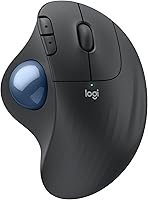
The Logitech Ergo M575S Trackball is a thumb-controlled option with a ball that can be ejected from its cage for cleaning. Its wireless connections are Bluetooth and the included Logi Bolt receiver, so switch it off or disconnect it before you begin.
Don’t force a stuck ball or assume the socket has the same release as another model. Follow the model instructions and keep tools away from the ball and its supports.
For setup and hand movement tips, read how to use a trackball mouse. If you’re deciding whether a stationary ball suits your work, compare it with a regular mouse in trackball mouse vs regular mouse.
How should you clean the ball socket?
Remove loose debris gently without pushing it farther into the socket. Use a dry cloth or soft brush around visible areas, and stop if you can’t reach something safely.
Don’t add oil or grease to the ball or its supports unless the manual specifically calls for it. Digging at debris can scratch parts or push dirt toward the sensor.
The Logitech Ergo M575S Trackball is right-handed and thumb-controlled. If you want a different style, the best trackball mouse guide compares it with options that have ambidextrous designs.
Can you use water or rubbing alcohol on a trackball mouse?
Check the manual before using water, rubbing alcohol, or another cleaner. A dry cloth is the safer starting point when you don’t have model-specific cleaning instructions.
If the manual allows a damp cloth, use only a little moisture on the cloth, never directly on the mouse. Keep liquid away from openings and let the ball and shell dry fully before reconnecting the device.
How often should you clean a trackball mouse?
Clean it when the ball feels rough, the cursor moves unevenly, or you see dust collecting around the socket. Checking every few weeks can help you notice buildup before it affects tracking.
The interval depends on where the mouse sits and how you use it. Dust, lint, and crumbs can collect faster near fabric or food, so a quick inspection is useful after a spill or a dusty day.
Which trackball is easiest to maintain?
Choose a mouse whose ball removal method and size suit your hands and workspace. The M575S has a documented ball ejection method, while the Kensington options offer larger or ambidextrous layouts.
Ease of cleaning is only one buying factor. Consider whether you want thumb control or a ball operated from the fingers, whether the mouse should work for either hand, and whether a scroll ring or wrist rest would help your routine.
Is the Kensington Expert Wireless Trackball right for cleaning and daily use?
The Kensington Expert Wireless Trackball suits people who want a large ball, ambidextrous layout, and detachable wrist rest. Its 55 mm ball and scroll ring make it a fit for users who prefer a full-size design and frequent page scrolling.
Choose it if you value the large ball and shared-hand flexibility. Skip it if you want a compact thumb-operated mouse or need Linux compatibility, which this model does not support.
For cleaning, check Kensington’s instructions for removing the ball. Don’t assume its release method matches the Logitech model or use a tool to pry it out.
Is the Kensington Orbit Wireless Trackball a good fit?
The Kensington Orbit Wireless Trackball suits right- or left-handed users who want a scroll ring and a smaller 40 mm ball. It supports Bluetooth LE and 2.4 GHz wireless connections.
Choose it if you want an ambidextrous layout with a scroll ring and adjustable cursor speed. Skip it if you prefer a thumb-operated design or need a model whose ball removal method is already familiar to you.
Follow the Orbit’s own instructions when removing its ball. Clean only reachable areas, and don’t force a brush or other tool into the socket.
For a closer look at the Logitech option, read our Logitech Ergo M575S Trackball review. If you’re comparing trackball styles, the trackball mice guide can help you weigh ball position, hand orientation, and controls.
What common cleaning mistakes should you avoid?
The main mistakes are forcing out the ball, scraping the socket, and letting liquid reach openings. Use the manual and gentle, dry cleaning to avoid damaging the mouse.
Don’t use a knife, pin, or other sharp object to lift the ball. A scratch or damaged socket can create a new tracking problem.
Don’t spray cleaner onto the mouse or assume a cleaner that works on another device is safe here. Keep moisture away from buttons and sensor openings, and wait until parts are fully dry before reconnecting.
What should you do if the cursor still skips after cleaning?
Check that the ball is seated properly and that visible debris is gone. If the cursor still skips, consult the manual for model-specific sensor or connection steps.
Reconnect the mouse and check cursor movement in your normal setup. For a wireless model, review the manual’s connection and battery instructions before trying more cleaning.
How to clean a trackball mouse: which one should you choose?
Choose a thumb-controlled model if you want to move the cursor without moving the mouse, or an ambidextrous design if multiple people or either hand will use it. For cleaning, prioritize a ball removal method you can follow comfortably and a shape that fits your desk and hand.
Pick the Logitech Ergo M575S Trackball if you want thumb control and an ejected ball for cleaning. Choose the Kensington Expert for a large ball and detachable wrist rest, or the Orbit for an ambidextrous design with a 40 mm ball and scroll ring.
Whichever style you choose, use its manual for removal, clean gently with a soft, dry cloth, and keep liquid away from openings. Then use how to use a trackball mouse to get comfortable with cursor control.
Frequently asked questions
How often should you clean a trackball mouse?
Clean it when the ball feels rough, the cursor skips, or dust and lint collect around the socket. The right interval depends on your room and how you use the mouse.
A quick check every few weeks can help you spot buildup before it affects tracking.
Can you use rubbing alcohol to clean a trackball mouse?
Check the mouse manual before using rubbing alcohol or any liquid cleaner. A soft, dry cloth is a safer first step for the ball and shell.
Keep liquid away from the socket, sensor, buttons, and openings, and let parts dry fully before reconnecting or using the mouse.
How do you remove a trackball from its socket?
Use the method in your mouse manual. On the Logitech Ergo M575S Trackball, the ball can be ejected from its cage for cleaning.
Lift or push it out gently as directed, and avoid sharp tools that could scratch the ball or damage the socket.
Why does a trackball mouse move unevenly?
Dust or lint around the ball supports or sensor can interfere with smooth movement. Remove the ball and clear visible debris gently, then reseat it and check the cursor.
If tracking remains uneven, consult the mouse manual for troubleshooting steps.