9 Best Trackball Mouse (November 2026)
The best best trackball mice include the Logitech MX Ergo S Trackball for adjustable thumb control, the Logitech Ergo M575S Trackball for small desks, and the Kensington SlimBlade Pro Trackball for finger control.
On this page (7 sections)
- Which trackball mouse is best for each setup?
- How did we choose these trackball mice?
- How do you choose the best trackball mouse for your desk?
- How do you set up a trackball mouse?
- What mistakes should you avoid with a trackball?
- How do you care for and clean a trackball?
- Which best trackball mouse should you choose?
The Logitech MX Ergo S is the best trackball mouse for most right-handed users, combining thumb control with a tilted base and Bluetooth or receiver connections. The M575S is a simpler choice for compact desks, while Kensington’s finger-operated models offer ambidextrous designs.
A trackball keeps its body in one place while you move the cursor with a ball. That can help when desk space is limited, but your choice between thumb and finger control matters more than the number of extra buttons.
If you're new to the motion, read our trackball mouse use guide. To compare movement styles before you choose, see trackball mouse vs regular mouse.
Our picks at a glance
-
1

-
2
-
3
- 4
 Check it
Kensington Expert Wireless Trackball
Best for a scroll ring - 5
 Best for multi-device pairingCheck it
- 6
 Check it
Kensington Expert Wired Trackball
Best for a steady wired setup - 7
 Best for a tilted thumb gripCheck it
- 8
 Check it
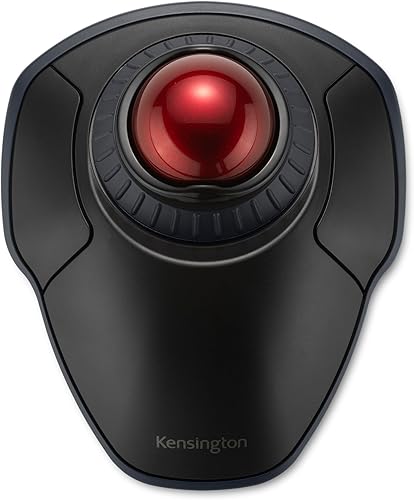
Kensington Orbit Wireless Trackball
Best for a compact finger ball - 9
 Best for programmable shortcutsCheck it
Which trackball mouse is best for each setup?
The best trackball depends on how you want to move the ball, which hand you use and how you connect your devices. The MX Ergo S leads for feature-rich thumb control, while Kensington’s options cover finger-operated use.
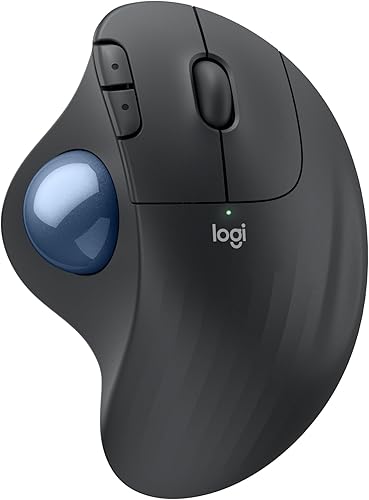
Logitech MX Ergo S Trackball: Best for adjustable thumb control
- 20-degree tilt
- Bluetooth or Logi Bolt receiver
- USB-C charging
- 6 customizable buttons
The tilt base, thumb control and two wireless connection choices make this a flexible pick for right-handed users with medium to large hands.
Pros
- 20-degree tilt
- Bluetooth and receiver connections
- USB-C charging
Cons
- Designed for right-handed use
- Medium to large hands are the stated fit
The Logitech MX Ergo S suits right-handed users who want a thumb ball, a tilted base and configurable shortcuts. Its 20-degree tilt changes the angle of your hand, and its sculpted shape is designed for medium to large hands.
Connect over Bluetooth or with the included Logi Bolt receiver, then switch between two devices with Easy-Switch. Logitech gives a battery life of up to 120 days per full charge, though actual time varies with use and computing conditions.
Six customizable buttons and the Logi Options+ app let you set shortcuts on supported versions of Windows and macOS. Skip this model if you need a left-handed shape or have a small hand that doesn’t fit its stated size range.
Choose the MX Ergo S when tilt, thumb control and flexible wireless pairing are your priorities. For a closer look at its features, read our Logitech MX Ergo S review.
Logitech Ergo M575S Trackball: Best for small desks
- Thumb control
- Bluetooth or Logi Bolt receiver
- Up to 18 months of battery life
- 3 customizable buttons
Its thumb-operated ball moves the cursor without moving the mouse body, which suits a compact desk. It connects over Bluetooth or the included receiver.
Pros
- Small-space friendly design
- Two wireless connection choices
- Up to 18 months of stated battery life
Cons
- Right-handed design
- Fewer customizable buttons than the MX Ergo S
The Logitech Ergo M575S is a practical starting point if you want thumb control without the MX Ergo S’s tilt base and larger set of customizable buttons. Its body stays still as you move the cursor, which suits a compact or crowded desk.
It connects over Bluetooth or the included Logi Bolt receiver and uses one included AA battery. Logitech gives a battery life of up to 18 months, with actual life depending on how you use it.
The sculpted shape is described as suitable for most hand sizes, but the design is right-handed. Its three customizable buttons cover basic shortcuts; skip it if you need a left-handed design or more extensive button programming.
Pick it for simple wireless control and space-saving use. Our guide to connecting the Logitech M575 walks through its connection options.
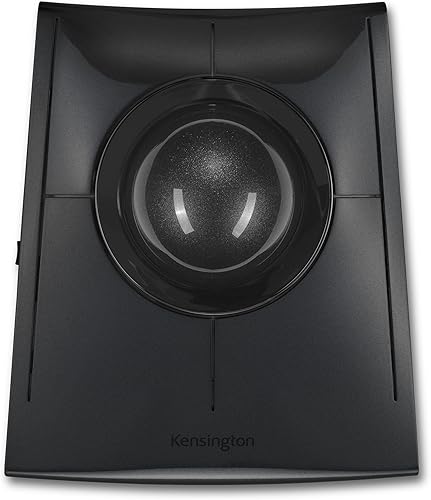
Kensington SlimBlade Pro Trackball: Best for finger control
- Large 55mm ball
- Bluetooth, 2.4GHz or wired connection
- Ambidextrous shape
- Rechargeable battery
The broad ball is controlled with your fingers, and the low profile is designed for either hand. Its three connection modes give you setup options.
Pros
- Ambidextrous design
- Three connection modes
- Large 55mm ball
Cons
- Low-profile shape may take adjustment
- KensingtonWorks software is a separate download
The Kensington SlimBlade Pro is a strong choice if you prefer to move the ball with your fingers or need a shape that can serve either hand. The low-profile base supports a large ball and offers Bluetooth, 2.4GHz wireless and wired USB connections.
Its rechargeable battery is rated for up to four months per charge, and the included USB-C cable connects to the trackball. KensingtonWorks software provides button configuration, while KensingtonKonnect adds more programmable button options.
Skip it if you specifically want a thumb-operated ball or expect a familiar, conventional mouse shape right away. The finger-controlled motion and low profile may take practice to feel natural.
Choose the SlimBlade Pro for ambidextrous finger control and flexible connections. Compare it with the Expert in our guide to Kensington Expert Wireless vs SlimBlade Pro.
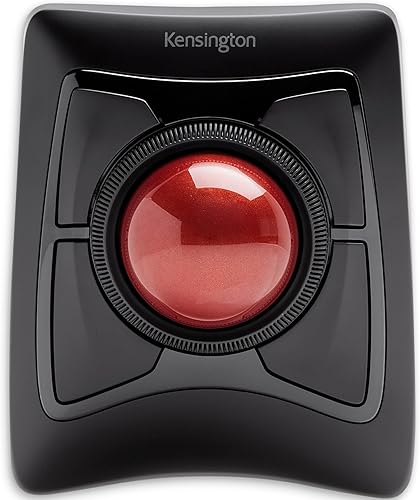
Kensington Expert Wireless Trackball: Best for a scroll ring
- Large 55mm ball
- Patented scroll ring
- Detachable wrist rest
- Bluetooth LE or 2.4GHz receiver
A scroll ring surrounds the large ball for page and document scrolling. The detachable wrist rest and ambidextrous body suit shared or left-handed setups.
Pros
- Scroll ring for documents
- Detachable wrist rest
- Wireless connection options
Cons
- Requires 2 AA batteries
- Linux is not supported
The Kensington Expert Wireless fits people who scroll long pages and documents often and want a ring around the ball for that movement. Its ambidextrous body, large ball and detachable wrist rest also make it a useful option for a shared workspace.
Connect through Bluetooth LE or the 2.4GHz USB receiver. It runs on two included AA batteries, and KensingtonKonnect software lets you adjust cursor and scroll speed and customize its four buttons.
Plan space for both the device and its wrist rest. Skip this model if you use Linux, need a compact base or want a rechargeable battery.
Pick it when a scroll ring and wireless operation matter more than saving desk space. For a corded alternative with the same general control style, consider the Kensington Expert Wired below.
Nulea M501 Trackball: Best for multi-device pairing
- Connects to up to 3 devices
- Bluetooth or USB receiver
- Rechargeable
- 4 DPI settings
The M501 can connect to as many as three devices and switches between them with a button. Its buttons are not programmable.
Pros
- Up to 3 device connections
- Rechargeable battery
- Four DPI settings
Cons
- Right-handed design
- Buttons are not programmable
The Nulea M501 suits a right-handed user who needs to switch among as many as three devices. It connects over Bluetooth or through a USB receiver, which stores in the bottom of the mouse when not in use.
Its rechargeable battery and four cursor speed settings add flexibility, but its six buttons are not programmable. The forward and back buttons also aren't compatible with macOS.
Choose it if three-device switching and rechargeable power matter more than custom shortcuts. Skip it if you need a left-handed model or want to assign your own functions to the buttons.
For a finger-operated option with a scroll ring, compare it with the Kensington Orbit Wireless.
Kensington Expert Wired Trackball: Best for a steady wired setup
- Large 55mm ball
- Patented scroll ring
- Detachable wrist rest
- Wired USB-A connection
The wired Expert shares the large ball and scroll ring style of its wireless counterpart. Its USB-A connection avoids battery changes and wireless pairing.
Pros
- No battery to charge or replace
- Scroll ring
- Detachable wrist rest
Cons
- Requires a USB-A port
- Less flexible to reposition than wireless models
The Kensington Expert Wired is a fit for a fixed desk where you want a finger-controlled ball and a direct USB connection. Its broad ball, scroll ring and detachable wrist rest give it the same general working style as the Expert Wireless.
Its ambidextrous shape works for either hand, and KensingtonKonnect can customize the buttons and adjust cursor and scroll speed. ChromeOS users get basic HID functions but can't customize the device through KensingtonKonnect.
A wired connection means there are no batteries to manage or wireless pairing to set up. Skip this model if your computer has no USB-A port, or if you need the flexibility to move the trackball away from the cable.
Choose it for a steady, single-computer desk setup. If you want Bluetooth or receiver connections, the Expert Wireless is the closer match.
TECKNET Wireless Trackball: Best for a tilted thumb grip
- 16-degree angle
- Bluetooth and 2.4G connections
- Connects to 3 devices
- Rechargeable battery
Its 16-degree angle and thumb ball suit buyers who want a tilted shape and device switching. TECKNET describes it as a fit for medium to large hands.
Pros
- Tilted shape
- Three device connections
- Rechargeable
Cons
- Right-handed design
- Stated fit is medium to large hands
The TECKNET Wireless Trackball suits right-handed users looking for an angled thumb grip and a way to switch among three devices. It pairs with two Bluetooth devices and one 2.4G device, then switches with a button.
The rechargeable battery and five cursor speed settings give you useful adjustments. TECKNET describes the fit as medium to large hands and recommends allowing one to two weeks to get familiar with the trackball motion.
Skip it if you use your left hand or have a smaller hand. Choose it if the tilt and three-device switching match your setup.
If you want an angled thumb model with customization and a different connection setup, compare its features with the MX Ergo S.
Kensington Orbit Wireless Trackball: Best for a compact finger ball
- 40mm ball
- Scroll ring
- Ambidextrous shape
- Bluetooth LE or 2.4GHz
The Orbit combines a smaller 40mm ball with a scroll ring and an ambidextrous design. Four cursor speed settings let you adjust tracking.
Pros
- Scroll ring
- Works for left or right-handed use
- Two wireless connection types
Cons
- Uses 2 AA batteries
- Smaller ball than the 55mm Kensington models
The Kensington Orbit Wireless is a good fit if you want finger control and a scroll ring in a smaller-ball design. Its ambidextrous shape works for either hand, and the 40mm ball is smaller than the one on the Kensington Expert and SlimBlade Pro.
It connects over Bluetooth LE or 2.4GHz wireless and uses two included AA batteries. Four cursor speed settings let you adjust tracking, and KensingtonKonnect software supports button and scroll customization.
Choose the Orbit if you want an ambidextrous wireless model with a scroll ring and a compact ball. Skip it if a larger ball is your priority; compare the Expert Wireless or SlimBlade Pro instead.
ELECOM Huge Plus Trackball: Best for programmable shortcuts
- 52mm ball
- 10 programmable buttons
- Bluetooth, 2.4GHz or wired USB-C
- Rechargeable
The Huge Plus offers more button customization than the other picks here, plus three connection modes. Its 52mm ball and right-handed design suit a dedicated workstation.
Pros
- 10 programmable buttons
- Three connection modes
- Rechargeable
Cons
- Right-handed design
- Larger footprint than compact thumb models
The ELECOM Huge Plus is made for a right-handed workstation where programmable shortcuts and connection choices matter. Its 52mm ball is paired with 10 programmable buttons, Bluetooth, 2.4GHz wireless and wired USB-C.
It can switch among up to three devices, and its rechargeable battery is rated for up to five months per charge. The buttons are described as silent, and the ball’s bearings can be swapped, including an option to upgrade to ruby units.
Skip it if you need a left-handed or compact model, or if you won't use programmable buttons. Choose it when a dedicated workstation benefits from many shortcuts and multiple connection modes.
For simpler thumb control and a smaller-space design, the Logitech M575S is a better match.
How did we choose these trackball mice?
We compared control style, hand orientation, connection options, ball size and adjustment features against common desk setups. Scores reflect how well each model’s features fit the needs of people searching for a trackball mouse.
The MX Ergo S and M575S lead for different thumb-control setups: one adds tilt and configurable buttons, while the other keeps the design simpler. The Kensington models cover ambidextrous finger control, with a choice of scroll rings, wired connection or rechargeable power.
Multi-device options and programmable shortcuts matter to some buyers, but they aren't useful to everyone. The picks below match distinct needs, so start with the control style and connection you want rather than treating extra features as a checklist.
How do you choose the best trackball mouse for your desk?
Choose a control style first, then check hand orientation, space, connections and power. This order helps you rule out models that don't fit your hand or computer before comparing smaller features.
Which best trackball mouse control style should you choose?
Thumb models move the cursor with your thumb while your fingers rest on the buttons. Finger models use your fingers to move the ball, often on a broader, flatter base.
The MX Ergo S, M575S, Nulea M501 and TECKNET use thumb control. The SlimBlade Pro, Expert models and Orbit use finger control, so focus on the type of motion you want before comparing battery life or software.
If you haven't used either style, expect a learning period. You can begin with everyday browsing and documents, then tune the cursor speed if your model allows it.
Will a trackball fit your hand and handedness?
Hand orientation narrows the options quickly. The MX Ergo S, M575S, Nulea M501, TECKNET and ELECOM Huge Plus are right-handed models.
The SlimBlade Pro, Expert Wireless, Expert Wired and Orbit Wireless are described as ambidextrous. They are the choices to consider if you use your left hand or share a device with someone who does.
Also think about the size and shape of the area your hand will rest on. The MX Ergo S is described for medium to large hands, and the TECKNET is also described for medium to large hands; compare those descriptions with the size of your current mouse before choosing.
How much room does a trackball need?
A trackball needs a stable spot for the device and room for your hand, but it doesn't need a clear travel path across the desk. This is why a thumb model such as the M575S can work well on a crowded surface.
The larger Expert models include a detachable wrist rest, so allow space for both pieces. Measure the area where your hand will sit, and check that nearby objects won't block the ball or buttons.
A trackball still needs to be positioned comfortably. If you have to reach around a keyboard, mug or monitor stand to use it, the saved mouse-travel space won't solve the placement problem.
Should you choose a wireless or wired trackball?
Choose wireless if you want flexible placement or need to switch between computers. Models in this roundup offer Bluetooth, receiver connections or both, and the SlimBlade Pro and ELECOM Huge Plus also support wired use.
Choose a wired model if your desk setup stays fixed and you want to avoid wireless pairing and battery changes. The Kensington Expert Wired uses USB-A, so check that your computer has a suitable port.
For wireless models, confirm which connection method works with your computer and whether you have an available USB port for a receiver. If you regularly switch between devices, check how many pairings the mouse supports and how you change between them.
Do extra buttons and software matter?
Extra controls help when you already know which repeated actions you want to make faster. The ELECOM Huge Plus offers 10 programmable buttons, while some of the Logitech and Kensington models support button customization through their software.
If you mostly browse, write and do basic office work, a simpler layout may be easier to learn. The Nulea M501's buttons are not programmable, so skip it if custom button actions are a firm requirement.
Check whether the software supports your operating system before relying on it. The Kensington Expert Wireless does not support Linux, and ChromeOS users of the wired Expert get basic functions without KensingtonKonnect customization.
What power setup will be easiest to maintain?
Battery choice affects your routine more than cursor control. The M575S and Kensington Orbit Wireless use AA batteries, while the MX Ergo S, SlimBlade Pro, Nulea M501, TECKNET and ELECOM Huge Plus are rechargeable.
The Kensington Expert Wired avoids batteries altogether. If charging is easy at your desk, a rechargeable model may suit you; if you'd rather keep spare cells on hand, an AA-powered option can fit that habit.
How do you set up a trackball mouse?
Set up a trackball by placing it where your hand can rest comfortably, connecting it to your computer and adjusting cursor speed before changing other settings. Start with a simple task so you can learn how the ball responds.
For a wireless model, choose Bluetooth or the USB receiver based on your computer and available ports. For a wired model, place the cable so it reaches without pulling the device out of position.
Keep your wrist relaxed and move the ball with small, controlled movements. If the cursor crosses the screen too slowly or jumps too far, adjust sensitivity where the model provides that option.
Give yourself time to get used to the motion. Our trackball mouse use guide has more practice tips, and the Logitech M575 connection guide explains that model’s connection steps.
What mistakes should you avoid with a trackball?
The most common buying mistake is choosing from the feature list before deciding whether you want thumb or finger control. A long list of buttons won't help if the ball motion or hand orientation feels wrong for your setup.
Avoid placing the trackball too far from your natural resting position. It stays in place while you use it, but the device should still sit where your hand can reach it without stretching.
Don't assume every wireless mouse connects the same way or supports every operating system feature. Check the model’s connection type, receiver needs and software support against your computer before you buy.
Finally, don't judge a new trackball after only a few minutes. Cursor control can take practice, and changing several settings at once makes it harder to tell which adjustment helped.
How do you care for and clean a trackball?
Keep the ball and its socket free of dust so the ball can move smoothly. Follow the model’s instructions when removing a ball, and use a soft, dry cloth to clear the accessible cup area.
The Logitech M575S ball can be ejected from its cage for cleaning. Avoid forcing a ball out if the model’s design or instructions don't support that method.
Clean the ball when cursor movement begins to feel less smooth, and check the cup for dust during routine desk care. Read our trackball cleaning guide for a careful step-by-step routine.
Which best trackball mouse should you choose?
Choose the MX Ergo S for a tilted, feature-rich thumb model, and choose the M575S for straightforward thumb control on a tight desk. Pick the SlimBlade Pro if you want ambidextrous finger control with Bluetooth, receiver and wired options.
For a scroll ring, compare the Kensington Orbit if you want a smaller ball with the Expert Wireless if you want a larger ball and wrist rest. Choose the Expert Wired for a fixed USB-A setup, the Nulea M501 or TECKNET for three-device switching, or the ELECOM Huge Plus for programmable shortcuts.
The best trackball mouse is the one that fits your hand, preferred ball motion and computer connections. If you're still weighing the movement style, use our trackball vs regular mouse guide to make the final call.
Our top 3 picks at a glance
-
1
-
2
-
3
Frequently asked questions
What is the best trackball mouse for most people?
The Logitech MX Ergo S is a strong starting point for right-handed users who want thumb control, a tilting base and Bluetooth or receiver connections. Its stated fit is for medium to large hands.
If you want a simpler thumb model for a tight desk, compare it with the Logitech Ergo M575S.
Are thumb or finger trackballs easier to use?
Neither style is right for everyone. Thumb models move the ball with your thumb while your fingers rest on the buttons; finger models use the fingers to move a larger ball.
The control motion differs, so choose based on which feels more natural to you.
See our guide to using a trackball mouse for adjustment tips.
Can left-handed users use a trackball mouse?
Some can. The Kensington SlimBlade Pro, Expert Wireless, Expert Wired and Orbit Wireless models in this guide are described as ambidextrous.
The Logitech MX Ergo S, Logitech M575S, Nulea M501, TECKNET and ELECOM Huge Plus are right-handed designs.
Does a trackball mouse need a special surface?
No. Because the body stays in place while you move the ball, you don't need an open patch of desk for mouse travel.
The Logitech M575S and Nulea M501 are both described as usable on any surface.
You still need a stable spot for the device itself and enough room for your hand.
How do you clean a trackball mouse?
Remove and clean the ball according to the model's instructions, then clear dust from the ball cup with a soft, dry cloth. The Logitech M575S ball can be ejected from its cage for cleaning.
Read our trackball cleaning guide for a careful step-by-step routine.