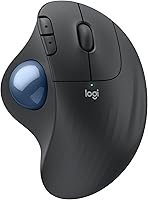
How to Use a Trackball Mouse
To learn how to use a trackball mouse, keep it still and roll the ball with your thumb or fingers to move the pointer. Rest your hand lightly, start with a comfortable pointer speed, and practice on large targets before trying precise tasks.
On this page (9 sections)
- How do you use a trackball mouse for the first time?
- How should your hand rest on a trackball mouse?
- How do you move the pointer accurately?
- How do you click and scroll with a trackball?
- How should you set pointer speed and buttons?
- How do you choose a trackball mouse?
- What common trackball mistakes should you avoid?
- How do you care for a trackball mouse?
- How to use a trackball mouse: which one should you choose?
To learn how to use a trackball mouse, keep the device still and roll its ball with your thumb or fingers to move the pointer. Rest your hand lightly, click with the usual buttons, and adjust pointer speed if small movements feel hard to control.
A regular mouse moves across the desk to guide the cursor. A trackball stays put, which can help when desk space is tight or you want to control the pointer without sweeping your arm.
How do you use a trackball mouse for the first time?
Place the trackball where your hand can rest comfortably, then roll the ball to move the pointer. Keep your grip loose and your wrist relaxed.
Start with these steps:
- Put the mouse on a steady surface near your keyboard.
- Rest your palm on the body without squeezing it.
- Roll the ball slowly and notice how far the pointer travels.
- Practice moving to large targets, such as desktop icons.
- Use the buttons and scroll wheel as you would on a regular mouse.
- Adjust pointer speed if the cursor feels too fast or slow.
A thumb controlled trackball uses your thumb to move the ball while your fingers stay near the buttons. A finger controlled model places the ball where one or more fingers can roll it, so decide which movement feels more natural before choosing a shape.
How should your hand rest on a trackball mouse?
Rest your hand on the shaped body and keep your fingers near the buttons. The mouse should stay in place without you gripping it as you move the cursor.
Keep it close enough that you don't reach forward or twist your wrist to click. Your forearm can rest on the desk or chair arm if that feels comfortable.
A thumb model can suit you if you want your fingers near the main buttons and wheel. The [Logitech Ergo M575S Trackball]({{amazon B0BBQ3ZYNY}}) has thumb control, a sculpted shape, and quiet clicks.
For help comparing ball positions and shapes, see our best trackball mouse guide.
How do you move the pointer accurately?
Start with short, slow rolls and aim for large targets before working on small ones. Make small corrections near your target instead of trying to land precisely in one roll.
If the pointer overshoots, lower its speed in your computer settings or the mouse's companion software, if available. If it takes too many rolls to cross the screen, increase the speed a little.
How should you practice using a trackball mouse?
Practice with simple tasks that let you repeat the same movements, such as opening folders, selecting menu items, and scrolling through a page. Short sessions give you time to build control without making each movement feel like a test.
Move from broad targets to smaller ones as your accuracy improves. You can also draw slow circles with the pointer or move it between two large icons.
The Logitech MX Ergo S Trackball has a button for switching between speed and high precision tracking. Its contoured shape and 20-degree tilt suit medium to large hands.
If pointer movement feels awkward, return to a slower speed and take a break. You can build up gradually.
How do you click and scroll with a trackball?
Use the buttons and scroll wheel as you would with a regular mouse. The ball moves the pointer, while the buttons and wheel handle clicking and scrolling.
A thumb trackball usually puts the ball near the thumb and leaves the index and middle fingers for the main buttons and wheel. A finger trackball may place the ball centrally, with buttons around it.
Try everyday tasks first, such as opening a link or scrolling a document. If a button feels hard to reach, adjust the mouse's position before changing your grip.
How should you set pointer speed and buttons?
Change one setting at a time, then use it for a few minutes before deciding whether it helps. A slower pointer can make precise aiming easier, while a faster one reduces how far you need to roll the ball.
The Logitech Ergo M575S supports cursor speed adjustment through the Logi Options+ app. The Logitech MX Ergo S has 6 customizable buttons and a button for switching between speed and high precision tracking.
The Nulea M501 Trackball has 4 DPI settings: 400, 800, 1,200, and 1,600. Its buttons aren't programmable, so use its DPI button or your computer settings to adjust pointer speed.
Avoid changing pointer speed, acceleration, and button assignments all at once. If control gets worse, restore the last setting that felt comfortable and try the next change on its own.
How do you choose a trackball mouse?
Choose by ball position, hand fit, space, and the settings you need. A trackball can suit a small desk or a setup where you want to keep the mouse in one place, but it takes practice to guide the cursor with the ball.
Pick the Logitech Ergo M575S if you want a thumb controlled shape for everyday desk work, a choice of Bluetooth or the included Logi Bolt USB receiver, and cursor speed adjustment in its app. Skip it if you need a left handed model, since it is designed for the right hand, or if you prefer to control the ball with your fingers.
Choose the Logitech MX Ergo S if you have medium to large hands and want a 20-degree tilt, a speed and precision button, and 6 customizable buttons. It charges by USB-C and supports Bluetooth or the included Logi Bolt receiver.
Skip it if you want a simpler model or need a rechargeable cable included, since the charging cable isn't included.
The Nulea M501 suits you if you want 4 DPI settings, a rechargeable battery, and connections for up to 3 devices through Bluetooth or a USB dongle. Skip it if you need programmable buttons or rely on its forward and back buttons with macOS, since those buttons aren't compatible with macOS.
All three products use thumb control and are right handed. For a broader look at how the movement differs, read our trackball mouse versus regular mouse guide.
What common trackball mistakes should you avoid?
The most common mistakes are gripping too tightly, starting with pointer speed that feels too fast, and expecting instant precision. Each can make the ball harder to control.
Keep the mouse close and let your hand rest on its body. Use small rolls near a target, and lower pointer speed if you keep overshooting.
Don't change several settings at once. Adjust one setting, practice with it, then keep or undo the change based on how it feels during regular tasks.
How do you care for a trackball mouse?
Keep the ball and its socket clean so the ball can roll smoothly. Follow your model's care instructions because removal and cleaning methods differ.
The Logitech Ergo M575S lets you eject the ball from its cage. Wipe the ball and accessible area with a soft, dry cloth, then return the ball only when dry.
For a step by step routine, read how to clean a trackball mouse. Avoid spraying cleaner into the socket or using a sharp object to remove the ball.
How to use a trackball mouse: which one should you choose?
Choose the M575S for a straightforward thumb controlled shape, the MX Ergo S for its tilt and extra controls, or the Nulea M501 for rechargeable power and multiple device connections. Pick the one that fits your hand and settings needs, then start slowly and practice on large targets.
If you are unsure about the movement style, compare a trackball with a regular mouse in our trackball versus regular mouse guide. If you choose a Logitech M575S, our guide explains how to connect the Logitech M575 trackball.
Frequently asked questions
How do you use a trackball mouse?
Keep the mouse in place and roll its ball with your thumb or fingers to move the pointer. Rest your hand on the shape without gripping it tightly, then use the buttons and scroll wheel as you would on a regular mouse.
Change pointer speed if the cursor moves too far or too little.
How long does it take to get used to a trackball mouse?
There is no fixed adjustment period. Start with short sessions on everyday tasks and large targets, then try smaller targets as your cursor control improves.
If the pointer feels difficult to manage, lower its speed and practice again.
Take a break if your hand becomes tense.
Do you move a trackball mouse?
The mouse stays in place while you roll the ball to move the pointer. This can save desk space and reduce how far you need to sweep your arm across the desk.
You can still move the device to find a comfortable position or reach its buttons.
How do you clean a trackball mouse?
Turn off or disconnect the mouse, then follow its care instructions. Some models let you push the ball out of its socket for cleaning.
Wipe the ball and accessible socket area with a soft, dry cloth, and let everything dry before reassembly.
Avoid liquids unless the instructions allow them.