How to Connect the Logitech M575 Trackball
Connect the Logitech M575 with Bluetooth through your computer's Bluetooth settings or plug in its included Logi Bolt USB receiver. Turn on the mouse, choose the matching connection method, then move the ball to check the cursor.
On this page (8 sections)
- How do you connect a Logitech M575 with Bluetooth?
- How do you connect the M575 with its USB receiver?
- How can you tell if the Logitech M575 is connected?
- What should you check if Bluetooth pairing fails?
- What should you check if the USB receiver doesn't work?
- How do you choose between the M575S and other trackballs?
- How do you care for and use the M575S?
- Which connection should you choose for the Logitech M575?
To learn how to connect Logitech M575, pair the mouse through your computer's Bluetooth settings or plug in the included Logi Bolt USB receiver. Turn on the mouse, use the matching connection method on your computer, and roll the thumb ball to confirm that the cursor responds.
The M575S offers both wireless options. Bluetooth keeps a USB port free, while the receiver gives you a direct USB connection.
Both let the trackball stay in place as you move the cursor with your thumb.
How do you connect a Logitech M575 with Bluetooth?
To connect the M575 over Bluetooth, open your computer's Bluetooth settings and select the mouse when it appears. Menu names vary between Windows and macOS, but the basic pairing process is similar.
- Turn on Bluetooth on your computer.
- Switch on the M575.
- Open the computer's Bluetooth settings and choose the option to add or pair a device.
- Select the Logitech M575 when it appears.
- Roll the trackball and click to check that the cursor responds.
Keep the mouse near the computer while pairing. If it doesn't appear, confirm that the mouse is on and that the computer is actively searching for new Bluetooth devices.
The M575S supports Bluetooth. Logitech's ERGO M575S support page has model-specific setup help if the computer's menus differ from these steps.
How do you connect the M575 with its USB receiver?
For a receiver connection, plug the included Logi Bolt USB receiver into your computer, then switch on the mouse. The receiver provides a USB connection, so you don't need to pair through Bluetooth settings.
If your computer doesn't have a compatible USB port, use a suitable adapter or choose Bluetooth. Check inside the packaging if the receiver isn't easy to find.
How can you tell if the Logitech M575 is connected?
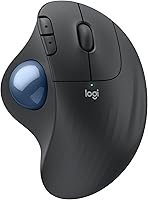
The M575 is connected when rolling the thumb ball moves the cursor on screen. Unlike a regular mouse, the trackball stays put while your thumb controls cursor movement.
If the cursor doesn't move, check that the mouse is switched on and that you used the same connection method on both devices. A receiver connection needs the Logi Bolt receiver plugged into the computer; a Bluetooth connection needs the mouse selected in the computer's Bluetooth settings.
A few small changes can make the first use easier. Rest your palm on the sculpted body and keep your thumb relaxed.
Make short rolls until you get a feel for how far the cursor moves. If you're new to thumb control, see our guide to how to use a trackball mouse.
How to connect Logitech M575: what setup suits you?
The M575S is a good fit if you want thumb control, a compact desk setup, or a mouse that doesn't need to slide across a surface. Its right-handed shape is designed to support the hand, and Logitech says it suits most hand sizes.
Choose Bluetooth if you want to save a USB port or your computer has no suitable port. Choose the Logi Bolt receiver if you prefer a USB connection or Bluetooth pairing is inconvenient.
The M575S may not suit you if you need a left-handed mouse or strongly prefer moving a mouse with your whole hand. A trackball also takes practice if you've only used a standard mouse, so give your thumb time to learn precise movement before deciding whether the style works for you.
What should you check if Bluetooth pairing fails?
If Bluetooth pairing fails, confirm Bluetooth is on, the mouse is switched on, and the computer is searching for devices. Then try selecting the mouse again from the computer's Bluetooth settings.
If the M575 appears in the device list but won't connect, remove its saved entry and try pairing again. Restarting Bluetooth on the computer can also refresh the search.
Avoid switching back and forth between Bluetooth and the receiver without checking which connection your computer is using. If Bluetooth still doesn't work, try the receiver if you have it and your computer has a compatible port.
For other common connection problems, see wireless ergonomic mouse fixes.
What should you check if the USB receiver doesn't work?
If the receiver isn't connecting, unplug it and reconnect it to a USB port, then move the ball to check for a cursor response. Try another compatible port if one is available.
Confirm that the receiver is the Logi Bolt unit included with the M575S, and make sure the mouse is on. If the computer lacks a compatible port, Bluetooth is an alternative.
The Logitech Wave Keys connection guide covers a similar choice between Bluetooth and a USB receiver for a keyboard. The same practical rule applies: select one connection route, set up that route on the computer, and check that the device responds.
How do you choose between the M575S and other trackballs?
Choose the M575S if you want a right-handed thumb trackball with Bluetooth and a Logi Bolt receiver, and don't need rechargeable power or a tilt base. It also has 3 customizable buttons and cursor speed adjustments through the Logi Options+ app on recent Windows and macOS versions.
The MX Ergo S is a stronger fit if you want those added controls or a tilt angle. It also has a rechargeable battery.
Its shape is intended for medium to large hands, so consider another option if you have smaller hands or want a simpler trackball. See our Logitech M575S trackball review for a closer look at the M575S.
The Nulea M501 suits someone who wants to switch among several devices and adjust cursor speed using its DPI button. Skip it if programmable buttons or Mac support for its forward and back buttons are important to you; its buttons aren't programmable, and those two buttons aren't compatible with macOS.
How do you care for and use the M575S?
Keep the M575S on a stable surface and use the thumb ball for cursor movement. Because the mouse itself doesn't need to slide around, it can work well on a crowded desk or another setup with little room to move a regular mouse.
Dust and debris can build up around a trackball over time. Logitech notes that the M575S ball can be removed from its cage for cleaning, so follow the model's support guidance and avoid forcing the ball or using a tool that could scratch it.
The mouse uses an included AA battery and Logitech gives a battery life estimate of up to 18 months, with actual life depending on use and computing conditions. If the cursor stops responding, check the battery and connection before assuming the mouse needs to be paired again.
A common setup mistake is to expect the whole mouse to move the cursor. Keep the body still and roll the ball with your thumb; that is the core change from a standard mouse.
Which connection should you choose for the Logitech M575?
Choose Bluetooth if you want to leave a USB port free, or use the Logi Bolt receiver if you prefer a direct USB connection. If neither method works at first, check that the mouse is on, repeat the steps for your chosen route, and test cursor movement with the ball.
For a compact right-handed setup with two wireless connection choices, the M575S is the straightforward pick. If you want to compare more thumb-controlled models before deciding, browse our best trackball mouse guide.
Frequently asked questions
How do I connect a Logitech M575 trackball?
Connect the M575 with Bluetooth through your computer's Bluetooth settings, or plug its Logi Bolt USB receiver into a USB port. Turn on the mouse, select it when prompted for Bluetooth, and move the trackball to check the cursor.
Use the same connection method on the computer that you use on the mouse.
Does the Logitech M575 use Bluetooth?
Yes, the M575S supports Bluetooth and also comes with a Logi Bolt USB receiver. Use Bluetooth if you want to pair through your computer's wireless settings, or use the receiver if you prefer a USB connection.
The steps for finding the mouse depend on your operating system.
Where is the Logitech M575 USB receiver?
The M575S includes a Logi Bolt USB receiver, but its exact storage location can vary by package. Check inside the packaging and around the mouse before setting it up.
If you can't find the receiver, Bluetooth is another supported connection option.
Why won't my Logitech M575 connect?
First confirm the mouse is switched on and that your computer is searching for the connection method you selected. For Bluetooth, check the computer's Bluetooth settings and try selecting the mouse again.
For the receiver, reseat it in a USB port.
If the cursor still doesn't move, consult Logitech's setup support for your model.