Ergonomic Mouse and Keyboard: A Plain Buying Guide
A good ergonomic mouse and keyboard setup fits your hands, keeps your devices within easy reach and lets you work in a comfortable position. Choose a mouse by its grip and pointer movement, then choose a keyboard by its layout, shape and desk footprint.
On this page (10 sections)
- What makes an ergonomic mouse and keyboard comfortable?
- Which ergonomic mouse shape should you choose?
- Should you choose a split keyboard or a wave keyboard?
- How should you position the mouse and keyboard?
- How do you choose between wireless connections?
- Which ergonomic mouse and keyboard details should you compare?
- What mistakes should you avoid when buying ergonomic gear?
- How do you care for a mouse and keyboard?
- How do you pick an ergonomic mouse and keyboard setup?
- Related guides
An ergonomic mouse and keyboard setup should fit your hands, keep your shoulders relaxed and make it easy to reach between devices. Choose a mouse by how you like to grip and move it, then choose a keyboard by its shape, layout and available desk space.
The word “ergonomic” doesn't guarantee a comfortable fit. Hand size, grip, typing habits and work surface all affect whether a device feels natural to use.
Start with the fit and setup basics in our ergonomic desk fit guide, then use this guide to narrow your choices. The four examples below cover two mouse shapes and two keyboard styles.
What makes an ergonomic mouse and keyboard comfortable?
A comfortable setup lets you work without forcing your hands into one shape or reaching far across the desk. Put the keyboard and mouse where your elbows can stay near your sides and your shoulders can remain relaxed.
Your own habits are useful clues. Notice whether you move a mouse with your fingers, wrist or whole arm, and whether you keep your wrists pressed against the desk while typing.
Also consider how often you switch devices, how much room you have and which keys you use most. A new mouse grip or keyboard layout can feel unfamiliar, so the size of the adjustment matters alongside the intended fit.
Ergonomic gear is a way to change the shape and placement of your input devices. It doesn't guarantee a particular result, and a shape that works well for one person may not suit another.
Which ergonomic mouse shape should you choose?
Choose a mouse by the movement and grip that feel most natural to you. A vertical mouse raises your hand into an upright position, while a trackball keeps the mouse body still as your thumb or fingers move the pointer.
| Mouse type | How it works | Consider it if |
|---|---|---|
| Vertical mouse | Your hand rests on an angled, upright body | You want to try a different grip and the size fits your hand |
| Trackball | You roll a ball to move the pointer while the body stays put | You prefer to move the pointer without sliding the mouse across the desk |
| Standard mouse | You move the whole mouse across the desk | Your current grip and movement feel comfortable |
A vertical shape changes both your grip and the way you guide the pointer. It can suit someone who wants an upright hand position, but the shape and button reach should fit the hand that will use it.
A trackball needs less open space for mouse movement because the body stays in place. You still need room to rest your hand and reach the controls, and a thumb-controlled model may not suit someone who would rather guide the pointer with their fingers.
If you prefer a familiar flat grip, a standard mouse may remain the simplest fit. You can compare its movement with a trackball in our trackball mouse vs regular mouse guide.
How do hand size and grip affect an ergonomic mouse?
Hand size and grip affect whether your palm rests on the body and whether the buttons are easy to reach. Check the intended hand size and orientation, then think about how you hold a mouse during ordinary work.
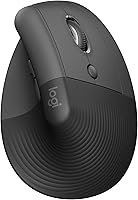
The Logitech Lift Vertical Mouse is made for small to medium right hands. Its 57-degree upright angle, textured grip and thumb rest make it a clear option for someone who wants a vertical grip and a mouse sized for that range.
The Lift also has customizable buttons and quiet clicks. It connects through Bluetooth Low Energy or a Logi Bolt USB receiver, so it can suit someone who wants wireless use and has a compatible connection available.
Skip it if you need a left-handed mouse, have hands outside its stated size range, or prefer a flat mouse grip. For more options aimed at smaller hands, see our best ergonomic mouse for small hands guide.
The Logitech MX Ergo S Trackball is designed for medium to large hands and uses thumb control. Its 20-degree tilt and customizable buttons may suit someone who wants a stationary mouse body and prefers a thumb-operated ball.
This trackball is right-handed and rechargeable through USB-C, with Bluetooth or a Logi Bolt receiver for wireless connection. Skip it if you need a left-handed model, have a small hand that may not fit its contour, or don't want to learn thumb-based pointer movement.
Neither shape is automatically more comfortable for every hand. If you can handle a similar shape before buying, pay attention to palm support, button reach and whether the movement feels controlled.
Should you choose a split keyboard or a wave keyboard?
Choose a split keyboard if you want separate key areas and a full-size layout. Choose a wave keyboard if you prefer a compact keyboard that keeps the keys together while curving the rows.
The Logitech Ergo K860 Keyboard has a curved, split keyframe and a full-size layout. Its adjustable palm lift has settings of 0, -4 and -7 degrees, so it offers more than one angle for seated or standing use.
The K860 may suit someone who wants a full-size keyboard with a number pad and separate key areas. Its cushioned wrist rest and Bluetooth or USB receiver connections are useful features to compare if palm support and wireless pairing matter to you.
Skip it if you have very little desk space, want a compact layout, or would rather keep the keys in a conventional single frame. Its curved split shape can also take adjustment if your hands are used to a flat keyboard.
The Logitech Wave Keys Keyboard keeps its keys together in a compact layout with curved rows. It has a cushioned palm rest with memory foam and can switch between devices using Easy-Switch.
Wave Keys may suit someone who wants a less dramatic change than separate key areas while still trying a different keyboard shape. It connects through Bluetooth or a Logi Bolt receiver and is compatible with Windows, macOS, iPadOS and ChromeOS.
Skip it if you need a full-size layout or want to position two keyboard halves independently. Compare broader keyboard layouts and sizes in our split keyboard guide, or see our wave keyboard explainer for more on that shape.
Will an ergonomic keyboard take time to learn?
A keyboard with a different shape can take time to feel familiar, especially if your hands move differently across the keys. Start with shorter sessions and increase your time as the layout feels more natural.
Keep the keyboard centered in front of you and avoid pushing through discomfort just to get used to it. If the change makes typing harder, check whether the layout and size match your normal work before deciding to keep it.
For more on adjusting your typing habits, read how to type on an ergonomic keyboard. That guide can help you think through the change in hand movement before you switch.
How should you position the mouse and keyboard?
Place the keyboard in front of you and the mouse beside it, close enough that you can move between them without reaching. Set the devices where your shoulders can stay relaxed and your arms can work comfortably.
Try this order when arranging your desk:
- Sit with your shoulders relaxed and elbows near your sides.
- Center the keyboard in front of you, with the keys you use most within easy reach.
- Put the mouse next to the keyboard on your dominant-hand side.
- Adjust your chair and desk so your forearms can rest comfortably.
- Move the pointer with a motion that feels controlled, without reaching far across the desk.
- Recheck the position after switching from typing to mouse work.
A wrist rest can support your palms while you pause, but it shouldn't force your wrists to bend while typing. The K860 and Wave Keys both include palm support, so compare their layouts with your desk before deciding which rest and shape suit you.
A laptop can make positioning harder because its keyboard and screen are joined. If you use an external keyboard and mouse, put the screen where you can view it comfortably, then position the input devices for your hands.
Don't set the mouse at the far edge of the desk just because it fits there. If you have to reach for it each time, bring it closer or rearrange nearby items.
How do you choose between wireless connections?
Choose a connection method that works with your computer, tablet or phone and fits your routine. The four products here offer wireless use, but they don't all connect in the same way.
The K860 supports Bluetooth and USB receiver connectivity. The Lift connects through Bluetooth Low Energy or a Logi Bolt receiver, and the MX Ergo S supports Bluetooth or a Logi Bolt receiver.
Wave Keys supports Bluetooth or a Logi Bolt receiver and can switch among devices with Easy-Switch. If you plan to pair a mouse or keyboard with more than one device, check that the connection and switching features match your devices.
Wireless gear also needs power. The Lift uses a replaceable AA battery, while the MX Ergo S is rechargeable through USB-C; the keyboards use batteries.
Before choosing, think through where you'll use the devices and what ports or wireless options your computer has. A USB receiver may be convenient if you prefer a dedicated connection, while Bluetooth can help if you don't want to use a receiver.
Which ergonomic mouse and keyboard details should you compare?
Compare fit, layout and controls before focusing on extra features. The most useful details depend on whether you need a small-hand mouse, a stationary trackball, a full-size split keyboard or a compact wave keyboard.
| Product | Shape or layout | Useful details |
|---|---|---|
| Logitech Ergo K860 Keyboard | Full-size split keyboard | Curved keyframe, cushioned wrist rest, adjustable palm lift |
| Logitech Lift Vertical Mouse | Upright mouse | Made for small to medium right hands, thumb rest, customizable buttons |
| Logitech MX Ergo S Trackball | Thumb-controlled trackball | Made for medium to large hands, 20-degree tilt, customizable buttons |
| Logitech Wave Keys Keyboard | Compact wave keyboard | Wavy key rows, cushioned palm rest, Easy-Switch |
Start with the details that affect everyday use. A mouse that doesn't fit your hand or a keyboard that takes up too much room can be a poor match even if its other features sound useful.
If you work across several devices, compare connection options and switching controls. If you type for much of the day, decide whether a full-size layout or a compact footprint better fits your desk and habits.
Think about the keyboard and mouse together, too. A full-size keyboard can leave less room for a mouse beside it, while a compact keyboard may create more open space.
What mistakes should you avoid when buying ergonomic gear?
The most common buying mistake is choosing by the word “ergonomic” without checking the fit. Match the mouse to your hand size and orientation, and match the keyboard to your layout preferences and desk.
Other mistakes are easy to avoid with a short checklist:
- Ignoring handedness: A right-handed mouse isn't a fit for left-handed use.
- Choosing a shape before its movement: A trackball and vertical mouse change different parts of the task.
- Overlooking desk space: Measure the space available for a full-size keyboard and a mouse beside it.
- Expecting instant familiarity: A new grip or key shape can take time to learn.
- Buying for extra controls you won't use: Customizeable buttons help only if they fit your routine.
- Forgetting connection needs: Check the device and connection method you plan to use.
- Resting on the wrist rest while typing: Use palm support as a resting place between keystrokes rather than a reason to bend your wrists.
Avoid changing every part of your setup at the same time if you want to understand what feels different. Start with the device that addresses your main fit issue or desk constraint, then make another change later if needed.
How do you care for a mouse and keyboard?
Keep the devices clean and dry, and follow the care directions that come with them. Before cleaning, disconnect wireless receivers or turn off the device where possible, then use a soft cloth and avoid getting liquid into openings.
For a trackball, follow model-specific cleaning guidance because the ball and its socket need attention. Our trackball cleaning guide explains the basic care steps for that style.
When a mouse or keyboard behaves inconsistently, check its connection and power before assuming the shape is the issue. For a wireless mouse, our wireless ergonomic mouse troubleshooting guide covers common connection problems.
Keep the device on a stable surface and avoid pressing keys or buttons harder than needed. If you use a receiver, store it somewhere you can find it when you move the setup.
How do you pick an ergonomic mouse and keyboard setup?
Pick the Logitech Lift if you want an upright mouse and have a small to medium right hand. Choose the MX Ergo S if you prefer thumb control, have a medium to large right hand and want the mouse body to stay in place.
For typing, choose the Ergo K860 if you want separate key areas, a full-size layout and adjustable palm lift. Choose Wave Keys if you prefer a compact keyboard with curved rows and a cushioned palm rest.
Skip a vertical mouse if its hand orientation or size doesn't fit you, and skip a thumb-controlled trackball if you don't want to move the pointer with your thumb. Skip a full-size split keyboard if your desk is tight, and a compact wave keyboard if you need the extra keys and layout of a full-size board.
Make the choice that solves your most noticeable fit or space problem first. For focused comparisons, continue to our best vertical mouse guide, best trackball mouse guide, best split keyboard guide or best wireless ergonomic keyboard and mouse guide.
Related guides
- Vertical Mouse Guide: Sizes, Grips and Who They Suit
- Split Keyboard Guide: Layouts, Sizes and Picks
- Trackball Mouse vs Regular Mouse: Which Fits You?
- Which Ergonomic Mouse Works Best With a Mac?
Frequently asked questions
What is the best ergonomic mouse and keyboard setup?
The best setup keeps the keyboard and mouse close enough to use without reaching, with your shoulders relaxed and wrists comfortable. Choose a mouse shape that suits your grip and pointer movement, then pick a keyboard whose layout, shape and palm support fit your typing habits and desk.
Is a vertical mouse better than a regular mouse?
A vertical mouse holds your hand at an upright angle, which some people may prefer to a flat grip. It also changes how you hold and move the mouse, so hand fit and adjustment time matter.
A trackball is another option if you'd rather move the pointer with your thumb or fingers while the body stays put.
Should I buy a split or wave keyboard?
A split keyboard separates the key areas, which lets you position each side around your shoulders. A wave keyboard keeps the keys together in a compact layout with curved rows.
Compare the shape, key layout and palm support with your desk space and typing habits, then allow time to adjust.
Can an ergonomic mouse and keyboard fix wrist pain?
An ergonomic mouse and keyboard can help you work in a more comfortable position, but they can't promise to prevent or resolve pain. Adjust your desk and take breaks as needed.
For ongoing pain, ask a health professional for advice.