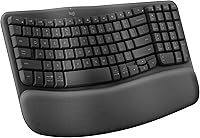
Split Keyboard Guide: Layouts, Sizes and Picks
A split keyboard separates the left and right typing areas, so you can place your hands farther apart. Choose a one-piece board for a simpler setup or movable halves when you want to adjust their spacing and angle.
On this page (9 sections)
- What does a split keyboard change?
- How do you choose the right split keyboard size?
- Does tenting matter on a split keyboard?
- Which split keyboard features should you compare?
- Which split keyboard suits your setup?
- How should you set up a split keyboard?
- How do you adjust to a split keyboard?
- What mistakes should you avoid with a split keyboard?
- What is the best split keyboard for you?
A split keyboard separates its left and right typing areas, giving you room to position your hands farther apart. Choose a one-piece split keyboard for a simpler setup or adjustable modules when you want to change their spacing and angle.
The term covers several layouts. Some keyboards keep both areas in one frame, while others have separate modules.
Some add curved keys, a raised angle, or a wrist rest. Your desk space, operating system, connection needs, and willingness to adjust to a new layout all affect which style makes sense.
This guide compares four options for different setups. If you're also choosing a pointing device, our ergonomic mouse and keyboard buying guide explains how the two fit together at a desk.
What does a split keyboard change?
A split keyboard lets you place your hands apart across two typing zones. Depending on the design, those zones may be fixed in one frame or movable as separate modules.
The goal is to give your hands a position that feels more natural for your body and desk. The keyboard alone doesn't set your posture: where you put it, how far you reach, and where the mouse sits also matter.
A split layout describes the key zones, not every ergonomic feature. Curved rows, tenting, and wrist or palm supports are additional design choices.
Fixed or adjustable split keyboard: which layout fits?
A fixed split keyboard keeps both typing zones in one frame. Its layout is ready to use when you place it on the desk, though you can't move the halves independently.
An adjustable split keyboard uses linked modules that can move apart or rotate. This gives you more control over spacing and splay, but it takes more room and setup.
The Kinesis Freestyle2 with VIP3 lifters lets the modules separate up to 9 in and offers 5, 10, or 15 degrees of tenting. The Logitech Ergo K860 keeps its curved, split keyframe together in a full-size board.
How do you choose the right split keyboard size?
Choose a size by balancing the keys you use with the room left for your mouse. A dedicated number pad can be useful for frequent data entry, while a board without a separate pad can leave more space near the keyboard.
Look at the outside dimensions as well as the layout. A keyboard can be wide even if its keys are arranged compactly, and adjustable modules need extra room when you spread them apart.
The Logitech Ergo K860 measures 17.95 x 9.17 in. The Kinesis Freestyle2 with VIP3 lifters measures 19 x 12.5 in before you spread its modules.
Measure the space you actually type in, with the mouse in its usual position. Leave enough room to adjust the board without pushing the mouse out of easy reach.
Do you need a number pad?
Keep a number pad if you enter figures often or depend on familiar keypad positions. A full-size layout can also make a split design feel more like a conventional keyboard.
If mouse reach is a concern, consider how much desk width the keypad uses. Check the key arrangement rather than assuming that a keyboard with fewer visible sections has fewer keys; some layouts place a number pad within the main board.
Does tenting matter on a split keyboard?
Tenting raises the thumb side of the keyboard or hand. It suits people who want to change the angle of their hands, but a split keyboard can also be used flat.
Tenting and spacing solve different setup preferences. Moving the halves apart changes where your hands sit; raising one side changes the keyboard angle.
The Freestyle2 with VIP3 lifters has 5, 10, and 15 degree positions. The Ergo K860 has tilt legs at 0, -4, and -7 degrees, letting you choose among three palm lift positions.
Start with a low or flat position, then make small changes. A higher angle is not automatically better for every desk or typing style.
Should you use a wrist or palm rest?
A wrist or palm rest can support your hands while you pause between typing, but you shouldn't press your wrists into it as you type. Choose a rest that lets your hands move freely and doesn't make you reach for the keys.
The Ergo K860 has a curved wrist rest with a memory foam layer. The Freestyle2 with VIP3 lifters includes cushioned palm supports, and the Arteck has a cushioned wrist and palm rest.
Adjust the keyboard position if the rest encourages you to bend your wrists or stretch forward. You can also try typing without leaning on the support.
Which split keyboard features should you compare?
Compare the layout, connection, system support, and available adjustments before you buy. These details determine whether the keyboard fits your desk and computer.
| Feature | What to check |
|---|---|
| Fixed or adjustable halves | Fixed layouts need less arrangement; movable modules let you choose spacing |
| Tenting | Check whether it stays flat or has raised angle options |
| Key layout | Confirm the arrangement and whether you need a dedicated number pad |
| Connection | Match USB, Bluetooth, or a wireless receiver to your computer |
| Operating system | Check support and shortcuts for Windows, Mac, or Linux |
| Wrist or palm support | Consider whether the shape and position suit your typing habits |
Connection labels can hide practical differences. The Ergo K860 supports Bluetooth and a USB receiver, while the Perixx PERIBOARD-612B offers Bluetooth and a 2.4 GHz receiver.
Check the actual key layout as well as operating system support. The Arteck uses a Windows layout, and some keys and functions differ on Mac; the Perixx includes four additional Mac and Windows keys for customization.
If you prefer a curved board but don't need a split layout, our guide to what a wave keyboard is explains how that shape differs.
Which split keyboard suits your setup?
The best fit depends on how much adjustment you want, which connection you prefer, and what layout your computer needs. These four boards cover different combinations of those choices.
Logitech Ergo K860: one-piece layout with palm lift
The Logitech Ergo K860 suits someone who wants a curved split keyboard that stays together as one full-size board. Its QWERTY layout includes a number pad, and it connects by Bluetooth or USB receiver.
Its tilt legs offer 0, -4, and -7 degree settings. The curved keyframe, sloping design, and wrist rest make it a good choice if you want several posture-related features in one fixed layout.
Choose it if you want a familiar full-size arrangement and an integrated rest. Skip it if you need movable halves or a smaller footprint for mouse space.
Kinesis Freestyle2: adjustable spacing and tenting
The Kinesis Freestyle2 with VIP3 lifters suits someone who wants to set the position and angle of two keyboard modules. The halves can separate up to 9 in, and the lifters provide three tenting positions.
This version has a standard Windows layout with hotkeys, multimedia keys, and an embedded number pad. It uses a USB connection and needs no software or special drivers.
Choose it if you want control over spacing and tenting. Skip it if you prefer a one-piece board that needs little arrangement or if your desk has limited width.
Arteck Wireless Split Keyboard: receiver-based setup
The Arteck Wireless Split Keyboard suits someone who wants a one-piece board and a wireless receiver. Its cushioned wrist rest, foldable legs, and Windows-oriented layout keep the setup straightforward for a compatible desktop or laptop.
The nano USB receiver stores at the back of the keyboard, and the USB-C cable is for charging. Arteck says the rechargeable battery can last up to 6 months based on 2 hours of use per day.
Choose it if you want a wireless receiver and a built-in rest. Skip it if you need Bluetooth or rely on Mac-specific keys and shortcuts.
Perixx PERIBOARD-612B: two wireless connection modes
The Perixx PERIBOARD-612B suits someone who wants to switch between Bluetooth and a 2.4 GHz receiver. It supports Windows and Mac, with an underside switch for changing systems.
Its curved rows and integrated palm rest keep both typing zones in one board. It runs on two AA batteries, which aren't included.
Choose it if you want two wireless connection options and system switching. Skip it if you want independently movable halves or rechargeable power.
How should you set up a split keyboard?
Start with the keyboard centered in front of you and the mouse close enough to reach without stretching. Set the key areas a little apart, then adjust them as you type through ordinary tasks.
For a board with separate modules, begin with a modest gap. Move them gradually, keeping your elbows near your sides and your shoulders relaxed; spreading the halves too far can make you reach outward.
If the keyboard offers tenting, start flat or at the lowest angle. Change one setting at a time so you can tell whether the new position works better for your desk and hands.
Keep the keyboard close enough that you don't lean forward. If it has a wrist or palm rest, use it to support your hands during pauses rather than holding your wrists down while typing.
How do you adjust to a split keyboard?
Give yourself time to adapt to a different hand position or key arrangement. Short practice sessions with familiar tasks can help you spot awkward spacing before you rely on the keyboard for a busy workday.
A fixed split layout usually asks you to make fewer setup choices than separate modules. With an adjustable model, change the spacing in small steps and keep a note of positions that feel comfortable.
If you make frequent typing errors, slow down and practice common words and shortcuts. For more on desk placement and typing posture, read how to use an ergonomic keyboard.
What mistakes should you avoid with a split keyboard?
The most common setup mistake is spreading the halves too far apart. Extra distance can make your arms reach outward, so start with a small gap and move the modules only as needed.
Don't assume tenting is required or that the highest angle is best. Try flat or low settings first, then compare positions without changing spacing at the same time.
Another mistake is buying based on the word “ergonomic” without checking the connection and key layout. Confirm the operating system, receiver or cable, and shortcuts you need before placing an order.
Finally, don't overlook the mouse. Measure the keyboard and mouse together, since a board that leaves the mouse too far away can make the overall desk setup awkward.
What is the best split keyboard for you?
Choose the Logitech Ergo K860 if you want a one-piece full-size layout with palm lift and a wrist rest. Choose the Kinesis Freestyle2 if you want to adjust module spacing and tenting; choose Arteck for a receiver-based wireless setup or Perixx for two wireless modes and system switching.
Before deciding, check the board's dimensions, connection, key layout, and room for your mouse. Browse our split and wave keyboards category for more guidance, then compare the best split keyboards if you want to narrow your options.
Frequently asked questions
What is a split keyboard?
A split keyboard separates the left and right typing areas so you can position your hands farther apart. Some models keep both areas in one frame, while others use two linked modules that you can move independently.
Layouts may also have curved key rows, tenting, or a wrist rest.
Those features are separate choices, so compare them based on how you work.
Are split keyboards hard to learn?
A split keyboard may take practice if its key arrangement or hand position differs from what you use now. A one-piece layout with familiar keys can make the change feel smaller than moving two separate modules into place.
Start with short practice sessions and keep your old keyboard nearby until ordinary work feels comfortable.
Do split keyboards need to be tented?
No. Tenting raises the thumb side of the keyboard or hand, but it is optional.
A flat split keyboard still lets you position your hands apart.
Start at a flat or low angle, then adjust only if a raised position feels easier to use.
Keep your hands relaxed instead of forcing them into a fixed posture.
How wide should a split keyboard be?
Set the key areas so your hands can rest comfortably apart without making you reach outward. The right spacing depends on your shoulders, desk, and mouse position.
Move the halves a little at a time.
Check that your elbows stay near your sides and the mouse is still easy to reach.
Can you use a split keyboard with a Mac?
Some split keyboards support Mac, while others focus on Windows or use different shortcuts across systems. Check compatibility, key layout, and how the board changes between systems before buying.
For more detail, see our guide to ergonomic keyboards for MacBook.