What to Look for in an Ergonomic Keyboard
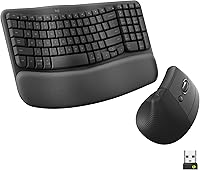
Look for three things first: a split keyframe, real wrist support and an adjustable tilt. The Logitech Ergo K860 gets all three right and is the keyboard we would pick for most people.
On this page (10 sections)
- Why does a split keyframe matter most?
- How much wrist support do you actually need?
- Which tilt settings help at a seated or standing desk?
- What key feel and layout should you check?
- How do you match the keyboard to your desk setup?
- Is a wireless ergonomic keyboard worth the extra setup?
- How should you plan the switch from a standard keyboard?
- Which features are worth paying more for?
- What do the three models cost in desk space and setup time?
- What should you check before you buy?
The things to look for in an ergonomic keyboard come down to three features: a split keyframe, genuine wrist support and an adjustable tilt. Get those right and the keyboard does most of the work for your posture before you type a single word.
The Logitech Ergo K860 covers all three and is the keyboard we would pick for most people. It is the highest-scoring model in this guide, and its feature set shows why the checklist matters.
Buyers compare layout angle and key features more than brand names. A keyboard that looks ergonomic but keeps your hands flat and close together misses the point.
The sections below explain what each feature does and which model fits which desk.
Why does a split keyframe matter most?
A split keyframe matters most because it lets each hand sit in a straighter line with its forearm. That separation is the core of the ergonomic idea, and it is the first thing to check on any keyboard you consider.
A standard keyboard keeps your hands parallel and close. Your wrists then angle outward toward the keys, and your forearms rotate inward to reach the middle of the board.
Over a long workday, that twist is what most people notice first.
What a curved split keyframe changes
The Logitech Ergo K860 uses a curved, split keyframe. The keys curve across the board and split into two halves, so your hands can sit at a more natural width.
Logitech says the sloping design reduces muscle strain on your wrists and forearms.
The Arteck Wireless Split Keyboard takes the simpler route. Its split design separates the key groups so your wrists and forearms sit in a relaxed position.
The Perixx PERIBOARD-512B does something similar in one piece: the left and right key zones are separated, and Perixx describes the shape as a posture corrector that encourages a natural stance.
None of these three keyboards is a two-piece board you can pull apart. The split lives in the key layout, which keeps the frame stable and the price lower.
If your desk space is limited, that matters.
Check how wide the split pushes your hands. A wide split can feel odd at first, and a narrow one may not separate your wrists enough.
Look for a board whose split width matches your shoulder width when your arms hang relaxed.
How much wrist support do you actually need?
You need wrist support that fills the gap under your palms without lifting your hands into a bend. A flat, hard rest does little.
A padded rest that keeps your wrists level does the job.
This is where the K860 stands apart. Its pillowed wrist rest has a memory foam layer, and Logitech says it gives 54 percent more wrist support and 25 percent less wrist bending than a standard keyboard without a palm rest.
The Arteck Wireless Split Keyboard includes a soft cushioned wrist rest for resting your wrist and forearm while you type. The Perixx PERIBOARD-512B builds its palm rest into the frame, so there is no separate piece to slide around.
What to check on a wrist rest
Look at three things: thickness, coverage and attachment. The rest should run the full width of the board so both hands get support.
It should be soft enough to cushion but firm enough that your palm does not sink.
The K860's rest is part of the keyboard rather than an add-on. The Perixx palm rest is integrated too.
The Arteck rest is fixed in place, which keeps it steady but means you cannot move it to a different position.
A wrist rest is for resting, not typing. Keep your palms off it while your fingers are active and let your wrists hover.
Use the rest between bursts of typing so the heel of your hand gets a break.
Which tilt settings help at a seated or standing desk?
Adjustable tilt helps because the right angle depends on your desk height and whether you sit or stand. A keyboard with fixed feet gives you one option, and that option may not fit your setup.
The K860 offers tilt legs at 0, -4 and -7 degrees. The negative settings tilt the board slightly away from you, which Logitech says keeps your wrists in a natural typing posture whether you are seated or standing.
That range covers most desk setups without a separate wedge.
The Arteck Wireless Split Keyboard has four foldable legs so you can adjust it to a favorite typing angle. The Perixx PERIBOARD-512B uses stepped, curved key rows to promote a natural typing posture rather than offering adjustable feet.
How to find your angle
Start flat. Type for a few minutes and notice whether your wrists bend upward or downward to reach the keys.
A slight backward tilt often helps if your desk sits low. A flat board usually works best at a standing desk where your arms hang closer to level.
If your wrists still feel strained after a week at one angle, try the next setting before buying a separate wrist wedge. Built-in tilt is easier to adjust and keeps the desk clear.
Avoid a steep forward tilt. Raising the back of the keyboard a lot pushes your wrists into an upward bend.
Small adjustments, made over days, are easier on your hands than one big change.
What key feel and layout should you check?
Key feel and layout matter because you still have to type on the thing all day. A split frame that feels wrong under your fingers will not get used, no matter how good the angle is.
The K860 uses scooped Perfect Stroke keys that match the shape of your fingertips. It has a full-size layout with a numpad and quiet keys.
The Perixx PERIBOARD-512B goes the other way with 4.2 mm key travel and tactile feedback that Perixx compares to brown mechanical switches. It rates the keys for up to 20 million keystrokes.
The Arteck Wireless Split Keyboard uses whisper-quiet, low-profile keys with scissor construction. Arteck says the keys are built for more than 3 million continuous presses.
It also includes a number pad and media hotkeys.
Layout and computer compatibility
Check the layout against the computer you use. The K860 works on Windows, macOS, Linux and Chrome OS through Bluetooth or its USB receiver.
The Arteck and Perixx boards are Windows layouts, and some keys and functions behave differently on a Mac.
If you switch between a work laptop and a home desktop, a wireless ergonomic keyboard with multi-device support saves you from re-plugging cables. Our guide to the best wireless ergonomic keyboard compares boards built for that kind of switching.
Try the keys before you commit to a long typing day. If you can, type a paragraph on a floor model.
Key travel and feedback are personal, and the spec sheet only tells you part of the story.
How do you match the keyboard to your desk setup?
Match the keyboard to your desk by measuring width, depth and cable clearance before you order. A split board is often wider than a standard keyboard, and that extra width can crowd a small desk.
The K860 measures about 18 in long and 9.2 in wide. The Arteck board is about 16.5 in long and 9.6 in wide.
The Perixx model is the longest at about 19.1 in long and 9.3 in wide. Add room for a mouse beside each one.
Small desks and shared spaces
If your desk is narrow, the Arteck Wireless Split Keyboard is the easier fit. It is the shortest of the three and connects through one small USB receiver that stores in the back of the keyboard.
That keeps the desk clear of cables.
The K860 is a full-size board with a numpad, so it needs more width. In return you get multi-device Bluetooth and a two-year battery life, according to Logitech.
Our roundup of the best wireless ergonomic keyboard and mouse covers pairs that share one receiver.
Wired desks and fixed workstations
The Perixx PERIBOARD-512B is wired, so it never needs charging. That suits a desk where the keyboard stays put and the cable can be routed out of the way.
It is a sensible choice for an office workstation that several people share.
For more office-focused options, see our picks for the best ergonomic keyboards for office work.
Measure the space beside your mouse too. A split keyboard that pushes your mouse off the desk edge undoes the benefit of the split.
Leave at least a few inches for mouse movement.
Is a wireless ergonomic keyboard worth the extra setup?
A wireless ergonomic keyboard is worth it if you switch between computers or want a clear desk. The trade-off is charging or battery management, and that is easy to plan around.
The K860 connects through Bluetooth or its USB receiver and runs on two AAA batteries. Logitech says the battery lasts up to two years.
You can also customize function keys and get battery notifications through Logitech Options software.
The Arteck Wireless Split Keyboard uses a rechargeable lithium battery that Arteck says lasts about 6 months on a single charge, based on 2 hours of non-stop use per day. It comes with a USB-C charging cable.
The USB cable is for charging only; the keyboard connects through its receiver.
What to check before going wireless
Check the connection type and how many devices the keyboard remembers. Bluetooth is convenient for laptops and tablets.
A dedicated USB receiver is steadier for a desktop that never moves.
Check the charging routine too. Replaceable batteries last longer between changes but need spares on hand.
A rechargeable keyboard needs a cable nearby and a habit of plugging it in.
The Perixx PERIBOARD-512B avoids the question entirely with a wired USB connection. If you never want to think about batteries, that is the simplest answer.
Keep the receiver safe. Small USB receivers get lost.
The Arteck board stores its receiver in the back of the keyboard, and Logitech notes that combo receivers are often packed inside the mouse or the packaging.
How should you plan the switch from a standard keyboard?
Plan the switch over one to two weeks, not one afternoon. Your hands have years of muscle memory built on a flat board, and a split layout asks them to relearn key positions.
Perixx says the natural learning curve may require a short adjustment period. Most users adapt within 1 to 2 weeks and notice improved comfort and reduced wrist pressure with continued use.
That timeline is a useful guide for any split keyboard.
A simple adjustment plan
Start with short sessions. Type for 20 minutes on the new board, then switch back to your old one for the rest of the hour.
Increase the time on the new keyboard each day.
Keep the keyboard flat for the first few days. Add tilt once your hands stop reaching for the old key positions.
Place the keyboard so your elbows sit near 90 degrees and your forearms stay roughly level. A split board only helps if your chair and desk put you in a good starting position.
Our guide to how to use ergonomic keyboard walks through the posture and hand position in more detail. Read it before your first week so you do not carry old habits onto the new board.
Expect some mistyped keys in week one. That is normal.
If the layout still feels wrong after two weeks, the split width or key feel may not suit you, and a different model is the better answer.
Which features are worth paying more for?
The features worth paying more for are the split frame, adjustable tilt and a padded wrist rest. Everything else is a preference you can trade away to save money.
The K860 carries all three plus multi-device Bluetooth and a full-size layout. That combination is why it sits at the top of this guide.
If your budget is tighter, the Arteck board covers the split design and wrist rest at a lower price point.
Features to skip
Skip backlighting if you rarely type in the dark. Skip a numpad if you do not enter numbers often, since it adds width.
Skip software customization if you never remap keys.
The K860 includes Logitech Options software for custom function keys and shortcuts. That is a nice extra, but it is not why you buy an ergonomic keyboard.
The posture features are.
When to spend more
Spend more when you type for most of the workday. A keyboard is the tool you touch more than any other, and the split frame and wrist support are the parts that affect comfort.
Spend less when the keyboard is a secondary device or you share a desk. The Arteck board is a reasonable middle ground, and the Perixx model suits a fixed wired setup.
Set a feature priority list before you shop. Rank split frame, wrist rest, tilt, wireless and key feel in your own order.
The top two on your list decide which of these three models fits you.
What do the three models cost in desk space and setup time?
The three models differ most in width, connection type and how much adjusting they ask of you. None of them is hard to set up, but each one suits a different desk.
The K860 is a full-size board with a numpad, so it takes up more desk length than a standard keyboard. It connects through Bluetooth or a USB receiver and runs on AAA batteries.
Setup is quick, and the tilt legs adjust without tools.
The Arteck Wireless Split Keyboard is the shortest and connects through a nano receiver that stores in the back. Arteck says no driver is needed.
The rechargeable battery takes the place of disposable cells.
The Perixx PERIBOARD-512B is wired and needs a free USB port. It has no charging routine and no receiver to lose.
The trade-off is a cable across the desk.
A quick comparison
| Model | Connection | Wrist support | Tilt |
|---|---|---|---|
| Logitech Ergo K860 | Bluetooth and USB receiver | Memory foam pillowed rest | 0, -4 and -7 degrees |
| Arteck Wireless Split | 2.4G USB wireless | Soft cushioned rest | Four foldable legs |
| Perixx PERIBOARD-512B | Wired USB | Built-in palm rest | Stepped key rows |
Pick the K860 if you want the fullest feature set. Pick the Arteck if desk width and a clean cable setup matter more.
Pick the Perixx if you type all day at a fixed desk and prefer wired.
What should you check before you buy?
Before you buy, confirm the split layout, the wrist rest and the tilt settings against your own desk and body. Those three features decide whether an ergonomic keyboard helps you, and everything else is detail.
The K860 is the safest starting point because it combines all three with multi-device Bluetooth. The Arteck board suits a compact desk or a shared space.
The Perixx model fits a wired workstation where key feel matters more than wireless freedom.
If you are still narrowing the field, keep the question "what to look for in an ergonomic keyboard" in mind as a checklist. Split frame first, wrist support second, tilt third.
Then check key feel and connection type against how you actually work.
Try to type on the board before you commit if a floor model is available. Specs tell you the shape and the features, but your hands decide whether the fit is right.
When in doubt, start with the highest-scoring model and adjust the tilt and rest position until your wrists feel level.
Frequently asked questions
Is a split keyboard hard to learn?
Most people adjust in a week or two. Perixx says the natural learning curve for its split model is short, and most users adapt within 1 to 2 weeks.
Start with short typing sessions and let your hands find the new position.
Does a wrist rest actually help?
A wrist rest keeps your wrists straighter while you type and takes pressure off the heel of your hand. Logitech says its K860 wrist rest gives 54 percent more wrist support and 25 percent less wrist bending than a standard keyboard without a palm rest.
Should I choose a wireless or wired ergonomic keyboard?
Choose wireless for a clean desk and easy switching between computers. Choose wired if you never want to think about charging or battery life.
Both options here include a split design and a wrist rest, so connectivity is the deciding factor.
What tilt angle should an ergonomic keyboard sit at?
Start flat at 0 degrees and try a slight backward tilt if your wrists feel strained. The K860 offers 0, -4 and -7 degree settings, so you can match the angle to a seated or standing desk without adding a separate wedge.
Do ergonomic keyboards work on Mac?
The K860 works on Windows, macOS, Linux and Chrome OS through Bluetooth or its USB receiver. The Arteck and Perixx models are built for Windows layouts, and some keys behave differently on a Mac.