7 Best Wireless Ergonomic Keyboard and Mouse (November 2026)
The best wireless ergonomic keyboard and mouse combos include the Logitech Wave Keys and Lift Combo for small hands, the Logitech Wave Keys MK670 Combo for larger hands, and the ProtoArc EKM01 Plus Combo for split typing.
On this page (3 sections)
The Logitech Wave Keys and Lift Combo is a strong wireless ergonomic keyboard and mouse choice if you want a compact wave keyboard with a vertical mouse. The Wave Keys MK670 suits medium to large hands, while the ProtoArc EKM01 Plus gives you a full-size split layout.
A combo makes it easier to choose a keyboard and mouse at the same time, but the shape of each part still matters. Check the keyboard layout, mouse hand orientation, connection type and desk space before you decide.
If you are comparing mouse shapes, start with our ergonomic mouse and keyboard buying guide. For a closer look at key layouts, read the split keyboard guide.
Our picks at a glance
-
1

-
2

-
3

- 4
 Check it
ProtoArc EKM02 Wave Keys Combo
Best for compact desks - 5
 Check it
Kensington Pro Fit Keyboard and Mouse
Best for reverse tilt - 6
 Check it
MEETION Split Keyboard and Mouse Set
Best for vertical grip - 7
 Check it
SABLUTE Keyboard and Mouse Set
Best for backlit keys
Which wireless ergonomic keyboard and mouse combos stand out?
The Logitech Wave Keys and Lift Combo is a strong match for a compact wave keyboard and vertical mouse. Other picks suit different hand sizes, layouts, desk setups and connection needs.
We compared keyboard shapes, palm support, mouse style, connectivity and dimensions where available. A compact pair can keep the mouse close, while a full-size split set gives you more space between the key areas.
| Product | Best for | Keyboard style | Mouse style | Connection | Our score |
|---|---|---|---|---|---|
| Logitech Wave Keys and Lift Combo | small hands | Compact wave layout | Vertical, right-handed | Bluetooth Low Energy or Logi Bolt | 8.4 |
| Logitech Wave Keys MK670 Combo | larger hands | Compact wave layout | Bluetooth or Logi Bolt for keyboard | 8.3 | |
| ProtoArc EKM01 Plus Combo | split typing | Full-size curved split layout | Bluetooth or USB receiver | 7.9 | |
| ProtoArc EKM02 Wave Keys Combo | compact desks | Vertical | Bluetooth or 2.4G wireless | 7.5 | |
| Kensington Pro Fit Keyboard and Mouse | reverse tilt | Split and sloped | Bluetooth or 2.4 GHz wireless | 7.2 | |
| MEETION Split Keyboard and Mouse Set | vertical grip | Vertical, right-handed | USB-A receiver | 7.1 | |
| SABLUTE Keyboard and Mouse Set | backlit keys | Wave layout with backlighting | 2.4 GHz USB receiver | 7.0 |
Which wireless ergonomic keyboard and mouse fits your hand and desk?
Your best fit depends on your hand size, preferred mouse grip and available keyboard space. These 7 combos cover compact wave layouts, full-size split boards and several mouse shapes.
Logitech Wave Keys and Lift Combo: Best for small hands
- Compact wave keyboard
- Cushioned memory foam palm rest
- 57-degree vertical mouse
- Bluetooth Low Energy or Logi Bolt
The compact Wave Keys keyboard and right-handed Lift mouse form a matched pair. Lift is designed for small to medium hands.
Pros
- Wave keyboard has a cushioned palm rest
- Vertical mouse has a thumb rest
- Keyboard and mouse use Bluetooth Low Energy or Logi Bolt
Cons
- Lift is right-handed
- Lift is designed for small to medium hands
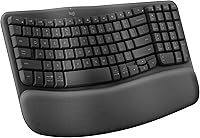
The Logitech Wave Keys and Lift Combo pairs a compact, wavy keyframe keyboard with a cushioned memory foam palm rest. Its matching Lift mouse has a 57-degree vertical shape, textured grip and thumb rest.
Logitech describes Lift as a fit for small to medium hands. It is right-handed, so left-handed users should choose a mouse made for their hand or a model with an ambidextrous shape.
The keyboard and mouse connect through Bluetooth Low Energy or the Logi Bolt USB receiver. The set works with PC and Mac, and Logitech supports workflow customization through its Logi Options+ app.
Choose this combo if you want the mouse closer to a compact keyboard and prefer an upright grip. Skip it if you need a left-handed mouse or have hands that are better suited to a larger shape.
For another contoured option, compare the Logitech Wave Keys MK670 Combo.
Logitech Wave Keys MK670 Combo: Best for larger hands
- Compact wave keyboard
- Cushioned memory foam palm rest
- Contoured Signature M550 L mouse
- Bluetooth or Logi Bolt for keyboard
This Wave Keys set pairs the compact keyboard with a contoured Signature M550 L mouse for medium to large hands.
Pros
- Compact keyboard brings the mouse closer
- Keyboard palm rest uses memory foam
- Mouse has a rubber side grip
Cons
- Mouse is not described as supporting Easy-Switch
- Keyboard and mouse have different connection details
This Logitech set pairs Wave Keys with the Signature M550 L, a contoured mouse with a rubber side grip. Logitech describes the mouse as a fit for medium to large hands, making it a useful alternative if you want the compact keyboard without a vertical mouse.
Wave Keys has a cushioned palm rest and a compact footprint. That smaller keyboard can bring the mouse closer than a full-size board, which may help if you want less sideways reach across your desk.
The keyboard connects over Bluetooth or Logi Bolt and can switch between a PC, tablet and phone. The mouse has SilentTouch clicks and a SmartWheel that supports line-by-line scrolling or faster movement through long pages.
Choose this set if you prefer a familiar contoured mouse and have medium to large hands. Skip it if your priority is a vertical grip or you need the keyboard and mouse to share the same device-switching functions.
Their connection details differ, so check which device needs a receiver or Bluetooth.
ProtoArc EKM01 Plus Combo: Best for split typing
- Full-size curved split keyboard
- Cushioned wrist rest
- Four adjustable tilt legs
- Connects to up to 3 devices
The full-size EKM01 Plus combines a curved split keyboard with a contoured mouse. Its 20.75 x 11 in keyboard needs more desk space.
Pros
- Four adjustable tilt legs
- Connects to up to 3 devices
- Keyboard and mouse have built-in rechargeable batteries
Cons
- Keyboard is not backlit
- Full-size body takes up more desk space
ProtoArc's EKM01 Plus is the full-size split option in this roundup. Its curved keyframe separates the typing areas, and 4 adjustable tilt legs let you change the keyboard angle.
The keyboard measures 20.75 x 11 in, so measure your desk before buying. It is not backlit, which makes it a less suitable choice if illuminated keys are a must for your workspace.
The keyboard and mouse can connect to up to 3 devices through Bluetooth or the USB receiver. Both have built-in rechargeable batteries, and the keyboard enters auto-sleep after 30 minutes without use.
Choose this set if you want a full-size split keyboard, a cushioned wrist rest and multiple device connections. Skip it if desk space is tight or you need backlighting.
If you are still weighing split layouts, see our best split keyboard picks.
ProtoArc EKM02 Wave Keys Combo: Best for compact desks
- Compact wave keyboard
- Cushioned memory foam palm rest
- Vertical mouse for small to medium hands
- Bluetooth or 2.4G wireless
The compact EKM02 pairs a wave keyboard with a vertical mouse and supports up to 3 connected devices.
Pros
- Compact keyboard saves desk space
- Switches between Windows and macOS layouts
- Rechargeable keyboard and mouse
Cons
- Vertical grip takes time to get used to
- Mouse is designed for small to medium hands
The EKM02 combines a compact wave keyboard with a vertical mouse. Its keyboard measures 15.6 x 8.9 in, making it a smaller-footprint option than the full-size ProtoArc EKM01 Plus.
ProtoArc says the mouse is designed for small to medium hands under 7.5 in long. The brand notes that its vertical grip takes time to learn, so give yourself a gradual adjustment period before judging whether the new hand position suits you.
The set supports Bluetooth or 2.4G wireless and can connect to 3 devices. It also has Windows and macOS keyboard layouts, with a shortcut for switching between them.
Choose it if you want a compact keyboard, a vertical mouse and rechargeable power. Skip it if your hands need a larger mouse or you want a shape that feels familiar right away.
If you use a MacBook, our ergonomic keyboard for MacBook guide covers compatibility questions to check.
Kensington Pro Fit Keyboard and Mouse: Best for reverse tilt
- Split and sloped keyboard
- Adjustable reverse tilt
- Bluetooth or 2.4 GHz wireless
- Quiet keys and mouse clicks
The Pro Fit uses a split and sloped keyboard with adjustable reverse tilt. It also offers Bluetooth and 2.4 GHz connections.
Pros
- Adjustable reverse tilt
- Built-in wrist rest
- Three-mode power-saving switch
Cons
- The keyboard layout may take adjustment
- Mouse size is not specified
Kensington's Pro Fit pairs a split and sloped keyboard with adjustable reverse tilt. The keyboard includes an integrated wrist rest, and its quiet keys and mouse clicks may suit a shared office.
It supports Bluetooth 4.0 LE or 2.4 GHz wireless, with 128-bit AES encryption. A three-mode switch lets you choose between the wireless options and off.
Choose this set if changing the keyboard angle is a priority and you want dual wireless options. Skip it if you need a stated mouse fit range before buying; its shape and size are not specified here.
The split, sloped layout may also take adjustment if you are used to a standard keyboard.
MEETION Split Keyboard and Mouse Set: Best for vertical grip
- Full-size split keyboard
- Pillowed wrist rest
- Right-handed vertical mouse
- Shared USB-A receiver
MEETION pairs a full-size split keyboard with a right-handed vertical mouse. Its shared USB-A receiver needs a USB-A port or a suitable adapter.
Pros
- Split layout gives each hand its own half
- Mouse has adjustable DPI settings
- Keyboard and mouse are rechargeable
Cons
- Typing takes adjustment from a standard layout
- The keyboard is large
The MEETION set combines a full-size split keyboard with a right-handed vertical mouse. Its curved key areas and pillowed wrist rest give each hand a separate typing area, while the mouse has adjustable DPI settings.
The keyboard measures 19.09 x 10.04 in. The keyboard and mouse share a USB-A receiver; the included USB-C piece is an adapter, not a receiver on its own.
MEETION notes that the split layout takes adjustment if you are used to a standard keyboard. It also describes the typing sound as similar to a traditional keyboard, so this is not the quietest choice if silent key presses are essential.
Choose it if you want a split keyboard and vertical mouse in one rechargeable set. Skip it if you need an ambidextrous mouse or want to avoid a USB receiver.
Before buying, confirm that your computer has a USB-A port or that you have a suitable adapter.
SABLUTE Keyboard and Mouse Set: Best for backlit keys
- Wave-style keyboard with backlighting
- Faux lambskin palm rest
- 2.4 GHz USB receiver
- Mouse has 3 DPI levels
The SABLUTE set stands out for keyboard backlighting and an adjustable front and back stand. Both devices share one 2.4 GHz receiver.
Pros
- Backlit keys offer several color choices
- Keyboard has a faux lambskin palm rest
- USB-A and USB-C receiver options
Cons
- Uses a wireless receiver rather than Bluetooth
- Mouse is right-handed
SABLUTE is the backlit option, with a wave-style keyboard, a faux lambskin palm rest and adjustable front and back stands. The keyboard offers several lighting colors, while the mouse has 6 buttons and 3 DPI levels.
Both devices use one 2.4 GHz USB receiver, with USB-A and USB-C options. The set is compatible with Windows, Android, ChromeOS, Linux and macOS.
Choose SABLUTE if you want illuminated keys and a receiver-based connection. Skip it if you prefer Bluetooth or need a left-handed mouse, since this one is right-handed.
Its wave layout and soft palm rest suit someone who wants a more compact style than a full-size split board.
How should you choose a wireless ergonomic keyboard and mouse?
Start with keyboard shape, mouse fit and connection type, then compare extras such as lighting, adjustable tilt or device switching. A combo is convenient only when both pieces suit your hands and your daily setup.
Does a wave or split keyboard fit your typing habits?
A wave keyboard keeps the keys in one compact body with curved rows, while a split keyboard separates or angles the typing areas for each hand. Wave Keys is the compact option in Logitech's sets, while ProtoArc EKM01 Plus, Kensington Pro Fit and MEETION use split or split-style layouts.
If you type on a standard keyboard all day, a split layout may feel unfamiliar at first. EKM01 Plus and MEETION describe an adjustment period, so plan to build up gradually instead of expecting your normal speed on day one.
A wave keyboard changes the shape of the key rows without dividing the board into separate halves. That can be an easier first step if you want a compact footprint and do not want to relearn where the key areas sit.
Read our guide to what a wave keyboard is for more on that shape. If you want a closer comparison of split layouts and sizes, the split keyboard guide walks through the main differences.
Which mouse shape suits your hand?
A vertical mouse changes the angle of your hand, while a contoured mouse keeps a more familiar horizontal position. Lift and the ProtoArc EKM02 pair vertical mice with wave keyboards, and MEETION pairs one with a split board.
Check hand orientation and stated fit range before choosing. Lift is right-handed and designed for small to medium hands, while the Wave Keys MK670 uses a contoured mouse for medium to large hands.
Hand length is one useful clue, but comfort also depends on how you hold a mouse and where your thumb rests. If you already use a vertical mouse, look for a similar grip and check whether the model is made for your hand.
If the upright position is new to you, give yourself time to learn small movements with it. Keep the mouse close to the keyboard, relax your grip and avoid judging the shape during a short first session.
You can compare more shapes in our vertical mouse guide.
How much desk room should you leave?
Measure the keyboard area and the space beside it for the mouse before you choose a full-size set. The ProtoArc EKM01 Plus takes 20.75 x 11 in, while the compact EKM02 measures 15.6 x 8.9 in.
Leave room to move the mouse without reaching around a monitor stand, notebook or desk lamp. A compact keyboard can bring the mouse closer, but your desk layout determines whether that change helps.
Measure the space you can actually use, rather than the full width of the desk. Account for a monitor stand, writing area, charging cable and any other item that could crowd the mouse path.
A full-size board may be a good fit if you want a separate number area or simply prefer a larger layout. If the keyboard edge would sit too close to you or the mouse would be pushed to the far side, a compact wave design may fit the workspace better.
Which wireless connection should you check?
Bluetooth can keep a USB port free, while a receiver may work well for a computer that stays at one desk. Logitech Wave Keys supports Bluetooth or Logi Bolt, and both ProtoArc combos support Bluetooth or a USB receiver.
SABLUTE and MEETION use receivers, so check your device's ports and whether you need an adapter. The MEETION USB-C piece is an adapter for its USB-A receiver, so do not mistake it for a standalone receiver.
Also check whether the keyboard and mouse have the same connection options. The Logitech MK670 keyboard supports Bluetooth or Logi Bolt, while its mouse is not described as supporting Easy-Switch.
If you plan to switch among a computer, tablet and phone, confirm which devices can switch and how.
A receiver-based set may be a better fit if you prefer a simple connection to one computer. A Bluetooth set may suit a desk where ports are scarce or where you use a tablet, but verify that your operating system is supported before you buy.
What should you expect during setup?
Set up the keyboard and mouse in a way that keeps your wrists relaxed and the mouse close to your body. Start with the connection method and device layout, then adjust your chair and desk so you can use both without reaching.
For Bluetooth, pair each device through your computer's Bluetooth settings and check that both appear as connected. For a receiver, plug it into a compatible port and make sure the keyboard and mouse are switched on; with an adapter, connect the receiver to the adapter first.
Place the keyboard straight in front of you, with the mouse immediately beside it. Keep the mouse near enough that your elbow stays close to your side instead of reaching outward across the desk.
Try one change at a time. If you choose a split keyboard, begin with short typing sessions and use the layout at a comfortable pace; if you choose a vertical mouse, practice moving the pointer with a light grip rather than squeezing the handle.
What setup mistakes can make an ergonomic combo less useful?
The most common setup mistakes are buying for features without checking fit, placing the mouse too far away and expecting a new layout to feel natural immediately. These are avoidable with a few measurements and a slower transition.
Do not assume every wireless combo uses the same receiver or that the keyboard and mouse share every connection feature. Check the connection details for each device and confirm that your computer has the right port or Bluetooth support.
Do not buy a full-size keyboard before measuring the desk. A board can fit on the surface and still leave too little room for comfortable mouse movement or other daily tasks.
Avoid raising the keyboard angle just because the legs allow it. Try the keyboard in a neutral, comfortable position first, then adjust the tilt only if it improves how your hands rest while typing.
If a new split or vertical shape feels awkward at first, do not force a long session. Short practice periods give you time to learn the layout and assess whether the shape suits your habits.
How do you care for a wireless keyboard and mouse?
Keep the set on a stable, clean surface and avoid letting crumbs or liquid collect around the keys and mouse buttons. Follow the manufacturer's care instructions for the exact materials, especially around a padded palm rest.
Turn off devices when they have a switch for it and recharge rechargeable models before the battery becomes an interruption. For sets that use replaceable batteries, keep the battery type in mind so you can replace it when needed.
Store a receiver somewhere easy to find if you move the set between workspaces. If you use an adapter, keep it with the receiver so the connection is ready when you set up elsewhere.
Which wireless ergonomic keyboard and mouse should you pick?
Pick the Logitech Wave Keys and Lift Combo for a compact wave keyboard and a right-handed vertical mouse designed for small to medium hands. Choose the Wave Keys MK670 if you want a contoured mouse for medium to large hands, or the ProtoArc EKM01 Plus if a full-size split layout matters more.
For a compact keyboard with a vertical mouse, consider the ProtoArc EKM02 and allow time to adjust to its grip. Choose Kensington for adjustable reverse tilt, MEETION for a split board with a vertical mouse, or SABLUTE if backlit keys are a priority.
Before you order, measure your desk, check the mouse orientation and confirm the connection works with your computer. If you're still deciding between keyboard shapes, our wireless ergonomic keyboard guide can help you compare the keyboard side on its own.
Our top 3 picks at a glance
-
1
-
2
-
3
Frequently asked questions
What is the best wireless ergonomic keyboard and mouse combo?
The Logitech Wave Keys and Lift Combo suits people who want a compact wave keyboard and a right-handed vertical mouse designed for small to medium hands. For a more familiar contoured mouse aimed at medium to large hands, consider the Wave Keys MK670.
Choose between them based on mouse shape and hand fit.
Should I choose a wave keyboard or a split keyboard?
A wave keyboard keeps the keys in one compact body with curved rows, while a split keyboard separates or angles the typing areas for each hand. Choose the shape you can type on comfortably and that fits your desk.
A full-size split board needs more room and may take longer to learn.
Do wireless keyboard and mouse combos connect by Bluetooth?
Some do, but connection options vary by set and can differ between the keyboard and mouse. Logitech Wave Keys supports Bluetooth, and the ProtoArc EKM01 Plus and EKM02 offer Bluetooth plus a USB receiver.
SABLUTE and MEETION use receivers, so check your computer's ports before choosing.
How much desk space does an ergonomic combo need?
Measure the keyboard area, then leave a clear space beside it for the mouse. The ProtoArc EKM01 Plus keyboard measures 20.75 x 11 in, while the compact EKM02 measures 15.6 x 8.9 in.
Also check that your mouse can move freely without reaching around other desk items.