Arteck Split Ergonomic Keyboard Review: Worth It? (November 2026)
The Arteck Split Ergonomic Keyboard is a sensible buy for Windows desktop and laptop users who want a split layout with a cushioned wrist rest without spending much. Its wireless nano receiver setup and rechargeable battery make it easy to live with, but Mac users and anyone who needs a steep tilt should look at the Logitech Ergo K860 instead.
On this page (9 sections)
- Arteck Split Ergonomic Keyboard at a glance
- Who the Arteck split keyboard suits
- The specs that matter in daily use
- Setting up the Arteck on Windows
- Typing feel and the adjustment period
- Care and battery life
- The trade-offs to weigh before buying
- Alternatives worth comparing
- Verdict: should you buy the Arteck split keyboard?
The Arteck Split Ergonomic Keyboard is worth buying if you work on Windows and want a split layout without paying much. The split keyframe and cushioned wrist rest do the core job, and the nano receiver means it works the moment you plug it in.
This Arteck split ergonomic keyboard review weighs those basics against the comfort extras and the Mac problem.
If you want more adjustability or need Bluetooth, the Logitech Ergo K860 is the better long-term pick. Read on for where the Arteck fits and where it falls short.
Arteck Split Ergonomic Keyboard at a glance
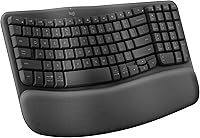
The Arteck is a full-size split keyboard with a padded palm rest and a rechargeable battery, built for Windows desktops and laptops. It's the value entry in this comparison, with the basics covered and no driver install.
Arteck Wireless Split Keyboard: Best for budget split typing

- Split keyframe with cushioned wrist rest
- 2.4G USB wireless with nano receiver
- Rechargeable battery, 6-month life claim
- Four foldable tilt legs
- Full size with number pad
A low-cost way into split typing on Windows. The cushioned palm rest and foldable legs cover the basics, and the nano receiver means no driver install.
Pros
- Split keyframe positions wrists in a more natural line
- Soft cushioned wrist rest supports the forearm
- Nano receiver works without drivers
- Rechargeable over USB-C
- Four foldable legs adjust the typing angle
Cons
- Windows layout only, with Mac keys behaving differently
- No Bluetooth, so it ties up a USB port
- Cable is charging only, not a wired connection
The split design puts the left and right key groups on separate planes so your forearms sit in a straighter line. That's the whole point of the layout, and the soft wrist rest carries the weight while you type.
Arteck describes the aim plainly: the split helps position wrists and forearms in a natural, relaxed position rather than leaving the hands flat and angled inward.
What you get in the box
The package holds the keyboard, a nano USB receiver that stores at the back, a USB-C charging cable and a welcome guide. Arteck backs it with a 24-month warranty.
The receiver slot in the keyboard body matters more than it sounds, since a lost dongle leaves you without a connection. The keyboard is ambidextrous, so the same board works for left- and right-handed typists without a mirrored variant.
Who the Arteck split keyboard suits
This keyboard suits Windows users who type at a desk for hours and want to try split typing cheaply. If your wrists bend back on a flat board and you don't want to spend a lot to test the idea, the Arteck covers the basics.
The three-section split and full number pad keep the key set familiar, so you aren't relearning the whole board.
It's also a good fit for shared desks. The nano receiver pairs instantly, so a guest or a second user can plug in and type without installing anything.
The keyboard is built for desktop, laptop and PC use, and Windows 10 is the stated minimum version.
Skip it if you switch between a Mac and a Windows machine. Arteck says the Windows layout behaves differently on a Mac, so some keys and functions won't do what the caps say.
For mixed setups, the Logitech Ergo K860 is the cleaner choice.
Skip it too if you want a keyboard you can move between a desk and a sofa. There's no Bluetooth, so the receiver stays in one computer unless you carry the dongle with you.
The plastic enclosure also keeps weight down, which helps if you shift the board around a desk, but it isn't a board you'll toss in a bag without care.
The specs that matter in daily use
The numbers that shape everyday typing are the 102-key split QWERTY layout, the 16.5 x 9.6 inch footprint and the 2.4G wireless link. None of those is remarkable on its own, but together they make a desk keyboard that's easy to live with.
The footprint is shorter than the Logitech and Perixx boards here, so it fits a smaller desk or a tray. The full number pad stays, which matters if you enter figures all day.
The whisper-quiet, low-profile keys keep noise down in an open office, and the scissors-style construction is rated for more than 3 million presses. The cabinet is just 1.02 inches tall, so the front edge sits low and your hands don't climb to reach the keys.
Arteck says the rechargeable lithium battery lasts six months on a single charge, based on two hours of non-stop use per day. That's a reasonable claim for light to moderate typing; heavy all-day use will drain it faster.
The keyboard reaches up to 33 feet or 10 meters from the receiver. The button count is 102, matching the split QWERTY set, and the board ships in black plastic.
The four foldable legs adjust the typing angle to your preference. That's a simpler setup than the Logitech's 0, -4 and -7 degree palm lift, but it's enough for most desks.
The four legs fold flat when you want the board closer to level.
Setting up the Arteck on Windows
Setup takes one step: plug the nano receiver into a free USB port and the keyboard works. There's no driver to install, so you can type within seconds of unboxing.
Pull the receiver from its storage slot at the back first. Arteck notes the USB cable is for charging only, so don't expect a wired connection from it.
That's a common mistake on first use. The receiver connects over 2.4G, which keeps the link steady on a desk without the pairing steps Bluetooth asks for.
Charge the keyboard over USB-C before the first long session. Windows 10 is the stated minimum, so older Windows versions are a gamble.
The USB-C charging cable is included in the box, and it's the only cable you need for charging.
Once it's running, the Windows hot keys handle volume, playback and brightness. If you're new to split boards, our guide on how to type on an ergonomic keyboard covers the hand position and the adjustment period.
Compare it with the wider field in our best split keyboard roundup before you commit.
Typing feel and the adjustment period
The split angle is the main thing to get used to. Your hands sit slightly wider apart and the key groups tilt inward, so touch typists need a week or so to stop reaching for the center.
The cushioned wrist rest helps here. It holds your forearms up while your hands learn the new position, and the soft surface is forgiving on long sessions.
The low-profile keys have short travel, so the feel is light and quiet rather than clicky. The 3 million press rating on the scissors keys is a reminder that this is a comfort board, not a heavy-duty mechanical one.
Because there's no steep tenting, the Arteck won't suit everyone with wrist trouble. It separates the hands but doesn't lift the center like the Logitech's curved keyframe does.
If you want a stronger tilt, the Ergo K860's adjustable palm lift gives you 0, -4 and -7 degrees to work with. The Arteck's answer is the four foldable legs, which raise the back edge but keep the center flat.
The ambidextrous key layout means neither hand gets a different key set, so the adjustment is about angle, not relearning keys.
Care and battery life
Keep the keyboard clean and charge it when the battery runs down rather than leaving it plugged in constantly. Wiping the keys and the palm rest with a soft cloth stops grime building up on the cushioned surface.
Dust settles between the split key groups, so a quick brush now and then keeps the keys responsive. Avoid liquids near the receiver slot at the back.
The plastic case wipes clean easily, though the padded rest needs a gentler touch so the cushion doesn't wear.
Store the nano receiver in its slot whenever you move the keyboard. The six-month battery claim assumes light use, so plan on charging more often if you type all day.
A spare USB-C cable at the desk makes topping up easy. The lithium battery is built in, so there's nothing to swap out, which keeps the maintenance simple.
The trade-offs to weigh before buying
The main trade-off is Mac compatibility. Arteck says some keys and functions behave differently on a Mac, so the printed shortcuts won't all match.
If you use a MacBook for part of the week, this isn't the keyboard for you.
The second is the wireless-only connection. There's no Bluetooth and no wired mode, so the keyboard needs a free USB port and the receiver on hand.
A laptop with few ports may need a hub. The keyboard's reach of up to 33 feet is generous, but the receiver still has to be in the same machine.
The third is the comfort ceiling. The split layout and padded rest are solid, but the flat keyframe and simple foldable legs offer less tuning than the Logitech's memory foam rest and palm lift.
For the price, that's a fair compromise. The Windows-only build also means the media keys and hot keys are tuned for Windows first, so the Mac gap is a software issue as much as a key-print one.
Alternatives worth comparing
Three keyboards cover the Arteck's weak spots. Each is a better fit for a specific buyer, and the first is the one most people should consider if budget allows.
Logitech Ergo K860: the comfort upgrade
The Logitech Ergo K860 is the better keyboard for long workdays, with a pillowed memory foam wrist rest and an adjustable palm lift. It's our top pick in the best wireless ergonomic keyboard roundup, and the 9.1 score reflects that.
Logitech says the rest offers 54 percent more wrist support and 25 percent less wrist bending than a standard keyboard without a palm rest. The scooped Perfect Stroke keys and the choice of USB receiver or Bluetooth make it flexible for Windows and Mac users.
It's heavier at 2.6 lb and runs on AAA batteries rather than a rechargeable cell. Its tilt legs work at 0, -4 and -7 degrees, so you can sit or stand without your wrists bending back.
If you also want a matching pointer, our wireless ergonomic keyboard and mouse picks pair the two.
Perixx PERIBOARD-512B: the wired mechanical feel
The Perixx PERIBOARD-512B suits typists who want long key travel and audible feedback. Its 4.2 mm travel feels close to brown mechanical switches, and the keys are rated to 20 million presses.
The one-piece split design and integrated palm rest support a natural hand position, and the curved keycaps follow the fingertip shape. It's wired only, so it belongs on a fixed desk.
Perixx says most users adjust to the shape within one to two weeks. The cabinet is bulkier at 19.09 inches wide.
Its 104 keys keep the key set close to what the Arteck offers, but the travel and the click are the reason to choose it.
Verdict: should you buy the Arteck split keyboard?
Buy the Arteck Split Ergonomic Keyboard if you're on Windows and want a cheap way into split typing. The split keyframe, cushioned rest, instant nano receiver setup and rechargeable battery cover the essentials for a budget outlay.
For a first split board on a Windows desk, it's a sensible spend.
Buy the Logitech Ergo K860 instead if you type all day and want more comfort tuning, Bluetooth and Mac support. Buy the Perixx PERIBOARD-512B if you want a wired board with mechanical-style key travel.
The Arteck is the value pick, and that's exactly where this Arteck split ergonomic keyboard review lands it.
Frequently asked questions
Is the Arteck split ergonomic keyboard good for wrist pain?
The split keyframe and cushioned rest put your wrists in a straighter line than a flat board, which many people find easier over long sessions. It is not a medical device, so see a doctor for ongoing pain rather than relying on a keyboard change alone.
Does the Arteck split keyboard work with a Mac?
It is built for Windows, and Arteck says some keys and functions behave differently on a Mac. Buy it for a Windows desktop or laptop, and look at the Logitech Ergo K860 if you split time between Mac and Windows.
Can you type normally on a split keyboard?
Yes, once your hands learn the gap between the two key groups. Most people adjust within a week or two of daily use, and the wide palm rest keeps your forearms supported while you get used to the angle.
Is the Arteck keyboard wired or wireless?
It is wireless over a 2.4G USB nano receiver that stores in the back of the keyboard. The USB-C cable is for charging the battery only, so you cannot run it as a wired keyboard.
How long does the Arteck split keyboard battery last?
Arteck says a single charge lasts six months based on two hours of non-stop use per day. Charging uses the included USB-C cable, and battery life drops with heavier daily use or media-key shortcuts.