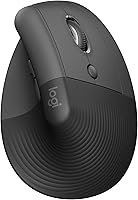
How to Use a Vertical Mouse for the First Time
To use a vertical mouse, rest your hand on it in a relaxed handshake position, move it with your forearm, and start with a comfortable pointer speed. Practice in short sessions while you get used to the new grip.
On this page (7 sections)
To use a vertical mouse, rest your hand in a relaxed handshake position, move the pointer with small forearm movements, and begin at a comfortable speed. Give yourself short practice sessions, because clicking and aiming can feel different at first.
A vertical shape changes the angle of your hand, but the basic job stays the same: move the pointer, click, and scroll. Start with everyday tasks such as opening folders or reading a page before using it for fast, precise work.
How do you hold a vertical mouse?
Rest your hand on the mouse without gripping it tightly. Let your palm meet the side of the body, place your thumb where it feels supported, and keep your fingers loose over the buttons.
The goal is a relaxed handshake-like position. Your wrist should not bend sharply toward your thumb or little finger, and your hand should not hover above the mouse.
Place the mouse close to your keyboard and near the edge of your desk. If you need to reach forward or sideways to use it, move it closer before changing your grip.
Fit matters because vertical mice come in different sizes and shapes. Our vertical mouse guide covers hand size, grip, and the kinds of shapes to compare.
How should you move the mouse?
Use small movements from your hand and forearm, with your wrist in a comfortable line. Keep the mouse close to your body so the pointer is easy to control without reaching.
You don't need to lock your wrist or make large arm sweeps. Move the mouse enough to reach the target, then let your hand settle before clicking.
If the pointer overshoots, slow down and try a smaller movement. If it takes too much effort to cross the screen, increase pointer speed a little.
How do you use vertical mouse buttons and scroll wheels?
Click with a light finger movement and scroll with the finger that rests most naturally on the wheel. The button positions can feel unfamiliar, so practice on tasks where a missed click is easy to correct.
Use the wheel to move through a page, then pause before selecting text or a small icon. If your model has extra buttons, leave them alone until the main buttons and pointer feel familiar.
The Logitech Lift has a thumb rest, customizable buttons, quiet clicks, and a SmartWheel. The Logitech MX Vertical has a thumb rest and a cursor speed switch.
What settings should you change first?
Start with the pointer speed your computer already uses, then make one small change only if control feels difficult. A familiar speed gives you a useful baseline for practice.
On Windows or macOS, open the mouse settings and adjust pointer speed in small steps. Try each change with ordinary tasks such as selecting a menu, dragging a window, and scrolling through a page.
If your mouse has a cursor speed button, use it only when you understand how it changes pointer movement. The MX Vertical includes a cursor speed switch; the Lift has customizable buttons.
You can also adjust where the mouse sits before changing software settings. A mouse placed too far away may make pointer control feel awkward even at a comfortable speed.
How can you adjust to a vertical mouse?
Practice for short periods on familiar tasks, then add more time as control feels natural. You don't need to change every part of your routine in one day.
Try this simple progression:
- Move the pointer around the desktop and click large targets.
- Browse a few pages and use the scroll wheel.
- Open and close familiar folders or apps.
- Try dragging a window or selecting text.
- Use it for longer tasks when these movements feel steady.
Don't judge the fit from one brief attempt. If your hand feels cramped, check whether the mouse size suits you and whether your thumb and fingers can rest without stretching.
For more ways to position your desk and input devices, see fit and setup tips. If you're comparing the feel with a standard mouse, vertical mouse vs normal mouse explains what changes.
Which vertical mouse can you practice with?
Choose a mouse that fits your hand and gives you a grip you can relax into. These options have different shapes and controls, so compare the details that matter for your desk and hand.
The Logitech Lift is described as a fit for small to medium right hands. It connects by Bluetooth Low Energy or Logi Bolt USB, and its SmartWheel supports scrolling.
The Logitech MX Vertical has a 57-degree angle, a cursor speed switch, and a rechargeable battery. Its shape is described as fitting a variety of hand shapes and sizes.
The Anker mouse uses a USB receiver rather than Bluetooth. It has 800, 1200, and 1600 DPI settings, plus next and previous buttons.
For more options and fit details, browse our vertical mice guide or compare the picks in best vertical mouse.
What should you do if the mouse feels awkward?
First check your reach, hand fit, and pointer speed. A small position or setting change may make practice easier.
Move the mouse close to your keyboard and align it with your forearm. Relax your grip, lower your shoulder, and keep your wrist from bending sharply.
If your fingers don't reach the buttons comfortably or your palm cannot rest on the body, the shape may not suit your hand. Compare another size or grip before deciding that vertical mice as a whole feel wrong.
If you notice ongoing pain or numbness, stop and seek medical advice. A mouse shape is a personal fit choice, not a treatment.
When are you ready to use it for a full workday?
Use it for longer stretches once ordinary pointer movements feel controlled and your hand can stay relaxed. Increase time gradually and take your usual breaks.
Keep the mouse within easy reach, with enough clear desk space to move it. If you switch between a vertical and regular mouse, give each a consistent place so you don't have to search or reach.
For choosing a shape that suits your hand, start with the vertical mouse guide. If you want to compare other input options, see the ergonomic mouse and keyboard guide.
The simplest rule is to choose a comfortable fit, use a relaxed grip, and practice a little at a time. If the mouse makes you reach or tense your hand, adjust its position or compare another shape.
Frequently asked questions
How do you hold a vertical mouse?
Rest your palm against the mouse and place your thumb on its thumb rest, if it has one. Keep your fingers relaxed over the buttons, with your wrist in line with your forearm.
The hand angle should feel natural rather than forced; adjust your chair, desk, or mouse position if you have to reach.
How long does it take to get used to a vertical mouse?
The adjustment time varies. Pointer control may feel unfamiliar at first, so use the mouse for short, low-pressure tasks and increase time as it feels comfortable.
If a setting makes the pointer hard to control, change one thing at a time and give yourself a chance to adapt.
Should you move your wrist or arm with a vertical mouse?
Use small, relaxed movements from your hand and forearm, while keeping your wrist comfortable and fairly straight. You don't need to lock your wrist or make large arm sweeps.
Set pointer speed so ordinary movements reach the parts of the screen you use without strain.
Can a vertical mouse cause discomfort?
A new grip can feel awkward, and a mouse that is too large, too small, or too far away can make it harder to relax your hand. Reposition it, check the fit, and take breaks.
Stop using it if discomfort persists, and seek appropriate medical advice for ongoing pain.