Vertical Mouse vs Normal Mouse: What Changes? (November 2026)
A vertical mouse holds your hand at a more upright angle; a normal mouse keeps it closer to palm-down. Choose by hand fit and control, then give a new shape time to learn.
On this page (10 sections)
- Vertical mouse vs normal mouse: what changes in hand position?
- Which mouse is easier to control?
- Does a vertical mouse need more desk space?
- Who should consider a vertical mouse?
- Who should keep using a normal mouse?
- How do you set up a vertical mouse?
- How long does it take to adjust to a vertical mouse?
- What mistakes should you avoid when switching?
- What should you compare before buying?
- How do you choose between a vertical mouse and a normal mouse?
A vertical mouse holds your hand at a more upright angle; a normal mouse keeps it closer to palm-down. In a vertical mouse vs normal mouse comparison, the main choice is the grip you can hold comfortably and guide with control.
A vertical shape may feel unfamiliar because your hand rests and moves differently. A normal mouse may be easier to pick up quickly if its shape matches what you already use, but familiarity alone doesn't decide which one will suit you over a full workday.
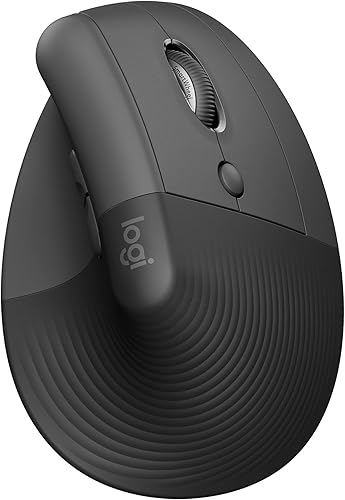
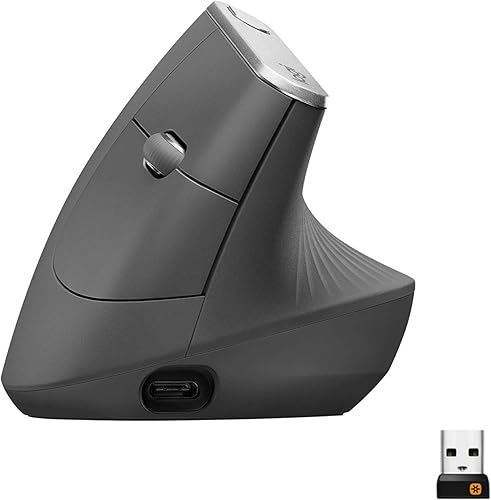
Vertical mouse vs normal mouse: what changes in hand position?
A vertical mouse turns your hand toward a handshake-like position, while a normal mouse keeps it more palm-down. The shape changes how your hand meets the mouse, while both still move a pointer across the screen.
On a vertical mouse, your thumb usually rests along one side while your fingers curl around the angled body. The Logitech Lift and Logitech MX Vertical both use a 57-degree angle.
A normal mouse gives your palm a lower surface to rest on, with your fingers reaching the buttons from above. Standard mice range from low, compact shapes to taller bodies with thumb rests, so “normal” doesn't describe one fixed fit.
The angle by itself can't tell you which mouse to buy. Hand size, mouse dimensions, desk position and your grip all affect how the shape feels when you use it.
For help comparing body shapes and hand fit, see our vertical mouse guide to sizes and grips.
What does “normal mouse” mean?
A normal mouse is a standard, non-vertical design that you hold with your palm facing more toward the desk. Its profile and button layout depend on the model.
Compare your current mouse with the vertical model you are considering. Notice where your palm, thumb and wrist rest, and whether your fingers reach the buttons without stretching.
Which mouse is easier to control?
A normal mouse may feel easier to control at first if you've used that grip for years. A vertical mouse changes how you hold and guide it, so give yourself time to learn before judging its precision.
Both designs move the pointer, but the movement starts from a different grip. Your control also depends on pointer sensitivity, how much room you have and how far you need to move across the screen.
Begin with short sessions on everyday tasks such as browsing or reading. If the pointer feels too fast, lower its sensitivity where the mouse or computer allows it, then adjust again as the new grip becomes familiar.
The Logitech MX Vertical has a cursor speed switch and a 4000 DPI sensor. The Anker Wireless Vertical Mouse offers 800, 1200 and 1600 DPI settings.
Sensitivity affects how far the pointer moves, but it doesn't tell you whether the mouse shape fits. If control feels jumpy, change the setting before deciding that the upright grip is the problem.
Does a vertical mouse need more desk space?
The space you need depends on the mouse's size and how you move it, not simply on whether it's vertical. Check the clear area beside your keyboard and the path your hand uses during ordinary work.
Some people make small movements with their fingers and wrist; others move the mouse with more of the forearm. Either way, you need enough clear surface to reach the parts of the screen you use without bumping into a desk edge or other objects.
Keep the mouse near your keyboard so you don't have to reach out to use it. Clear nearby clutter, then check that the mouse can move through a comfortable range.
Our fit and setup guide covers mouse placement and desk adjustments. If your workspace is narrow, compare the mouse dimensions and make sure it has room to move.
Who should consider a vertical mouse?
Consider a vertical mouse if you want a more upright grip and can find a shape that fits your hand. It makes sense to explore one when you're willing to adjust your grip and pointer habits gradually.
The Logitech Lift is described for small to medium right hands, with a softly textured grip and thumb rest. Logitech also offers left-hand configurations, so check the orientation that matches your hand before choosing.
The Logitech MX Vertical is a right-handed option with a textured rubber surface and a cursor speed switch. Its shape is intended for a range of hand sizes, but trying it is useful if you aren't sure how its body fits your palm.
The Anker Wireless Vertical Mouse is also right-handed. Its 2.4 GHz connection uses a USB receiver, and its clicks are audible, so it's less suited to quiet shared spaces.
See our best vertical mouse picks to compare more options by hand size and features.
Who should keep using a normal mouse?
Keep using a normal mouse if its grip feels comfortable and gives you the control you want. You don't need to change shapes just because a vertical model looks different.
A familiar mouse is a practical choice if you move between computers often, prefer a palm-down grip or can't find a vertical model that fits your hand. It may also suit you if an upright mouse continues to feel awkward after you've had time to adjust.
Before replacing a standard mouse, look at what feels uncomfortable or inconvenient. A different size, pointer setting or position may be enough to improve how it fits your desk and routine.
You can choose your mouse and keyboard separately. Our plain ergonomic mouse and keyboard buying guide explains how to compare the two without assuming you need a matching set.
How do you set up a vertical mouse?
Place a vertical mouse beside your keyboard, keep it within easy reach and start with ordinary tasks. A simple setup gives you room to learn the grip without adding unnecessary changes at once.
Clear enough desk space for the mouse to move, then put it where your arm can stay close to your side. You shouldn't need to reach far across the desk or twist your wrist just to reach the mouse.
Connect it using the option that suits your computer and available ports. The Lift supports Bluetooth Low Energy or Logi Bolt USB, the MX Vertical supports Bluetooth or a USB receiver, and the Anker uses a 2.4 GHz USB receiver.
Set the pointer speed to a manageable level and try browsing or reading first. Adjust only one thing at a time, such as pointer speed or placement, so you can tell what makes control easier.
How long does it take to adjust to a vertical mouse?
There isn't one adjustment time that suits everyone. Start with short sessions, then use the mouse for longer as the grip and pointer movement become easier.
Choose routine tasks first, such as opening pages or moving between familiar controls. Save precision-heavy work for when you feel more confident with the new grip.
Give your hand breaks and keep the mouse in a comfortable position. If the shape continues to feel strained or difficult to control, take a break and reconsider the size, orientation or mouse type.
Our guide on how to use a vertical mouse for the first time walks through a gradual start.
What mistakes should you avoid when switching?
Avoid judging the shape during one short session or changing several settings at once. A new grip takes practice, and too many simultaneous adjustments make it hard to tell what is helping.
- Don't expect instant precision: use ordinary tasks to get used to moving the mouse.
- Don't overlook hand orientation: a right-handed model may not fit a left-handed user.
- Don't buy by angle alone: compare the size and where your thumb and fingers rest.
- Don't assume every wireless mouse uses Bluetooth: check whether you need a USB receiver.
- Don't ignore click noise: the Anker's clicks are audible, which may matter in a shared room.
- Don't keep using a shape that causes discomfort: stop, rest and reconsider the fit.
A vertical mouse is an option to compare, not a required upgrade. A well-fitting standard mouse is a sensible choice if it already gives you comfortable control.
What should you compare before buying?
Compare hand fit, connection, controls and grip before choosing either shape. Useful features matter only when the mouse also suits your hand and workspace.
- Hand fit: The Lift is described for small to medium right hands. The Anker and MX Vertical are right-handed.
- Connection: The Lift connects through Bluetooth Low Energy or Logi Bolt USB. The MX Vertical supports Bluetooth or a USB receiver. The Anker uses a 2.4 GHz USB receiver.
- Controls: The MX Vertical has a cursor speed switch. The Anker offers next and previous buttons plus 3 sensitivity settings.
- Grip: The Lift has a softly textured grip and thumb rest. The MX Vertical has a textured rubber surface.
- Sound: The Anker's clicks are audible, so consider where you'll use it.
If you're considering another way to control the pointer, compare a vertical mouse with a trackball mouse. A trackball lets you move the pointer with a ball under your fingers or thumb instead of moving the whole mouse.
How do you choose between a vertical mouse and a normal mouse?
Choose a vertical mouse if its upright grip fits your hand and feels controllable; choose a normal mouse if you prefer the familiar palm-down shape. Start with fit and comfort at your desk, then consider connection and controls.
If you're curious about an angled grip, try a vertical model during short sessions and give yourself time to build control. The Lift is a useful starting point for small to medium right hands, the MX Vertical suits someone who wants a cursor speed switch, and the Anker suits someone who prefers a USB receiver and three sensitivity settings.
If your current mouse fits well, keep using it. For more help with the vertical mouse vs normal mouse decision, read the vertical mouse guide or compare the vertical mouse picks.
Frequently asked questions
Is a vertical mouse better than a normal mouse?
A vertical mouse may suit you if you prefer a more upright hand position; a normal mouse may suit you if you prefer a palm-down grip. Neither shape is best for everyone.
Consider hand fit, desk space and how you guide the pointer, then try the shape that feels easier to control.
Does a vertical mouse take time to get used to?
It can take time to adjust because your hand approaches and moves the mouse differently. Start with short sessions and ordinary tasks, and give yourself time to build control.
If the shape keeps feeling awkward, a different size or a normal mouse may fit you better.
Can I use a vertical mouse for gaming?
You can use one for gaming, but fit and control depend on the game and your grip. The Anker has 3 sensitivity settings, and the Logitech MX Vertical has a cursor speed switch.
Check the button layout and connection you want before choosing.
Should I switch to a vertical mouse if my wrist hurts?
A vertical shape changes hand position, but it doesn't promise to treat pain. Adjust your desk and mouse placement, and stop using a shape that causes discomfort.
For ongoing pain, ask a health professional for advice.


