Vertical Mouse Guide: Sizes, Grips and Who They Suit
The best vertical mouse is one that supports your hand and lets you reach the buttons without stretching or squeezing. Compare its size, grip, angle and connection with your needs before you choose.
On this page (8 sections)
- How do you choose a vertical mouse?
- What grip and angle should you look for?
- Which features matter for daily use?
- Which of these four vertical mice fits your needs?
- How do you check fit before you commit?
- How should you set up and use a vertical mouse?
- What common mistakes should you avoid?
- Who should choose a vertical mouse?
A vertical mouse should support your hand and let you reach the buttons without stretching or squeezing. Compare its size, grip, angle and connection with your needs before you choose.
An upright shape can feel different from a familiar flat mouse. Fit matters more than a size label or a long feature list: a small body may cramp your fingers, while a wide one may push your thumb outward.
This guide explains how to choose, set up and use a vertical mouse, and who may prefer each of four models. For wider desk advice, see our ergonomic mouse and keyboard guide.
How do you choose a vertical mouse?
Start with hand fit, button reach and a grip you can keep relaxed. Then compare angle, controls and connection based on how you work.
Use these checks to narrow your options:
| Fit check | What to look for |
|---|---|
| Palm support | Your palm rests on the mouse without sliding off the back |
| Finger reach | Your index and middle fingers reach the main buttons easily |
| Thumb position | Your thumb rests naturally instead of being squeezed outward |
| Pinky support | Your little finger has room and does not rub the desk |
| Grip effort | You can move and click without pinching the mouse |
| Desk space | The mouse fits beside your keyboard with room to move |
Dimensions can help you rule out a mouse that looks too short or wide, but measurements won't show every curve or finger position. If you already use a mouse that fits, compare its size with the vertical options and treat any hand-size guidance as a starting point.
The right fit lets you move and click without holding your hand tense. If your fingers bunch up, your thumb feels cramped or a button is hard to reach, try a different shape.
Which vertical mouse size suits small hands?
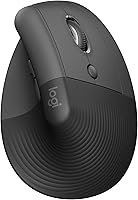
A compact shape may make the buttons easier to reach, but check palm support and thumb placement too. Logitech describes the Lift as designed for small to medium right hands, with a textured grip and thumb rest.
The Lift is a practical first choice if its hand-size guidance matches you and you want a Bluetooth Low Energy or Logi Bolt USB connection. Skip it if you need a left-handed model, because this version is right-handed.
If hand fit is your main concern, compare other shapes in our ergonomic mouse guide for small hands. You can also see more models in our best vertical mouse picks.
Do larger hands need a larger mouse?
A larger hand may need more palm room or finger reach, but hand length alone doesn't settle the fit. Check where your fingers land and whether the thumb rest suits your grip.
Logitech describes the MX Vertical as shaped for a variety of hand shapes and sizes. Its textured surface, thumb rest and cursor speed switch make it a good option if you want to change pointer speed without changing your grip.
Consider the Evoluent VerticalMouse 4 if you want a sculpted shape, six customizable buttons and a broad bottom lip for your little finger. It also has side pointer speed controls, so you can adjust speed without releasing your grip.
Skip a larger mouse if it makes you stretch for the buttons or grip the body tightly. A model's overall size matters less than how its palm support and controls line up with your hand.
What grip and angle should you look for?
Choose a shape that lets your hand rest upright without extra effort. Vertical mice vary in angle, height and palm support, so compare the whole grip rather than judging by the word “vertical.”
A palm grip puts much of your hand against the mouse body. A longer, taller shell may feel more supportive if your palm tends to rest fully on the mouse.
With a claw grip, your palm rests lightly and your fingers curve over the buttons. Make sure the front of the shell doesn't force your fingers into a tight curl.
A fingertip grip uses the fingers to guide the mouse while most of your palm stays off the shell. A tall body may be harder to control this way, so give reach and movement a close look.
These are useful ways to describe a grip, not fixed rules. Your hand may shift during the day, and a mouse can work for more than one style if your fingers and thumb stay relaxed.
The angle affects how upright your hand sits. Logitech gives the Lift and MX Vertical a 57-degree angle; the Evoluent and Anker descriptions focus on an upright or handshake position without stating a specific angle.
Don't choose the steepest-looking shape on the assumption that it will suit you best. Look for a position you can hold comfortably while moving and clicking.
Which features matter for daily use?
Prioritize the details you will use often: support, reachable controls and a connection that works with your computer. Extra buttons help only if you can reach them without shifting your hand.
Do thumb rests and bottom lips help?
A thumb rest gives your thumb a place to settle, while a wide bottom lip can give your little finger a resting surface. Both can help guide your shortlist, but neither makes a mouse a fit if the body is the wrong size.
The Lift and MX Vertical include thumb rests. The Evoluent VerticalMouse 4 has a broad bottom lip, and its button layout includes two thumb buttons.
The Anker has next and previous buttons for browsing, plus three pointer tracking settings: 800, 1200 and 1600 DPI. Its clicks are audible, so skip it if quiet clicks are a priority.
How should you compare buttons and pointer speed?
Choose controls that fit your routine and that you can reach naturally. The Lift has customizable buttons, while the Evoluent offers six customizable buttons and side speed controls; the MX Vertical has a cursor speed switch.
More buttons can be useful for shortcuts, but they add little if they interrupt your grip. Check whether the controls you want to use sit where your fingers can reach them comfortably.
Pointer speed determines how far you need to move the mouse to travel across the screen. Start at a comfortable setting, then adjust in small steps if you find yourself moving too far or too little.
Which connection should you choose?
Match the mouse connection to the ports and wireless options available on your computer. The Lift supports Bluetooth Low Energy or Logi Bolt USB; the MX Vertical supports Bluetooth or its included USB receiver.
The Anker uses a 2.4 GHz USB receiver, not Bluetooth, so choose it only if that connection suits your device. The Evoluent model in this guide is wireless USB.
Check connection and hand orientation before buying, especially if you use a tablet or switch between computers. Our vertical mouse vs normal mouse guide explains what changes when you move from a standard mouse.
Which of these four vertical mice fits your needs?
The Lift suits smaller right hands, the MX Vertical suits buyers who want a cursor speed switch, the Evoluent adds a broad bottom lip, and the Anker uses a 2.4 GHz receiver. Use these differences to make a shortlist, then decide by fit.
| Mouse | A useful fit for | Key details |
|---|---|---|
| Logitech Lift Vertical Mouse | Small to medium right hands | 57-degree angle, thumb rest, Bluetooth Low Energy or Logi Bolt USB |
| Logitech MX Vertical Mouse | Buyers who want a cursor speed switch | 57-degree angle, textured surface, thumb rest |
| Evoluent VerticalMouse 4 Wireless | Buyers who want a broad bottom lip and side speed controls | Sculpted shape, customizable buttons |
| Anker Wireless Vertical Mouse | Buyers who need a 2.4 GHz USB receiver | Right-handed shape, three tracking settings |
Choose the Lift if its small to medium right-hand guidance fits you and you want a choice of Bluetooth or USB receiver connection. Skip it if you need a left-handed shape.
Choose the MX Vertical if you want a textured grip and quick pointer speed adjustment. The Evoluent is a better match if its bottom lip and side controls matter more to you.
Choose the Anker if the USB receiver fits your setup and you want three tracking settings. Skip it if you need Bluetooth or quiet clicks.
How do you check fit before you commit?
A good fit keeps your palm supported, fingers within easy reach and grip relaxed. If you have access to the mouse, use a short check with ordinary pointer movements.
- Rest your palm on the body without pressing down.
- Place your index and middle fingers on the main buttons.
- Check that your thumb rests naturally along the side.
- Move the pointer without pinching or lifting your hand.
- Click the controls you expect to use.
- Notice whether your little finger has room or rubs the desk.
If you can't try it first, compare its stated dimensions with a mouse that fits you. Remember that measurements alone won't show the angle, curves or exact position of each button.
Keep the mouse close to your keyboard and within comfortable reach. A mouse placed too far to the side can make you reach for it every time you move the pointer.
For more desk placement guidance, see our mouse and keyboard fit and setup guide.
How should you set up and use a vertical mouse?
Begin with short sessions of familiar tasks and comfortable pointer speed. Give yourself time to learn how this shape moves before using it for a long stretch of detailed work.
Place the mouse beside the keyboard so you can reach it without stretching your arm sideways. Rest your hand lightly on the body, then move from the arm and hand as needed rather than clamping your fingers around the shell.
Use ordinary work such as browsing, opening folders or selecting text to learn the new grip. If the mouse has pointer speed controls, start at a setting you can manage and adjust in small steps.
Expect pointer movement to feel unfamiliar at first. If you find yourself gripping hard, reaching for buttons or repeatedly lifting your wrist, pause and check the size, placement and controls.
Keep the surface around the mouse clear of crumbs and clutter that can interfere with movement. Follow the care instructions that come with your mouse, and avoid getting liquid into the buttons or body.
Our guide on how to use a vertical mouse for the first time walks through a gradual change and practice with everyday tasks.
What common mistakes should you avoid?
The most common mistake is choosing by angle or feature count before checking fit. A mouse can offer many controls and still be awkward for your hand.
- Buying by “small,” “medium” or “large” alone: compare palm support and button reach too.
- Choosing the most upright shape automatically: a particular angle won't suit everyone.
- Ignoring hand orientation: check whether the model is right- or left-handed before you choose.
- Assuming every wireless mouse uses Bluetooth: the Anker uses a 2.4 GHz USB receiver.
- Changing pointer speed too much at once: make small adjustments so you can tell what feels manageable.
- Gripping tightly while you learn: rest your hand lightly and check whether the shell fits.
- Placing the mouse too far away: keep it beside the keyboard to avoid reaching.
If a mouse feels awkward after you adjust its position and pointer speed, revisit its size and shape. More practice is useful only when the fit lets your hand move comfortably.
Who should choose a vertical mouse?
A vertical mouse is a strong option if you want an upright grip and can find a shape that supports your hand. Pick based on fit first, then connection and controls.
Choose the Lift if you have a small to medium right hand and want Bluetooth or Logi Bolt USB. Pick the MX Vertical if you prefer a textured grip and a cursor speed switch.
Choose the Evoluent VerticalMouse 4 if you want a broad bottom lip and side pointer controls. Pick the Anker if you want a right-handed model with a 2.4 GHz USB receiver and three tracking settings.
Skip a vertical mouse if the upright grip makes you tense, the buttons are hard to reach or its connection doesn't suit your computer. A different shape may be easier to control; you can compare a trackball with a regular mouse if you want another pointer style.
For a broader shortlist, see our best vertical mouse guide.
Frequently asked questions
How do I know what size vertical mouse I need?
Choose a size that lets your palm rest securely and your fingers reach the buttons without stretching or bunching. Compare the mouse dimensions with one you already find comfortable, then check any hand-size guidance for the model.
If possible, try the grip with your hand before you commit.
Are vertical mice good for small hands?
Some vertical mice are made for smaller hands, but dimensions and button reach still matter. Logitech describes the Lift as a fit for small to medium right hands; the MX Vertical is shaped for a variety of hand shapes and sizes.
Use those descriptions to shortlist options, then check the fit.
Does a vertical mouse have to be held at 90 degrees?
No. Vertical mice use different angles, and your hand position depends on the shape.
Logitech describes both the Lift and MX Vertical as having a 57-degree angle.
Choose a mouse that lets your hand rest comfortably and control the pointer without a tight grip.
How long does it take to get used to a vertical mouse?
The adjustment period varies by person and mouse. Start with ordinary tasks, keep pointer speed comfortable and give your hand time to learn the new grip.
If it still feels awkward, check the mouse size, placement and button reach.
More practice won't fix a shape that doesn't fit.
Can a vertical mouse relieve wrist pain?
A vertical mouse changes how your hand rests, but it can't promise to relieve pain or treat a condition. Comfort depends on the mouse, your setup and your work habits.
If pain continues or affects daily tasks, ask a health professional for advice.