Kensington SlimBlade Pro Trackball Review: Worth It? (November 2026)
The Kensington SlimBlade Pro suits you if you want a rechargeable, ambidextrous finger trackball with Bluetooth, 2.4GHz wireless and wired connections. Its large ball stays in place while you move the pointer, and twisting that ball handles scrolling.

On this page (10 sections)
- What does the Kensington SlimBlade Pro offer?
- Who is the SlimBlade Pro best for?
- How should you choose between the SlimBlade Pro and the alternatives?
- What should you check before buying?
- How do you set up the SlimBlade Pro?
- How can you build a comfortable trackball routine?
- How do you care for a trackball?
- What common buying mistakes should you avoid?
- Is the Kensington SlimBlade Pro worth considering?
- Related trackball guides
The Kensington SlimBlade Pro is a finger-operated trackball for people who want a large ball, twist scrolling and flexible connections. This kensington slimblade pro review compares it with a thumb trackball and two Kensington alternatives, so you can match the controls to your desk and habits.
A trackball stays in one place while you move the ball to steer the pointer. That can suit a compact desk or a setup where you want less arm movement, but the finger motion takes adjustment if you’re used to a regular mouse or a thumb trackball.
What does the Kensington SlimBlade Pro offer?
The SlimBlade Pro combines a 55mm finger-operated ball, twist scrolling and three connection choices in a low-profile design. It works for either hand and recharges through USB-C.
Kensington SlimBlade Pro Trackball: Best for two-hand use
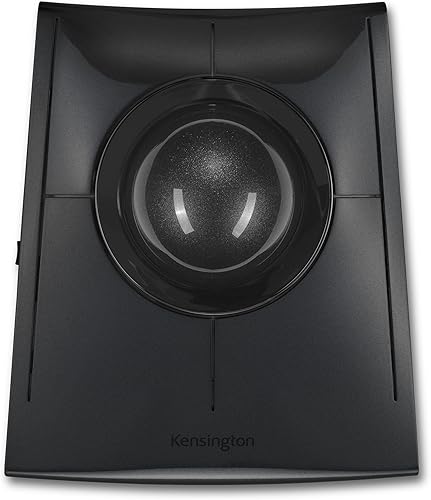
- 55mm ball
- Bluetooth, 2.4GHz wireless and wired connections
- USB-C rechargeable battery
A low-profile, ambidextrous finger-operated trackball with three connection options and twist scrolling. It fits if you want a large ball you can use with either hand and don’t need to move the device around your desk.
Pros
- Works for right-handed and left-handed users
- Bluetooth, wireless dongle and wired connection options
- USB-C charging
- Large ball and twist scrolling
Cons
- Finger-operated control takes a different motion from a thumb trackball
- Twist scrolling may take adjustment
You can connect by Bluetooth, the included 2.4GHz dongle or the USB cable. The cable can also charge the trackball, so you can use a wired setup while it is connected.
Kensington gives the rechargeable battery life as up to 4 months per charge. KensingtonWorks software lets you configure button functions, which can help if you want shortcuts for repeated tasks.
Is the SlimBlade Pro finger-operated or thumb-operated?
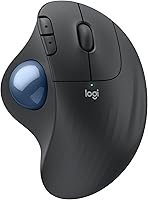
The SlimBlade Pro is finger-operated: you roll its large ball with your fingers to move the pointer. A thumb trackball puts the ball under your thumb instead, as the Logitech MX Ergo S does.
That difference matters more than the brand or wireless connection. Choose the SlimBlade Pro if you want to steer with your fingers and use the same device with either hand; skip it if thumb control is the motion you prefer.
How does its twist scrolling work?
The SlimBlade Pro scrolls when you twist its ball, rather than turning a wheel or ring. Pointer movement and scrolling share one control, so you may need a little practice to make the twist motion feel deliberate.
The Kensington Expert Wireless and Orbit Wireless use a separate scroll ring around their balls. If you’d rather keep scrolling as a distinct motion, compare those models before choosing.
Who is the SlimBlade Pro best for?
The SlimBlade Pro suits you if you want a large finger trackball that works with either hand. Its stationary base also fits desks where a mouse would have little room to travel.
It can be a practical choice if you switch hands, share a workstation or want ambidextrous controls. The cable, Bluetooth and 2.4GHz options also give you a choice of wired or wireless setup.
Skip it if you want a familiar mouse wheel, prefer to steer with your thumb, or don’t want to learn ball-based pointer control. For an overview of different control styles, see our trackball mouse buying guide.
How should you choose between the SlimBlade Pro and the alternatives?
Choose by control style first, then scrolling and power. Those daily-use differences matter more than having extra ways to connect if you’ll only use one.
| Trackball | Ball and control | Scrolling | Connections or power |
|---|---|---|---|
| Logitech MX Ergo S | Thumb-operated, right-handed | Not specified here | Bluetooth or Logi Bolt receiver; rechargeable |
| Kensington SlimBlade Pro | 55mm, finger-operated, ambidextrous | Ball twist | Bluetooth, 2.4GHz wireless or wired USB; rechargeable |
| Kensington Expert Wireless | 55mm, finger-operated, ambidextrous | Scroll ring | Bluetooth LE or 2.4GHz wireless; 2 AA batteries |
| Kensington Orbit Wireless | 40mm, finger-operated, ambidextrous | Scroll ring | Bluetooth LE or 2.4GHz wireless; AA batteries |
The MX Ergo S is the clearest alternative if you prefer thumb control and a tilted base. Read our Logitech MX Ergo S review for details on its shape and connections.
The Expert Wireless suits you if a separate scroll ring and detachable wrist rest are priorities. The Orbit Wireless keeps the ring but uses a 40mm ball, so consider it if you want a smaller ball than the SlimBlade Pro’s.
What should you check before buying?
Check your preferred ball motion, scrolling method, connection and software needs before choosing. Each affects how the trackball fits your routine.
- Control: Finger-operated trackballs use your fingers on the ball. Thumb-operated designs place the ball under your thumb.
- Scrolling: The SlimBlade Pro uses a twist motion; the Expert and Orbit use a ring.
- Hand use: The SlimBlade Pro works with either hand, while the MX Ergo S is right-handed.
- Connection: The SlimBlade Pro supports Bluetooth, 2.4GHz wireless and wired USB. Pick the connection that works with your desk setup.
- Charging: The SlimBlade Pro recharges over USB-C. The Expert and Orbit use AA batteries.
- Customization: KensingtonWorks supports button configuration. Check compatibility with your computer if custom functions matter to your work.
The SlimBlade Pro supports Windows, macOS and Linux. Check KensingtonWorks compatibility for your operating system if you plan to rely on button customization.
How do you set up the SlimBlade Pro?
Start by choosing one connection method and placing the trackball where your hand can reach it comfortably. Keeping the device steady gives you a consistent starting point as you learn to steer with the ball.
For a wired setup, connect the USB cable to the trackball and computer. For wireless use, choose Bluetooth or the included 2.4GHz dongle; if you want custom button functions, configure them through KensingtonWorks.
Begin with short, simple pointer movements and use the ball’s center area before trying fast, precise motions. Give yourself time to adjust, especially if you’re moving from a mouse or a thumb-operated trackball.
How can you build a comfortable trackball routine?
Use the SlimBlade Pro with small, controlled finger movements and a stable hand position. A trackball reduces the need to sweep the whole device across a desk, but it still helps to relax your hand and change position when you feel strain.
Try the twist scrolling in a document you know well, then adjust your motion until you can scroll without moving the pointer by accident. If you keep switching between cursor movement and scrolling, slow down and practice each motion separately.
The large ball is a key part of this model’s feel. If finger control remains awkward after a reasonable adjustment period, a thumb trackball or a regular mouse may suit you better.
How do you care for a trackball?
Keep the ball and the area around it free of dust and debris so it can move smoothly. Unplug the cable or turn off the device before cleaning, and use a soft, dry cloth for the outside.
Follow Kensington’s care guidance before removing any parts or using cleaning fluid. Our trackball cleaning guide explains simple cleaning steps for this device category.
What common buying mistakes should you avoid?
The biggest mistake is choosing by connection count before deciding how you want to control the pointer. Bluetooth, dongle and wired use are useful options, but they don’t change the finger-operated ball or twist-scrolling motion.
Don’t assume that all trackballs scroll the same way. The SlimBlade Pro twists its ball, while the Expert and Orbit use rings; try to picture which motion you’d rather repeat throughout the day.
Also check your software needs before relying on custom button functions. KensingtonWorks is available for configuration, but compatibility matters if you use a less common computer setup.
Is the Kensington SlimBlade Pro worth considering?
The Kensington SlimBlade Pro is worth considering if you want a rechargeable, ambidextrous finger trackball with a large ball and twist scrolling. Pick the Expert Wireless for ring scrolling and a detachable wrist rest, the Orbit Wireless for a smaller ball with a ring, or the MX Ergo S for right-handed thumb control and tilt.
If you’re new to trackballs, read how to use a trackball mouse before you decide. It will help you know what kind of pointer motion you’re choosing.
Related trackball guides
- Compare the Kensington Expert Wireless and SlimBlade Pro
- Read the Logitech MX Ergo S trackball review
- Compare trackball mice in our buying guide
- Learn how to use a trackball mouse
Frequently asked questions
Is the Kensington SlimBlade Pro a thumb trackball?
No. The SlimBlade Pro is finger-operated, so you move its 55mm ball with your fingers rather than rolling a ball with your thumb.
Its design works for right- and left-handed users.
If you prefer thumb control, the Logitech MX Ergo S is a right-handed option.
The Kensington Expert Wireless is another finger-operated design.
How does the SlimBlade Pro scroll?
The SlimBlade Pro uses twist scrolling: turn the large ball to scroll through pages and documents. You use the same ball for pointer movement and scrolling, which keeps the controls together.
If you prefer a separate ring, the Kensington Expert Wireless and Orbit Wireless have scroll rings around their balls.
Can you use the Kensington SlimBlade Pro with a Mac?
The SlimBlade Pro supports macOS, Windows and Linux, and it connects through Bluetooth, a 2.4GHz wireless dongle or a USB cable. Choose the connection that works with your computer, and check KensingtonWorks compatibility if you plan to customize its buttons.
How often does the SlimBlade Pro need charging?
Kensington gives the SlimBlade Pro a battery life of up to 4 months per charge, with charging through its USB-C port. Treat that as a guide because actual battery life can vary with use.
The wireless Expert and Orbit models use AA batteries instead.