Logitech MX Ergo S Trackball Review: Worth It? (November 2026)
The Logitech MX Ergo S suits right-handed users with medium to large hands who want a tilted, rechargeable thumb trackball. Choose it for USB-C charging and customizable controls; consider the M575S for AA power or an ambidextrous Kensington for finger control.
On this page (9 sections)
- What does the Logitech MX Ergo S offer?
- Who is the Logitech MX Ergo S best for?
- Is the MX Ergo S comfortable for long work sessions?
- How do the Logitech MX Ergo S and M575S compare?
- What are the MX Ergo S connection and charging options?
- How does the MX Ergo S compare with finger trackballs?
- How should you set up and use the MX Ergo S?
- What should you check before buying the Logitech MX Ergo S?
- Which trackball should you choose?
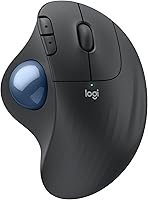
The Logitech MX Ergo S is a rechargeable thumb trackball for right-handed users who want a tilted grip and customizable controls. Its 20-degree tilt, USB-C charging and wireless connections make it a more adjustable option than the simpler M575S.
Fit is the first buying decision. Logitech describes the MX Ergo S for medium to large hands, so its controls may not feel comfortable if your thumb must stretch to reach the ball or buttons.
A trackball stays in place while you move its ball to control the cursor. That can suit a small desk or help reduce broad mouse movements.
The adjustment to thumb control takes practice, so we compared the features and layouts of four trackballs to help you choose one that fits your hand, desk and preferred control style.
What does the Logitech MX Ergo S offer?
The Logitech MX Ergo S combines thumb control, a 20-degree tilt and two wireless connection options in a right-handed shape. A button switches between speed and high-precision tracking.
Logitech MX Ergo S Trackball: Best for tilted thumb control

- 20-degree tilt
- Bluetooth or included Logi Bolt receiver
- USB-C rechargeable
- 6 customizable buttons
A rechargeable thumb trackball with a 20-degree tilt, two-device switching and customizable controls. Its right-handed shape is made for medium to large hands.
Pros
- 20-degree tilt angle
- Bluetooth and included Logi Bolt receiver
- USB-C charging
- Customizable buttons and shortcuts
Cons
- Right-handed design
- Sized for medium to large hands
- Charging cable not included
The base sets the mouse at an angle, and the sculpted body has a soft rubber grip. Logitech says the tilt can reduce forearm muscle activity by 27% compared with its M650 mouse.
The clicks are 80% quieter than those of the earlier MX Ergo. These are specific comparisons, not a guarantee that every person will feel the same benefit.
The Logi Options+ app lets you customize 6 buttons, shortcuts and Smart Actions. The app is required for those features and is available for recent versions of Windows and macOS.
Who is the Logitech MX Ergo S best for?
The MX Ergo S is best for right-handed users with medium to large hands who want thumb control, an angled base and rechargeable power. It can also suit a desk where there is limited room to move a conventional mouse around.
Its two wireless options help if you switch between computers or want to keep a USB port free. Easy-Switch lets you move between two paired devices, and the included Logi Bolt receiver offers a connection option alongside Bluetooth.
This shape is a poor fit if you use your left hand or prefer a smaller mouse. The MX Ergo S also asks your thumb to do the cursor work, so someone who wants finger control should compare the Kensington options below.
If you're new to trackballs, how to use a trackball mouse explains the basic control styles and the adjustment period. It can help you decide whether a stationary mouse body suits the way you work.
Is the MX Ergo S comfortable for long work sessions?
The MX Ergo S has a sculpted shape, soft rubber grip and angled base, but comfort depends on the fit of those features to your hand. Its intended medium-to-large fit gives you a useful starting point before you compare the controls.
Set your hand on the mouse without reaching. Your thumb should be able to move the ball and reach the nearby controls without a forced stretch, and your fingers should rest naturally over the buttons.
A trackball reduces the need to sweep the mouse body across the desk. It does not remove all hand movement: your thumb still moves repeatedly, and the shape may not suit every grip.
The trackball mouse versus regular mouse guide lays out the difference between moving a ball and moving the whole device. For more models, browse our best trackball mouse guide.
How do the Logitech MX Ergo S and M575S compare?
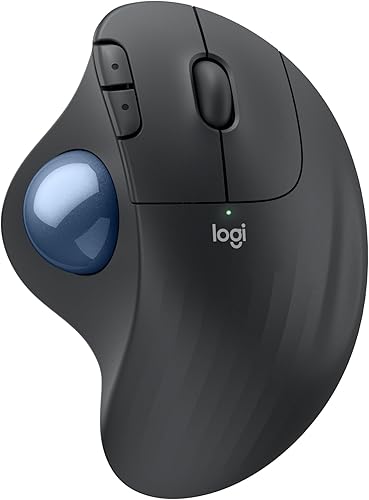
Both Logitech models use right-handed thumb control and Bluetooth or an included Logi Bolt receiver. The MX Ergo S adds a tilt base, USB-C charging and more customizable buttons; the M575S runs on an included AA battery.
Logitech Ergo M575S Trackball: Best for compact desks
- Thumb control
- Bluetooth or included Logi Bolt receiver
- Up to 18 months battery life
- 3 customizable buttons
A right-handed thumb trackball for compact desks, powered by an included AA battery. It offers fewer customizable buttons than the MX Ergo S.
Pros
- Cursor moves without moving the mouse
- Bluetooth and included Logi Bolt receiver
- Up to 18 months of battery life
Cons
- Uses an AA battery rather than USB-C charging
- Right-handed design
| Feature | MX Ergo S | Ergo M575S |
|---|---|---|
| Control | Thumb-operated trackball | Thumb-operated trackball |
| Tilt | 20 degrees | No tilt angle stated |
| Customizable buttons | 6, plus a DPI button | 3 |
| Connectivity | Bluetooth or included Logi Bolt receiver | Bluetooth or included Logi Bolt receiver |
| Power | Rechargeable via USB-C | 1 included AA battery |
| Stated battery life | Up to 120 days on a full charge | Up to 18 months |
| Hand orientation | Right | Right |
| Hand size | Medium to large | Suitable for most hand sizes |
The M575S makes sense if you want a familiar thumb trackball with fewer customizable controls and long stated battery life. Its fixed body also suits tight desks, since you move the cursor without sliding the mouse around.
Pick the MX Ergo S if you want its tilt, rechargeable power and app-based shortcuts. Pick the M575S if you prefer AA power, a shape described for most hand sizes or fewer controls to configure.
Read our Logitech Ergo M575S review for a closer look at that alternative.
What are the MX Ergo S connection and charging options?
The MX Ergo S connects through Bluetooth or the included Logi Bolt USB receiver, and Easy-Switch lets you switch between two devices. It charges through USB-C, but the cable is sold separately.
Logitech says a 1-minute charge provides up to 24 hours of use, and a full charge can last up to 120 days. Battery life varies with use and computing conditions, so your actual interval between charges may differ.
Before buying, check which connection you want to use and whether your computer has a suitable USB port for the receiver. Bluetooth avoids using a USB port; the receiver gives you a separate wireless option.
The minimum operating system versions specified for this model are macOS 14 Sonoma and Windows 11. Basic functions work without the Logi Options+ app, while its customizable buttons, shortcuts and Smart Actions require the app on a recent version of Windows or macOS.
How does the MX Ergo S compare with finger trackballs?
The MX Ergo S moves its ball with your thumb, while the Kensington SlimBlade Pro and Expert Wireless use finger control. Choose between them based on which movement feels natural and whether you need a shape that can be used with either hand.
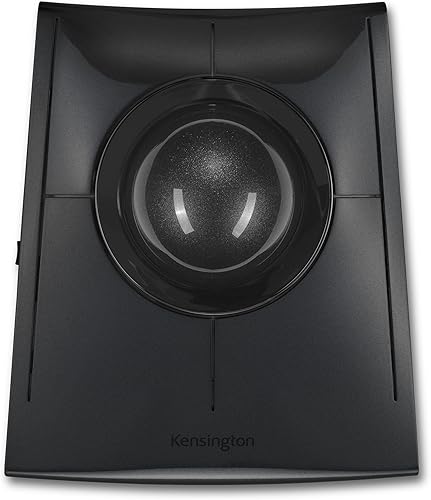
Kensington SlimBlade Pro Trackball: Best for shared hand use
- Ambidextrous low-profile shape
- 55 mm ball
- Bluetooth, 2.4GHz wireless or wired
- Rechargeable
A low-profile, ambidextrous trackball with a large 55 mm ball and three connection choices. Finger control makes it a different feel from Logitech's thumb models.
Pros
- Can be used with either hand
- Bluetooth, 2.4GHz wireless and wired options
- Rechargeable battery
Cons
- Finger control has a different learning curve from thumb control
- Larger ball takes up room on the device
The SlimBlade Pro is ambidextrous and rechargeable, with Bluetooth, 2.4GHz wireless and wired connection options. Its 55 mm ball uses dual sensors, and twisting the ball provides scrolling.
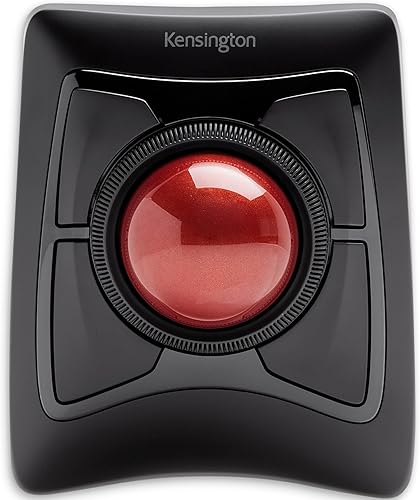
Kensington Expert Wireless Trackball: Best for scroll-ring control
- 55 mm ball
- Patented scroll ring
- Ambidextrous shape
- Detachable wrist rest
An ambidextrous finger trackball with a scroll ring and detachable wrist rest. Its larger footprint suits a desk with room for the device and hand support.
Pros
- Scroll ring for moving through pages
- Ambidextrous design
- Detachable wrist rest
Cons
- Needs 2 AA batteries
- Larger desktop footprint than a thumb trackball
The Expert Wireless is also ambidextrous, with a 55 mm ball, a scroll ring and a detachable wrist rest. It uses 2 AA batteries and connects through Bluetooth LE or a USB wireless dongle.
Both Kensington models take a broader layout than a compact thumb trackball, so consider how much room you have for the device and your hand. The Kensington SlimBlade Pro review covers its finger-operated layout in more detail.
How should you set up and use the MX Ergo S?
Place the MX Ergo S where your hand can rest on it without reaching, then choose Bluetooth or the included receiver. Give yourself time to learn the thumb movement before judging how quickly you can point and scroll.
Start with the default controls and tracking speed. As the movement becomes familiar, try the speed and high-precision tracking button to find a setting that suits your screen and work.
If you want app features, install Logi Options+ on a supported recent version of Windows or macOS. Customize only the buttons you use often at first, such as a shortcut for a repeated task, so you can learn each change without adding unnecessary steps.
Connect a second device only if you expect to switch between it and your main computer. Use Easy-Switch to change devices, and keep the USB-C charging cable accessible because it is not included.
What should you check before buying the Logitech MX Ergo S?
Check hand fit, orientation, control style and charging before choosing the MX Ergo S. Its tilt and extra controls are useful only if the size and thumb movement work for you.
- Hand fit: It is designed for medium to large hands. If you have smaller hands, compare a model described for most hand sizes, such as the M575S.
- Hand orientation: The MX Ergo S is right-handed. For shared use or left-handed use, consider an ambidextrous trackball.
- Control style: Thumb-operated and finger-operated balls feel different. Pick a style you can use comfortably for repeated cursor movements.
- Charging: It has a rechargeable battery and USB-C port, but no cable is included.
- Connection: Decide whether you'll use Bluetooth, the included Logi Bolt receiver or both across two devices.
- Software: The Logi Options+ app is needed for customizable buttons, shortcuts and Smart Actions.
A common mistake is choosing by the tilt angle or button count before checking the hand shape. Another is assuming that every trackball uses the thumb; finger-operated models put the ball and controls in a different layout.
If you are still comparing trackballs with other ergonomic mouse shapes, our vertical mouse guide explains how a vertical mouse moves across the desk while a trackball stays in one place.
Which trackball should you choose?
Choose the Logitech MX Ergo S if you have a medium to large right hand, prefer thumb control, and want a tilted base with USB-C charging and customizable controls. It is the clearest fit for someone who values those features enough to learn the thumb-operated ball.
Choose the M575S if you want a simpler right-handed thumb trackball with included AA power and a shape suited to most hand sizes. Choose the SlimBlade Pro if you need ambidextrous use, a rechargeable finger-operated ball and flexible wired or wireless connections; choose the Expert Wireless if a scroll ring and detachable wrist rest appeal to you.
For the Logitech MX Ergo S, let hand fit and thumb reach make the first cut, then weigh tilt, charging and software controls. Compare more options in our best trackball mouse guide.
Frequently asked questions
Is the Logitech MX Ergo S a thumb trackball?
Yes, the Logitech MX Ergo S uses thumb control, so you move the ball with your thumb while the mouse stays in place. It is right-handed and shaped for medium to large hands.
If you prefer moving a ball with your fingers or need an ambidextrous shape, compare it with the Kensington SlimBlade Pro.
Can the MX Ergo S connect to two devices?
Yes, the MX Ergo S can connect through Bluetooth or its included Logi Bolt receiver, and its Easy-Switch button lets you switch between two devices. Check that your computers support the connection method you plan to use, especially if you want to keep a USB port free.
Does the Logitech MX Ergo S need a charging cable?
The MX Ergo S is rechargeable through USB-C, but its charging cable is not included. Logitech says a 1-minute charge provides up to 24 hours of use and a full charge can last up to 120 days; battery life varies with use and computing conditions.
Should I choose the MX Ergo S or M575S?
Choose the MX Ergo S if you want a 20-degree tilt, USB-C charging and 6 customizable buttons. The M575S uses an included AA battery, has 3 customizable buttons and is also a right-handed thumb trackball.
Both offer Bluetooth and an included Logi Bolt receiver.