Kensington Expert Wireless vs SlimBlade Pro: Which Is Better? (November 2026)
Choose the SlimBlade Pro for USB-C charging, wired use and a low profile, or the Expert Wireless for a scroll ring and detachable wrist rest. Both are ambidextrous trackballs with a 55 mm ball.
On this page (10 sections)
- Kensington Expert Wireless vs SlimBlade Pro: which should you choose?
- How do their scrolling controls differ?
- What shape and wrist support do you get?
- Which connection and power setup fits your desk?
- What can you customize?
- What setup makes either trackball easier to use?
- What mistakes should you avoid before buying?
- Kensington Expert vs SlimBlade: which one suits your routine?
- How should you care for a trackball?
- Final choice: Expert Wireless or SlimBlade Pro?
For the Kensington Expert vs SlimBlade choice, pick the SlimBlade Pro for USB-C charging and wired use, or the Expert Wireless for a scroll ring and detachable wrist rest. Both are ambidextrous Kensington trackballs with a 55 mm ball, but their scrolling controls, shapes and power routines suit different desks.
The SlimBlade Pro uses a twist of the ball to scroll and offers three connection choices. The Expert Wireless puts scrolling on a ring around its ball and includes a wrist rest you can remove.
Your best fit depends on which movement feels more natural, how you want to power the device, and the room available at your desk. Start with our trackball mouse guide if you are also deciding whether a trackball fits your work.
Kensington Expert Wireless vs SlimBlade Pro: which should you choose?
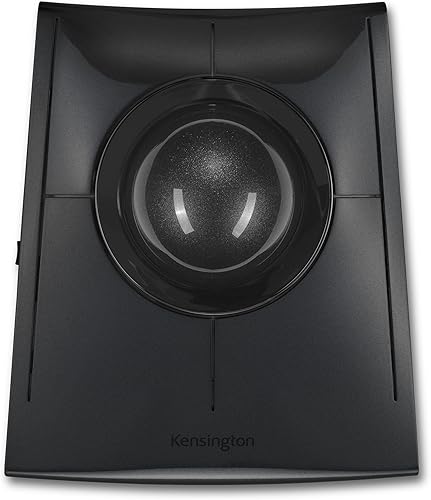
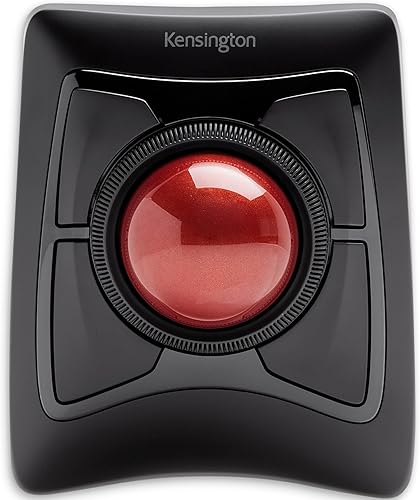
Choose the SlimBlade Pro for rechargeable power, wired use and a low-profile design; choose the Expert Wireless for a dedicated scroll ring and removable wrist rest. Both keep the trackball stationary while you move the ball with your fingers, so you do not need open space to sweep a mouse around.
The SlimBlade Pro is the better match if you want Bluetooth, a wireless dongle and a cable option in one device. Its USB-C rechargeable battery is rated for up to 4 months per charge, and its low profile takes up less desk space than the area needed to move a regular mouse.
The Expert Wireless makes more sense if you want scrolling and cursor movement to use separate controls. Its ring sits around the ball, and its included wrist rest can be detached if you prefer the trackball without it.
Neither model is the right fit for everyone. Skip the SlimBlade Pro if you strongly prefer a ring for scrolling or want an included wrist rest; skip the Expert if you need wired use, rechargeable power or Linux compatibility.
How do their scrolling controls differ?
The Expert Wireless scrolls with a ring around the ball; the SlimBlade Pro scrolls when you twist the ball. Think about which movement you would rather repeat through long documents, spreadsheets or web pages.
On the Expert, the ring gives scrolling its own physical control. You use the ball to move the pointer and turn the ring to move through a page, a layout that may be easier to understand if you want separate motions.
On the SlimBlade Pro, a twist of the ball handles scrolling. This keeps cursor movement and scrolling centered on the ball, but it calls for a different motion than a mouse wheel or ring.
Neither approach is automatically faster. If you often scroll long pages and want a separate control, favor the Expert; if you would rather use the ball for both pointer movement and scrolling, favor the SlimBlade Pro.
Our guide to using a trackball mouse covers the basic hand movements and adjustment period. It can help you plan for the change if you are switching from a regular mouse.
What shape and wrist support do you get?
The Expert Wireless includes a detachable wrist rest, while the SlimBlade Pro has a low-profile shape. Choose based on the space and hand position you want to try, rather than assuming either design will feel right for every hand.
The Expert's wrist rest comes with the trackball and can be removed. If you want the option to add that support at your desk, the Expert has a practical advantage; if you do not want an attached rest taking up room, you can leave it off.
The SlimBlade Pro's low profile is designed for either hand. Both models are described as ambidextrous, so left-handed use is a reasonable fit for either one.
Neither product specifies a hand-size range. Keep your forearm and hand in a relaxed position when you place the trackball, then adjust its distance from the keyboard before judging whether the shape suits you.
Which connection and power setup fits your desk?
The SlimBlade Pro offers Bluetooth, 2.4 GHz wireless and wired use; the Expert Wireless offers Bluetooth LE and 2.4 GHz wireless. Both have wireless options, but the SlimBlade Pro is the choice when you also want a cable connection.
Bluetooth can help you save a USB port, while a 2.4 GHz dongle gives you another way to connect. The Expert uses 2 AA batteries, so it may suit you if you already keep that battery type available.
The SlimBlade Pro charges through USB-C, and its included cable connects to the trackball. The dongle is USB-A and comes with a USB-C to USB-A adapter, which is useful to account for when checking your computer's available ports.
Check operating system compatibility before choosing. The Expert supports Windows, macOS 10.14 and later, and Chrome OS 44 and later, but not Linux.
The Expert's Bluetooth works best with Windows 8.1 or later and Mac OS X 10.8 or later, while its dongle is recommended for Windows 7 or later. The SlimBlade Pro lists Windows, macOS and Linux.
What can you customize?
Both models offer software customization, so either can suit a desk where you want buttons or pointer behavior adjusted. The Expert's software supports changes to its 4 buttons, scroll speed and cursor speed; the SlimBlade Pro supports programmable button functions through KensingtonWorks with KensingtonKonnect installed.
The Expert's 4-button layout gives you customization for button assignments and pointer behavior. KensingtonKonnect does not currently support Windows ARM-based computers for this model, so check compatibility if that describes your computer.
The SlimBlade Pro also has 4 buttons. KensingtonWorks offers a range of program functions, and KensingtonKonnect supports 8 sets of programmable button functions when installed.
You can begin with the standard controls and add software adjustments when you know which actions you want to change. If your setup depends on a specific shortcut, confirm that the software supports your operating system before relying on it.
What setup makes either trackball easier to use?
Start with a stable placement, a comfortable hand position and a pointer speed you can control. A trackball changes how you move the cursor, so give yourself time to build familiarity before deciding the control style is wrong for you.
Place the device close enough that your shoulder can stay relaxed and your hand can rest without reaching. Leave room for the chosen scroll control: a clear path around the Expert's ring or space to twist the SlimBlade Pro's ball.
Connect the trackball using the method that suits your computer. For the SlimBlade Pro, the cable offers a direct wired option and also charges the battery; for the Expert, choose Bluetooth LE or its 2.4 GHz USB dongle.
Begin with pointer movement on a large, uncluttered part of the screen. Use small finger movements, then try clicking and scrolling; if the cursor overshoots, reduce its speed in the software where available.
For either trackball, avoid lifting or pushing the whole device to move the pointer. That defeats the stationary setup and makes it harder to learn consistent control.
Keep the keyboard close enough that you can move between typing and trackball use without stretching.
What mistakes should you avoid before buying?
Do not choose by ball size alone: these models share a 55 mm ball but scroll in different ways. The control layout, connection options, power and desk footprint are more useful tie-breakers.
A common mistake is assuming that the Expert's ring and the SlimBlade Pro's twist scrolling work the same way. If scrolling is a frequent task, pick the method you are more willing to practice rather than expecting one to feel familiar immediately.
Another is overlooking the space around the device. The Expert's detachable wrist rest can add to the area it occupies when attached, while the SlimBlade Pro has a low-profile shape; measure the area where your hand and forearm will rest.
Also check your computer's operating system and ports before you buy. The Expert does not support Linux, and the SlimBlade Pro's wireless dongle is USB-A with an included adapter.
If you need a cable connection, the Expert is not the fit.
If your goal is simply to reduce how much you move a mouse, either trackball offers a stationary alternative. Our trackball vs regular mouse comparison explains the everyday difference.
Kensington Expert vs SlimBlade: which one suits your routine?
Choose by scrolling preference, power routine, operating system and desk layout. The SlimBlade Pro centers on charging, a low profile and connection choice; the Expert Wireless centers on a scroll ring and removable wrist rest.
Choose the Kensington SlimBlade Pro Trackball if you want:
- Ball-twist scrolling
- Bluetooth, dongle or wired connection
- USB-C charging
- A low-profile shape for either hand
- Listed support for Linux
Choose the Kensington Expert Wireless Trackball if you want:
- A ring dedicated to scrolling
- A detachable wrist rest in the box
- Bluetooth LE or a 2.4 GHz dongle
- AA batteries instead of recharging
- Compatibility with Windows, macOS or Chrome OS, but not Linux
For a broader look at trackball styles, see our best trackball mouse guide. If the SlimBlade Pro is already on your shortlist, our Kensington SlimBlade Pro review offers more detail about that model.
How should you care for a trackball?
Keep the trackball and the area around it clear of dust, and clean it gently when movement becomes less smooth. A clean surface helps you keep the ball moving without pushing the whole device around.
Follow the care instructions for your specific model, and avoid letting liquid run into the device. Remove loose dust carefully, and do not force the ball or other parts while cleaning.
A stationary trackball can still collect dirt from regular hand contact and its desk environment. A quick, gentle cleaning routine is easier to keep up than waiting until movement feels noticeably different.
See our trackball cleaning guide for practical steps. If you are comparing other control styles, our Kensington SlimBlade Pro review and Logitech MX Ergo S trackball review are useful next reads.
Final choice: Expert Wireless or SlimBlade Pro?
For the Kensington Expert vs SlimBlade decision, choose the SlimBlade Pro if rechargeable power, wired use or a low profile matter most; choose the Expert Wireless if the scroll ring and detachable wrist rest match your habits. The shared 55 mm ball makes scrolling preference a useful final tie-breaker.
If you want the ring and keep spare AA batteries, the Expert is the clearer fit. If you want to recharge over USB-C and keep wired and wireless connections available, choose the SlimBlade Pro.
Compare more shapes in our trackball mouse guide, then use the trackball setup guide to make the switch more comfortable.
Frequently asked questions
What is the main difference between the Kensington Expert and SlimBlade Pro?
The SlimBlade Pro scrolls when you twist its 55 mm ball and has a low-profile shape. It supports Bluetooth, 2.4 GHz wireless or wired connections.
The Expert Wireless uses a scroll ring around its ball and includes a detachable wrist rest.
Pick based on which scrolling motion and desk setup suit you.
Which Kensington trackball is rechargeable?
The SlimBlade Pro has a rechargeable battery that charges through USB-C, with up to 4 months of battery life per charge. The Expert Wireless uses 2 AA batteries.
If you prefer charging one device cable or keeping spare batteries on hand, that difference can settle the choice.
Can you use the Expert Wireless or SlimBlade Pro with either hand?
Yes. Both trackballs have an ambidextrous design for left- or right-handed use.
The Expert includes a detachable wrist rest, while the SlimBlade Pro has a low-profile shape.
Give your hand room to rest comfortably and place the controls within easy reach.
Does the Kensington Expert Wireless have a wired connection?
The Expert Wireless connects through Bluetooth LE or a 2.4 GHz USB dongle. It does not have a wired connection option.
The SlimBlade Pro adds wired use through USB-C, alongside Bluetooth and its 2.4 GHz dongle, so it suits a desk where you want all three choices.
Which Kensington trackball should a first-time user choose?
Choose by the control style you want to learn: the Expert's ring gives you a separate way to scroll, while the SlimBlade Pro uses a twist of the ball. Start with a slower pointer speed, keep the trackball in a steady position, and allow time to build accuracy.
Our setup guide explains the basics.