Logitech Ergo K860 Wireless Keyboard Review: Worth It? (November 2026)
Buy the Logitech Ergo K860 if wrist bending during long typing sessions is your main problem. Its curved split keyframe and pillowed wrist rest target posture directly. Pick the smaller Wave Keys or the cheaper MK345 combo if you want a simpler layout or a mouse in the box.
On this page (8 sections)
The Logitech Ergo K860 is a strong buy if you type for hours and want your wrists straighter while you do it. Its curved split keyframe, memory foam wrist rest and adjustable tilt legs all work on posture rather than on looks.
The trade-offs are a wide footprint, extra weight and a split layout that takes a few days to feel normal.
This Logitech Ergo K860 wireless keyboard review weighs those features against what most desk workers actually need. Below you'll find who the board suits, the specs that matter day to day, how to set it up, how to care for it and which alternatives make more sense for smaller desks or tighter budgets.
The Logitech Ergo K860 at a glance
The Ergo K860 is a full-size ergonomic keyboard built around wrist posture, not around gaming speed or thin design. It splits the keys into two curved halves and adds a pillowed rest along the front edge.
That combination is the reason to choose it over a flat board.
Logitech Ergo K860 Keyboard: Best for split-keyframe posture

- Curved split keyframe
- Pillowed wrist rest with memory foam
- Tilt legs at 0, -4 and -7 degrees
- USB receiver or Bluetooth
A full-size ergonomic board that splits the keyframe and adds a memory foam wrist rest. It suits long desk days more than tight desks.
Pros
- Split keyframe and sloping design reduce wrist strain
- Memory foam wrist rest gives 54 percent more wrist support
- Tilt legs at 0, -4 and -7 degrees
- USB receiver and Bluetooth in one board
- Full-size layout with numpad and CAPS LOCK indicator
Cons
- Wide footprint at 17.95 in long
- Heavier than a compact board at 2.6 lb
- Split layout takes getting used to
- Single-color backlighting
Logitech also lists United States Ergonomics certification for the K860, which the brand ties to improved posture and lower muscle strain. Those are maker claims, not guarantees, but they match the design choices you can see: the split keyframe, the sloping shape and the raised rest.
The board sits in graphite with an ambidextrous, QWERTY layout, so it reads as a plain office keyboard until you look at the key halves.
At 2.6 pounds and just under 18 inches long, it's a desk keyboard rather than a travel one. The graphite finish is quiet and understated, and the full-size layout includes a numpad, media-friendly Fn keys and a CAPS LOCK indicator.
It carries 78 keys in all and runs on two AAA alkaline batteries that come in the box.
Who the Ergo K860 suits best
This keyboard suits people who spend most of the workday typing at a fixed desk. If your wrists bend backward toward the desk edge or your forearms angle inward toward a narrow keyboard, the split design gives your hands a more natural line.
The memory foam rest keeps that line going.
It also fits anyone who shares a desk setup between Windows and Mac machines. The board connects by USB receiver or Bluetooth, and Logitech lists support for Windows, macOS, Linux and Chrome OS.
That's handy if you swap between a work laptop and a home desktop. The custom Fn keys differ between platforms, so check the layout for your system before you commit.
Skip it if your desk is shallow. The split keyframe plus the wrist rest takes up real depth, and the board is wider than a compact model.
Also skip it if you want backlighting you can adjust by key; the K860 offers single-color backlighting only. It's also a poor fit if you type in short bursts on a sofa or move the board from room to room, because the size and weight work against that.
Specs that matter in daily use
The K860's numbers matter most in three places: the split keyframe, the wrist rest and the tilt. Everything else is familiar territory.
The keys are scooped Perfect Stroke keys in a standard QWERTY layout, so the learning curve is about hand position rather than hunting for letters.
The split and curve reduce muscle strain on your wrists and forearms, according to Logitech. The pillowed rest uses a memory foam layer and the brand claims 54 percent more wrist support and 25 percent less wrist bending than a standard keyboard without a palm rest.
Those figures are Logitech's own.
The tilt legs are the underrated part. You can set them to 0, -4 or -7 degrees, which means the board can sit flat or angle down slightly for seated or standing work.
That adjustability is what keeps the wrist rest useful when you move between a chair and a standing desk.
Battery life runs up to two years on two AAA batteries, which come included. Connection is USB receiver or Bluetooth, and multi-device support lets you pair more than one machine.
The board measures 17.95 by 9.17 by 1.89 inches and weighs 2.6 pounds. The ambidextrous, QWERTY layout keeps the numpad and CAPS LOCK indicator where touch typists expect them.
Setting up the Ergo K860 without a rough week
Set the board up in one sitting, then give your hands a few days to adjust. Start with the tilt legs flat at 0 degrees and move to -4 or -7 once you know how your wrists sit.
A steeper angle isn't automatically better; the right one keeps your forearms level.
Connect with the USB receiver first if you want the simplest start. Plug it in, let the system find the keyboard, then install Logitech Options to customize Fn keys and get battery notifications.
If the receiver isn't obvious in the box, check the packaging and the battery compartment, since Logitech often stows it there. Bluetooth is the better route when your laptop has few free USB ports.
Place the board so the wrist rest lines up with your desk edge and your elbows stay near your sides. Then check the split: your hands should rest on the two halves without your wrists angling outward to reach the far keys.
A quick way to test the angle is to type a few lines and see whether your wrists stay flat or curl up toward the desk.
If the split feels strange, type short bursts rather than forcing a full day at speed. Most people adapt within a few days because the letters haven't moved.
Pair the board with a mouse that keeps your hand still, such as the Logitech MX Ergo S, to keep your wrist position consistent across both hands. That matters because the K860 only changes the typing side of the desk.
Care and long-term use
Keep the K860 clean and it stays comfortable for years. Wipe the wrist rest and key tops regularly, because the memory foam surface collects skin oils and dust faster than hard plastic.
A soft cloth with a mild cleaner is enough; don't soak the rest or let liquid run between the split halves.
The two AAA batteries set the maintenance rhythm. Logitech says up to two years, and the Options software sends a battery notification so you aren't caught mid-sentence.
Keep a spare pair in a drawer and swap them when the warning appears. Battery-life notifications only work once the software is installed, so set that up early.
Check the tilt legs now and then. If you move the board between desks or change from seated to standing work, confirm the legs are locked at the angle you chose.
A loose leg changes the wrist angle without you noticing. The memory foam also softens with use, so a rest that felt firm at first will feel more broken in after a few months.
Logitech also points to sustainability in the build. The graphite plastic parts include 71 percent certified post-consumer recycled plastic, and the packaging uses FSC-certified paper.
Those details won't change how it types, but they matter if you compare boards on materials.
The trade-offs before you buy
The K860's drawbacks are size, weight and the split learning curve. It's 17.95 inches long and 2.6 pounds, so it takes desk depth and doesn't travel easily.
If you work from a laptop on a small table or move between rooms, a compact board is a better fit.
The split keyframe is the whole point, but it's still a change. Touch typists who rely on muscle memory for the space bar and the inner keys may mistype for the first few days.
That's normal, not a fault, but it's worth knowing before a deadline week. The scooped keys add a little more adjustment time, because your fingers sit into the curve rather than on a flat cap.
The single-color backlighting is limited compared with boards that offer adjustable brightness or per-key light. In a bright office that won't matter; in a dark room at night it might.
The board also costs more than a flat keyboard with a wrist rest, so you're paying for the split design and the ergonomic certification rather than for extra features.
There's also no mouse in the box. If you want a keyboard and pointer together in one purchase, a combo saves you a separate decision.
Our guide to the best wireless ergonomic keyboard and mouse covers sets that pair the two.
Alternatives worth comparing
The K860 isn't the only sensible ergonomic board. A compact wavy keyboard and a cheaper combo cover the two needs it serves least well: small desks and budget setups.
Compare them before you commit to the split design.
Logitech Wave Keys Keyboard
The Wave Keys is the compact option for tighter desks. Its wavy design places your hands, wrists and forearms in a more natural position, and the cushioned palm rest uses memory foam for support through the day.
It's 14.8 inches long and 2.2 pounds, so it saves length and weight over the K860. That's about three inches shorter and 0.4 pounds lighter.
It connects by Bluetooth or the Logi Bolt receiver and uses Easy-Switch across up to three devices. Battery life runs up to three years.
It keeps a standard layout without the K860's full split, so the change feels gentler. The Wave Keys is also ergo-certified by United States Ergonomics and uses recycled plastic in its parts.
If you want the ergonomic idea without the split learning curve, this is the one to pick. Pair it with the Lift Vertical Ergonomic Mouse for a matching setup.
Logitech MK345 Full Size Wireless Keyboard
The MK345 is the budget pick, and it's a combo rather than a keyboard alone. You get a full-size keyboard with an integrated palm rest and a right-handed wireless mouse in one box.
Connection is a single USB-A Nano Receiver at 2.4 GHz, and Logitech says the keyboard batteries last up to three years.
It's the right choice if you want one purchase and don't need a split keyframe. The keyboard is quiet and spill-resistant with media keys, and the mouse has a contoured shape.
What it doesn't do is change your wrist angle the way the K860 does; the palm rest supports your hands but the keyframe stays flat. It's a 104-key board, so the layout is fully familiar, and it works with Windows, macOS and ChromeOS.
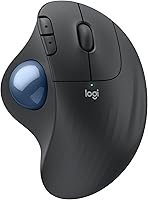
For a wider look at split and wavy boards, our roundup of the best wireless ergonomic keyboards puts the main options side by side. If a trackball appeals more than a mouse, the Logitech Ergo M575S keeps the hand still and pairs well with any of these boards.
Verdict: is the Logitech Ergo K860 worth it?
The Ergo K860 is worth it if wrist posture is your priority and your desk has room for a full-size board. The split keyframe, memory foam rest and adjustable tilt legs are a real combination, and the USB receiver plus Bluetooth means it fits most setups without adapters.
The ergonomic certification and recycled materials are extra reasons to pick it over a flat board.
Buy it if you type for most of the day and want your wrists straighter while you do. The two-year battery life and multi-device support make it easy to live with, and the full-size layout keeps the numpad you may already rely on.
The ambidextrous design means it works for either hand position without a separate version.
Choose the Wave Keys instead if your desk is shallow or you'd rather skip the split learning curve. Pick the MK345 combo if you want a keyboard and mouse in one purchase and don't need the ergonomic keyframe.
For everything else, this Logitech Ergo K860 wireless keyboard review lands on the same answer: it's the board to get when wrist bending is the problem you're trying to solve.
Frequently asked questions
Is the Logitech Ergo K860 good for small desks?
It can be tight. The board is 17.95 inches long and 9.17 inches wide, so measure your desk and leave room for the wrist rest and a mouse.
A compact board like the Wave Keys fits shallow desks better.
Does the Ergo K860 work with a Mac?
Yes. Logitech lists compatibility with Windows, macOS, Linux and Chrome OS, and the board connects by USB receiver or Bluetooth.
Check the Fn key layout for your system before you buy, since the custom functions differ between platforms.
How long do the batteries last in the Ergo K860?
Logitech says the board runs for up to two years on its batteries. It takes two AAA alkaline batteries and includes them.
Battery-life notifications come through the Logitech Options software, so install it if you want a warning before the keys stop responding.
Can the Ergo K860 connect to more than one device?
Yes. It pairs over Bluetooth or the included USB receiver, and Logitech lists multi-device capability for the board.
That lets you move between a work laptop and a home desktop without carrying a second keyboard, though switching is not instant on every setup.
Is a split keyboard hard to learn?
It takes a few days for most people, not weeks. The Ergo K860 keeps a standard QWERTY layout, so the letters sit where you expect; the curve and split are what change.
Type slowly at first and your hands adjust to the angled halves.
Should I add an ergonomic mouse to the Ergo K860?
It helps if your wrist discomfort comes from mouse use as much as typing. A trackball keeps the hand still and the wrist straight, which pairs well with a split keyboard.
Compare the options in our wireless ergonomic keyboard and mouse guide.