Logitech MX Master 4 vs MX Master 3S: Which Is Better? (November 2026)
For Logitech MX Master 4 vs MX Master 3S, choose the 3S for Bluetooth workflows and app profiles, or the 4 for haptics, Actions Ring shortcuts and a USB-C dongle. Both are right-hand mice with Quiet Clicks and up to 8,000 DPI tracking.
On this page (7 sections)
- Logitech MX Master 4 vs MX Master 3S: what changes?
- How do the MX Master 4 and 3S connect?
- Do the MX Master mice scroll and click differently?
- Which mouse fits your hand and desk?
- How should you set up an MX Master mouse?
- Which should you choose for your work?
- Logitech MX Master 4 vs MX Master 3S: the decision
For Logitech MX Master 4 vs MX Master 3S, choose the 3S for Bluetooth device switching and app-specific profiles, or the 4 for haptic feedback, Actions Ring shortcuts and a USB-C dongle. Both are right-hand mice with Quiet Clicks and up to 8,000 DPI tracking.
The right choice depends on which controls you will use every day. The MX Master 3S focuses on Bluetooth and custom app profiles, while the MX Master 4 adds haptics and an on-screen shortcut ring.
The MX Master 3S earns a score of 8.2, just above the MX Master 4 at 8.1. Treat that small gap as a tie-breaker; your device connections, work habits and preferred hand position matter more.
Logitech MX Master 4 vs MX Master 3S: what changes?
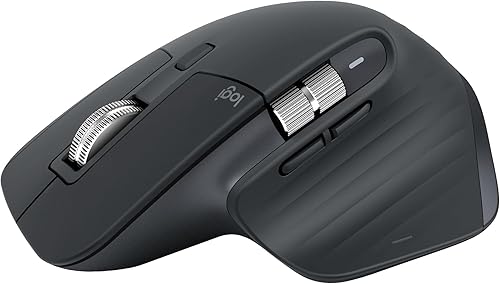
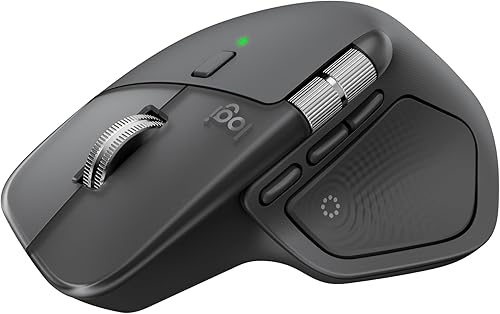
The MX Master 4 adds haptic controls and a USB-C dongle option; the MX Master 3S Bluetooth Edition connects over Bluetooth only. Their shared basics include 7 buttons, Quiet Clicks and up to 8,000 DPI tracking.
| Product | Best for | Connectivity | Tracking | Clicks | Our score |
|---|---|---|---|---|---|
| Logitech MX Master 3S Mouse | Bluetooth workflows | Bluetooth, up to 3 devices | Up to 8,000 DPI, including glass | Quiet Clicks | 8.2 |
| Logitech MX Master 4 Mouse | shortcut-heavy work | Bluetooth or USB-C dongle | Up to 8,000 DPI, including glass | Quiet Clicks | 8.1 |
| Logitech Lift Vertical Mouse | an upright grip | Bluetooth Low Energy or Logi Bolt | 9.0 |
The MX Master 4's Haptic Sense Panel can provide customizable feedback for selected actions, shortcuts and notifications. Its Actions Ring brings app tools and shortcuts to the cursor, with customization through Logi Options+.
The MX Master 3S has customizable buttons and app-specific profiles in Logi Options+, plus Flow for moving text, images and files between Windows and macOS computers. It can connect to up to 3 devices over Bluetooth.
Both have a thumb wheel and a shape with controls around the thumb. If you already use side buttons and app shortcuts, either may fit that habit; the MX Master 4 makes shortcut access a more visible part of its design.
Which shortcuts suit Logitech MX Master 4 vs MX Master 3S?
Pick the MX Master 4 if an on-screen shortcut overlay and haptic feedback suit your routine; pick the MX Master 3S if app-specific button profiles are enough. Start with the repeat actions in your day, such as switching tools, adjusting settings or moving between computers.
The MX Master 4's Actions Ring places frequently used tools and filters near the pointer. Its haptics can be customized for selected actions, but advanced customization requires Logi Options+.
The MX Master 3S lets you assign button actions and set different profiles by app. That approach suits people who want controls to change with the software they use, without choosing the MX Master 4 specifically for haptic feedback.
Before buying either mouse for shortcut work, list the actions you repeat most. If you mostly point, click and scroll, the extra customization may not change your day enough to justify choosing by software features.
How do the MX Master 4 and 3S connect?
The MX Master 4 supports Bluetooth or its included USB-C dongle; the MX Master 3S Bluetooth Edition uses Bluetooth. Check which connection your computer supports and whether you want a receiver option.
The MX Master 4 combines a USB-C dongle, an advanced radio chip and an optimized antenna. Logitech describes its connectivity as 2 times more powerful than before; the practical buying distinction here is that the mouse offers a dongle as well as Bluetooth.
The MX Master 3S pairs over Bluetooth with up to 3 devices. The Bluetooth Edition does not include a USB receiver or charging cable, so plan on Bluetooth pairing and have a compatible charging cable available for charging.
If you switch between computers, the MX Master 3S's Flow feature supports moving text, images and files between Windows and macOS. Flow and other custom settings require Logi Options+ on Windows or macOS.
A common mistake is assuming every MX Master 3S package includes a receiver. This comparison is specifically about the Bluetooth Edition, so choose the MX Master 4 if you want its USB-C dongle option, or confirm the connection details for the exact version you are considering.
Which MX Master works better with a Mac?
Either mouse can suit a Mac workflow, but your preferred connection and shortcuts decide between them. The MX Master 4 supports Bluetooth or its USB-C dongle, while this MX Master 3S version is Bluetooth-only.
The MX Master 3S offers Flow across Windows and macOS, as well as app-specific profiles. The MX Master 4 requires Logi Options+ for advanced customization, including its configurable controls.
If you use a Mac and a Windows computer, consider whether moving text, images and files between them would help. The 3S explicitly supports that Flow workflow across those operating systems; either mouse can still make sense if you only need a pointer and basic controls.
For more options beyond these two, see our guide to an ergonomic mouse for Mac. It can help you weigh connection, hand position and the kind of work you do.
Do the MX Master mice scroll and click differently?
Both mice offer Quiet Clicks and a MagSpeed scroll wheel; the MX Master 4 adds Logitech's newer scrolling claims. Logitech says the MX Master 4 wheel scrolls 1,000 lines per second and calls it the brand's fastest, quietest and most precise scrolling experience.
Logitech describes the MX Master 3S wheel as 90% faster and 87% more precise than the comparisons it names. These are brand comparisons, so focus on whether fast scrolling and fine control suit the documents, spreadsheets or timelines you use.
Both models have Quiet Clicks, described as reducing click noise by 90% in Logitech's comparison. This shared feature makes either mouse a reasonable fit for a quieter desk, but it is not a reason by itself to pay more for one model.
Both also have a thumb wheel. If you often work with wide spreadsheets or horizontal timelines, think about whether you will use that control; if your work involves short documents and simple browsing, it may be less useful.
The MX Master 4 supports up to 8,000 DPI tracking and can work on glass. The 3S also offers up to 8,000 DPI tracking on glass, so tracking sensitivity alone does not separate these two.
Which mouse fits your hand and desk?
Choose either MX Master if you want a right-hand, conventional ergonomic mouse with thumb controls. Choose a different shape if you specifically want a vertical grip or need a left-hand mouse.
Both MX Master models are right-hand mice. The MX Master 4 has a natural tilt and thumb scroll wheel, while the MX Master 3S has a silhouette designed for a more natural wrist posture and thumb controls.
The MX Master 3S measures 4.92 by 3.32 in and weighs 141 g. Compare its footprint with your desk and the way you hold a mouse, especially if you prefer a compact shape or often carry your mouse between locations.
Do not assume that an ergonomic shape will suit every hand. A comfortable fit depends on how your palm rests, where your fingers land and whether you can reach the controls without stretching.
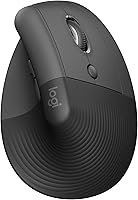
A vertical design changes the hand position. The Logitech Lift vertical mouse is made for small to medium right hands and has a 57-degree angle, so it is an alternative when grip shape matters more than the MX Master controls.
Our plain ergonomic mouse and keyboard guide covers how to think about your setup as a whole. Desk height, keyboard position and reach can affect how comfortable a mouse feels in everyday use.
How should you set up an MX Master mouse?
Pair the mouse with your main computer first, then adjust sensitivity and controls to match your work. Set up one change at a time so you can tell whether it helps.
For the MX Master 3S, use Bluetooth pairing and select the computer you want to connect. If you plan to use it across multiple computers, connect the other devices and learn the switching routine before relying on Flow for a task.
For custom buttons, app-specific profiles, Flow or advanced MX Master 4 controls, install Logi Options+ on Windows or macOS. Begin with one or two shortcuts you already use often, then add more only when they feel easy to remember.
Set pointer sensitivity to a comfortable starting level and adjust it in small steps. A setting that is too fast can make precise selection harder, while a setting that is too slow can make you move your arm farther than needed.
Place the mouse close to your keyboard, with your forearm relaxed and your shoulder down. Keep the scroll wheel and thumb controls within easy reach, and move the mouse with a comfortable motion instead of stretching across the desk.
What common MX Master buying mistakes should you avoid?
The most common mistake is paying for features you will not use or choosing the wrong connection type. Check the intended workflow, hand orientation and included connection option before deciding.
Do not buy the MX Master 4 just because it is newer. Its distinguishing features are haptics, Actions Ring shortcuts and USB-C dongle support; if Bluetooth and app profiles already cover your needs, the MX Master 3S may be the clearer fit.
Do not choose the MX Master 3S Bluetooth Edition expecting a USB receiver or charging cable in the box. If a dongle matters to your setup, choose the MX Master 4 or verify that the exact version you intend to buy includes the connection method you need.
Do not mistake these horizontal mice for vertical models. If an upright grip is your priority, compare the Logitech Lift and read our guide to choosing a vertical mouse.
Finally, do not add every possible shortcut on day one. A small set of memorable controls is easier to use consistently than a crowded custom layout.
Which should you choose for your work?
The MX Master 3S has a slight score lead, but the best choice depends on whether you value its Bluetooth workflow or the MX Master 4's added controls. Choose by the features you can name a use for, not by the model number.
Pick the MX Master 3S if you want Bluetooth connections for up to 3 devices, app-specific button profiles and Flow between Windows and macOS. Its 70-day battery life is a stated estimate, and the Bluetooth Edition does not include a receiver or charging cable.
Pick the MX Master 4 if you want haptic feedback for selected actions, shortcuts at your cursor and a choice between Bluetooth and its included USB-C dongle. It also has a stated battery life of up to 70 days, and Logitech says a one-minute charge can provide up to three hours of use.
Skip both if you need a left-hand model, a vertical grip or a smaller mouse shape than the MX Master 3S dimensions suit. The Logitech Lift is a more relevant choice for an upright grip and small to medium right hands.
Either way, both mice offer Quiet Clicks, a thumb wheel and glass-capable tracking. For help adjusting mouse position and desk layout, read our fit and setup guide.
Logitech MX Master 4 vs MX Master 3S: the decision
Pick the MX Master 3S for Bluetooth device switching, app profiles and Flow; pick the MX Master 4 for haptics, Actions Ring shortcuts and a USB-C dongle. If those features do not match your routine, save the extra controls for a mouse you will use differently.
Choose the Logitech Lift if your priority is an upright hand position. For the MX Master 4 vs MX Master 3S, the practical decision is simple: buy the 3S for its Bluetooth workflow, and the 4 when its added shortcut and connection options solve a real need.
Frequently asked questions
What is the difference between MX Master 4 and MX Master 3S?
The MX Master 4 adds a Haptic Sense Panel, Actions Ring shortcuts and a USB-C dongle option. The MX Master 3S Bluetooth Edition connects to up to 3 devices over Bluetooth and supports app-specific profiles and Flow between Windows and macOS.
Both have Quiet Clicks and up to 8,000 DPI tracking.
Does the MX Master 3S include a USB receiver?
This MX Master 3S Bluetooth Edition does not include a USB receiver or charging cable. It connects over Bluetooth to up to 3 devices.
If you need a USB connection option, the MX Master 4 includes a USB-C dongle as well as Bluetooth.
Do both MX Master mice track on glass?
Both models are described as tracking on glass and have sensors with up to 8,000 DPI. Surface tracking is only one part of the choice: compare the MX Master 4's haptics and Actions Ring with the MX Master 3S's Bluetooth device switching and app-specific profiles.
Which Logitech mouse is better for a vertical grip?
Neither MX Master is a vertical mouse; both have a conventional ergonomic shape with thumb controls. The Logitech Lift has a 57-degree vertical form and is designed for small to medium right hands, so consider it if an upright grip is your main priority.
Can the MX Master 3S switch between computers?
Yes. The MX Master 3S connects to up to 3 devices over Bluetooth.
Its Flow feature can move text, images and files between Windows and macOS computers.
Flow and other custom settings require Logi Options+ on Windows or macOS.